Best IPTV Players for Firestick in 2026: Comprehensive App Comparison & Sideloading Guide
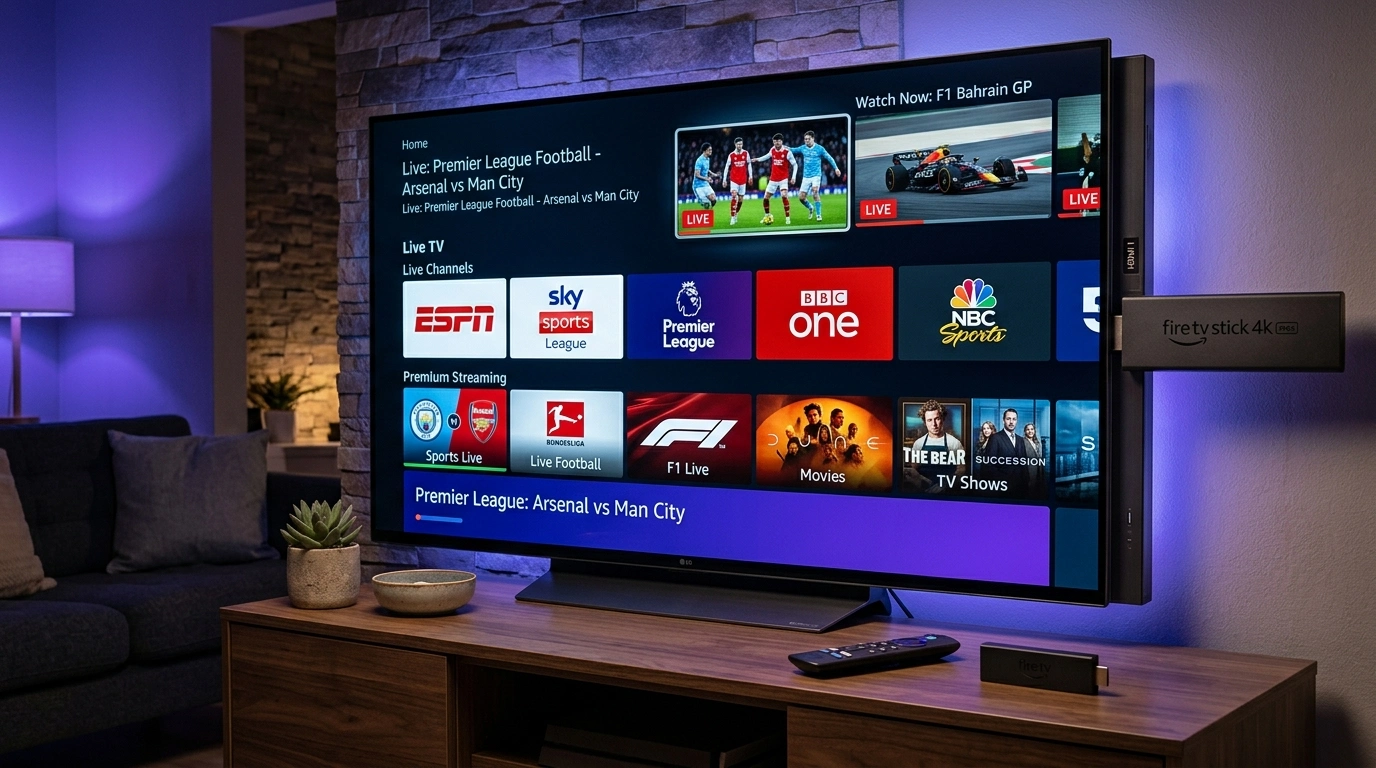
The Amazon Fire TV Stick lineup—ranging from the accessible Fire TV Stick HD and Lite to the high-performance Fire TV Stick 4K Max and Fire TV Cube—remains the undisputed champion of streaming hardware across global households. With millions of units deployed worldwide, Amazon's streaming dongles deliver an irresistible value proposition: exceptional hardware decoding power, dedicated television remote controls, seamless HDMI CEC integration, and a low price point that makes cutting the traditional cable cord affordable for everyone.
However, many television viewers unbox their new Firestick with a critical misconception: they assume that simply buying a streaming stick grants immediate access to live television channels. In reality, the Amazon Firestick is simply a high-efficiency digital rendering engine. To unlock live sports, international news broadcasts, premium cinema channels, and expansive on-demand video libraries, you must pair your Firestick hardware with two essential components:
- A Premium Streaming Subscription Service: A high-availability provider like SofaIPTV that delivers encrypted, multi-source broadcast feeds, M3U playlists, Xtream Codes API endpoints, and comprehensive electronic program guide (EPG) schedules.
- A High-Performance IPTV Player Application: A specialized client application engineered to run on Amazon's Fire OS, parse thousands of incoming channels, render silky-smooth TV guide grids, and feed incoming transport stream packets directly into the Firestick's hardware video decoder.
Because Amazon's proprietary Fire OS is a customized fork of the Android operating system, it does not include the standard Google Play Store found on Android TV devices. Consequently, finding, installing, and configuring the ideal IPTV player on Firestick requires understanding both Amazon Appstore availability and the simple art of "sideloading" verified APK packages.
In this definitive master guide, we compare the top IPTV players engineered for Amazon Firestick in 2026, break down their performance across different Fire TV hardware generations, provide step-by-step sideloading walkthroughs using the Downloader utility, and deliver essential system optimization techniques to ensure freeze-free, broadcast-grade streaming.
Fire OS Media Architecture: Understanding Firestick Hardware
Before selecting an application, it is essential to understand the technical environment of the Amazon Fire TV ecosystem. While Fire OS is built upon Android, Amazon's proprietary modifications introduce distinct performance advantages and unique constraints.
+-----------------------------------------------------------------------------------+
|                        Amazon Fire TV System Architecture                         |
+-----------------------------------------------------------------------------------+
|  Application Execution Layer:                                                     |
|  [TiviMate / IPTV Smarters Pro / XCIPTV / Sparkle TV / Kodi / Televizo]           |
|  (Installed via Amazon Appstore or Sideloaded via Downloader APK)                 |
+-----------------------------------------+-----------------------------------------+
                                          |
+-----------------------------------------v-----------------------------------------+
|  Fire OS Custom Android Framework (Fire OS 7 / Fire OS 8):                        |
|  - Custom Leanback UI Engine        - Absence of Google Play Services Framework   |
|  - Aggressive Low-Memory Killer     - Scoped Storage & Security Permissions       |
+-----------------------------------------+-----------------------------------------+
                                          |
+-----------------------------------------v-----------------------------------------+
|  Hardware Acceleration Layer (MediaTek / Amlogic SoCs):                           |
|  - Dedicated HEVC (H.265), AVC (H.264), and AV1 Silicon Decoders                  |
|  - Dolby Vision, HDR10+, and Dolby Atmos Audio Passthrough Hardware               |
+-----------------------------------------------------------------------------------+
1. The Absence of Native Google Play Services
Standard Android television applications frequently rely on Google Play Services for in-app billing, cloud data synchronization, and push notifications. Because Amazon replaces Google's framework with its own proprietary Amazon Appstore services, certain Android TV apps cannot be installed directly from an APK without modifications. Premier IPTV players—such as TiviMate and IPTV Smarters Pro—are specifically architected to run seamlessly on pure AOSP (Android Open Source Project) environments, making them 100% compatible with Fire OS.
2. Hardware Video Decoders Across Firestick Generations
Not all Firesticks are created equal. The underlying System-on-a-Chip (SoC) dictates which video codecs your device can decompress in hardware:
- Fire TV Stick Lite / HD (Fire OS 7): Features a 1.7 GHz quad-core processor and 1 GB of system RAM. Supports 1080p Full HD at 60 FPS in H.264 and H.265. Lacks 4K decoding and struggles with multi-screen grid viewing.
- Fire TV Stick 4K (2nd Gen, 2023+): Powered by an upgraded 1.7 GHz processor with 2 GB of RAM. Delivers hardware decoding for 4K Ultra HD at 60 FPS in H.265, HDR10+, and Dolby Vision.
- Fire TV Stick 4K Max (2nd Gen, 2023+): The pinnacle of streaming dongles. Features a 2.0 GHz quad-core CPU, 2 GB of high-speed RAM, Wi-Fi 6E connectivity, 16 GB of internal storage, and dedicated silicon decoding for the modern AV1 codec. Channel switching zapping speed is near-instantaneous.
- Fire TV Cube (3rd Gen): A true media powerhouse featuring an octa-core processor (4x 2.2 GHz + 4x 2.0 GHz), 2 GB of RAM, a built-in Ethernet port, and HDMI input passthrough. Capable of handling up to 9 simultaneous multi-screen IPTV streams with zero thermal throttling.
1. TiviMate IPTV Player — The Undisputed Gold Standard
If you survey seasoned streaming enthusiasts and home theater purists regarding the finest IPTV player on Firestick, one name invariably dominates the discussion: TiviMate IPTV Player. Developed by Armobsoft FZE, TiviMate delivers an interface so polished, responsive, and aesthetically refined that it effortlessly eclipses the software found on tier-one commercial cable and satellite set-top decoders.
+---------------------------------------------------------------------------------+
|                         TiviMate on Amazon Fire TV                              |
|  [TV Guide Grid]   [Search]   [Recordings]   [Catch-Up]   [Settings]            |
+---------------------------------------------------------------------------------+
| Channel List        | 20:00 - 20:30             | 20:30 - 21:00                 |
| 101 Sky Sports Main | Premier League Live (4K)  | Post-Match Tactical Analysis  |
| 102 TNT Sports 1    | UEFA Champions League     | Champions League Highlights   |
| 103 BBC One HD      | Evening News & Weather    | Nature Documentary Special    |
| 104 Canal+ Sport HD | Ligue 1 Live Broadcast    | French Football Highlights    |
+---------------------------------------------------------------------------------+
| Status: Playing 4K UHD 50.0 FPS | HEVC Main 10 | 18.2 Mbps | Buffer: Rock Solid |
+---------------------------------------------------------------------------------+
Key Technical Features on Firestick
- Exemplary Remote Control Ergonomics: TiviMate is engineered from the ground up for five-way directional remote controls. Long-pressing the Select button, pressing Left to reveal channel bouquets, or clicking Menu brings up context-sensitive controls without obscuring the live broadcast playing in the background.
- Unrivaled Multi-Screen Grid: Watch up to four live matches simultaneously on a Firestick 4K or 4K Max, or up to nine on a Fire TV Cube. You can toggle audio between screens with a single tap of the D-pad, making it the ultimate tool for weekend sports viewing.
- Auto Frame Rate (AFR) Switching: Broadcast television in the UK and Europe streams at 50 FPS, while North American sports broadcast at 60 FPS. TiviMate natively switches the Firestick's HDMI output refresh rate to match the broadcast cadence, eliminating visual motion judder during fast sports pans.
- Network DVR Recording via SMB: Because Firesticks feature limited internal storage, TiviMate allows you to schedule recordings of upcoming television programs directly to a shared folder on your home computer, a router-connected USB drive, or a Network Attached Storage (NAS) appliance over your local Wi-Fi.
Activating TiviMate Premium on Firestick
Because the Google Play Store is not present on Fire OS, unlocking TiviMate Premium requires a simple workaround:
- Sideload the TiviMate APK onto your Firestick using the Downloader app.
- Install the TiviMate Companion application on an Android mobile phone or tablet (or via an Android emulator on a Windows PC/Mac).
- Purchase an annual or lifetime subscription within the Companion app using your Google Play account.
- Open TiviMate on your Firestick, navigate to Settings > Unlock Premium, and log in with the account credentials created in the Companion app. Your Firestick will activate instantly.
Upgrade to SofaIPTV Premium 4K
Experience buffer-free entertainment with 50,000+ live channels and 200,000+ on-demand movies & series in pristine 4K.
- 4K & Full HD Quality
- Anti-Freeze v8.2 Tech
- All Devices Supported
- Instant 5-Min Activation
2. IPTV Smarters Pro — The Multi-Platform Powerhouse
IPTV Smarters Pro (also known as Smarters Player Pro) is one of the most widely used IPTV applications in the world. Its widespread acclaim on the Firestick platform is driven by its exceptional user-friendliness, balanced multimedia dashboard, and seamless integration of Video-on-Demand (VOD) movie and television series libraries.
+---------------------------------------------------------------------------------+
|                            IPTV Smarters Pro on Fire TV                         |
|  [ LIVE TV ]         [ MOVIES ]         [ SERIES ]         [ MULTI-SCREEN ]     |
+---------------------------------------------------------------------------------+
| Master Account: SofaIPTV Subscription                                           |
| Connection Method: Xtream Codes API                                             |
| Features:                                                                       |
| - High-Resolution Movie Poster Wall with IMDb Ratings & Cast Overviews          |
| - Automatic Episode Autoplay & "Resume Watching" Bookmarks for Series           |
| - Built-in Speed Test Utility to Diagnose Connection Bottlenecks                |
| - Multi-User Profile Switcher with Parental PIN Security Controls               |
+---------------------------------------------------------------------------------+
Key Technical Features on Firestick
- Balanced Content Organization: Unlike TiviMate, which prioritizes live linear broadcast grids, Smarters Pro splits its home screen into four distinct media hubs: Live TV, Movies, Series, and Catch Up.
- Rich VOD Metadata Scraping: When connected to your SofaIPTV account via Xtream Codes, Smarters Pro downloads comprehensive metadata for thousands of films and series: high-resolution box art, plot synopses, cast directories, genre tags, and real-time IMDb user ratings.
- External Media Engine Integration: If a particular rare video codec stutters when played through the default built-in player, Smarters Pro allows you to designate external player applications—such as VLC for Fire TV or MX Player—with a single toggle in settings.
- Built-in Network Diagnostic Tools: Smarters Pro includes a built-in internet speed test and stream health monitor, allowing you to test connection throughput directly on your Firestick without leaving the application.
3. XCIPTV Player — The Modern, Highly Responsive Contender
Developed by OTTRUN, XCIPTV Player has rapidly surged in popularity as a premier alternative to IPTV Smarters Pro. Engineered with a sleek, modern card-based interface and powered by an ultra-tuned Google ExoPlayer backend, XCIPTV is celebrated for its lightweight system resource footprint and exceptional stability on budget Fire TV Stick Lite and HD models.
+---------------------------------------------------------------------------------+
|                                 XCIPTV Player                                   |
|  [ Live Channels ]   [ VOD Movies ]   [ TV Series ]   [ Built-in Web Browser ]  |
+---------------------------------------------------------------------------------+
| Playback Engine: Dual ExoPlayer 2 / VLC Integration                             |
| Video Capabilities: 4K 60FPS HEVC, Multi-Audio Track Switching, Subtitle Engine|
| Customization: Supports multiple dashboard themes, grid layouts, and color skins|
+---------------------------------------------------------------------------------+
Key Technical Features on Firestick
- Modern Material Card UI: XCIPTV departs from traditional text-heavy menus, presenting channel bouquets and VOD libraries in visually engaging, high-contrast horizontal cards that are effortless to navigate with a Fire TV remote.
- Dual Internal Player Engines: The application includes two separate internal media players (ExoPlayer and VLC). You can assign ExoPlayer to handle live HLS/MPEG-TS sports feeds and designate VLC to handle complex MKV containers with multi-track audio and external subtitles.
- Cloud Backup & Configuration Sync: Easily export your application settings, favorite channels, and custom category arrangements to local storage or cloud servers, making multi-room Firestick deployment effortless.
4. Smart IPTV (SIPTV) — The Ultra-Lightweight Legacy Classic
For owners of older, memory-constrained streaming hardware—such as 1st and 2nd generation Firesticks or entry-level smart TVs—Smart IPTV (SIPTV) remains a beloved classic.
+---------------------------------------------------------------------------------+
|                               Smart IPTV (SIPTV)                                |
|  [Channel Number]  [Channel Name]                     [Current Program EPG]     |
|  001               Sky Sports Main Event HD           Premier League Football   |
|  002               TNT Sports 1 FHD                   UEFA Champions League     |
|  003               Eurosport 1 4K                     Cycling Grand Tour        |
+---------------------------------------------------------------------------------+
| Activation Method: MAC Address Registration at siptv.app                        |
| Resource Footprint: Less than 15 MB RAM (Ultra-Lightweight)                     |
+---------------------------------------------------------------------------------+
Key Technical Features
- Zero UI Overhead: SIPTV does not feature flashy animations, heavy poster galleries, or complex background scraping daemons. It is a razor-sharp, text-based channel list paired with an EPG schedule.
- MAC Address Web Management: Instead of typing long URLs on your television screen using a virtual keyboard, you register your Firestick's virtual MAC address on the official SIPTV website (
siptv.app) and upload your M3U playlist file directly from your computer or smartphone browser. - Instantaneous Launch Speeds: Because it carries no background database bloat, Smart IPTV launches in less than one second, even on aged Fire TV hardware.
5. Kodi + PVR IPTV Simple Client — The Open-Source Powerhouse
For home theater enthusiasts who demand audiophile-grade sound and total system control, Kodi paired with the PVR IPTV Simple Client add-on transforms your Amazon Firestick into an all-in-one entertainment powerhouse.
+---------------------------------------------------------------------------------+
|                              Kodi v21 on Fire TV                                |
|  [TV Guide]      [Movies]      [TV Shows]      [Add-ons]      [System Audio]    |
+---------------------------------------------------------------------------------+
| Audio Architecture: IEC 61937 Bitstream Passthrough                             |
| Audio Formats Sent to AVR: Dolby TrueHD, Dolby Atmos, DTS-HD Master Audio       |
| Total Cost: 100% Free and Open Source (FOSS)                                    |
+---------------------------------------------------------------------------------+
Key Technical Features
- Uncompressed Audio Passthrough: Standard Firestick streaming apps often downmix multichannel audio tracks into standard stereo. Kodi bypasses Fire OS's internal audio mixer, bitstreaming pure Dolby Digital Plus, Dolby Atmos, and DTS audio tracks directly to your connected soundbar or AV receiver.
- Infinite Visual Customization: Completely overhaul the television interface using community-developed skins like Aeon Nox or Arctic Horizon.
- All-in-One Media Hub: Combine live IPTV channels with local media libraries stored on hard drives, home media servers (Plex, Jellyfin), and internet streaming scrapers.
Head-to-Head Comparison: Firestick IPTV Players
+----------------------+------------+---------------+------------+---------------+------------+
| Feature / Metric     | TiviMate   | IPTV Smarters | XCIPTV     | Smart IPTV    | Kodi PVR   |
+----------------------+------------+---------------+------------+---------------+------------+
| Primary Focus        | Live TV    | All-in-One    | Balanced   | Ultra-Light   | Media Hub  |
| UI Smoothness (Fire) | 10 / 10    | 8.0 / 10      | 8.5 / 10   | 7.5 / 10      | 7.0 / 10   |
| Channel Zapping Speed| Instant    | Fast          | Very Fast  | Instant       | Moderate   |
| EPG Grid Usability   | Best       | Moderate      | Very Good  | Basic Text    | Good       |
| Multi-Screen Support | Up to 9    | Up to 4       | Up to 4    | No            | Add-on only|
| Auto Frame Rate (AFR)| Native     | No            | No         | No            | Native     |
| SMB / NAS Recording  | Yes        | External only | Yes        | No            | Complex    |
| VOD Catalog Quality  | Basic      | Outstanding   | Very Good  | Poor          | Excellent  |
| RAM Resource Usage   | Moderate   | High          | Moderate   | Ultra-Low     | High       |
| Cost / License       | Freemium   | Freemium/Paid | Free/Paid  | One-time fee  | 100% Free  |
+----------------------+------------+---------------+------------+---------------+------------+
Complete Step-by-Step Sideloading Walkthrough for Firestick
Because premier IPTV applications like TiviMate and certain versions of IPTV Smarters Pro are not hosted directly on the Amazon Appstore due to licensing policies, you must install them via sideloading. Follow this field-tested walkthrough to configure your Firestick and install your player in under five minutes.
Phase 1: Unlock Developer Options on Fire OS 7 & 8
On modern Firestick firmware, Amazon hides the "Developer Options" menu by default. To unhide it:
- From the Fire TV home dashboard, navigate to Settings (gear icon) on the far right.
- Select My Fire TV.
- Select About.
- Highlight your device name (e.g., Fire TV Stick 4K Max) and press the Select / OK button on your remote control rapidly seven (7) times.
- A notification will appear at the bottom of the screen stating: "No need, you are already a developer."
- Press the Back button once. You will now see Developer Options listed beneath About.
+---------------------------------------------------------------------------------+
|                       Developer Options Setup Roadmap                           |
+---------------------------------------------------------------------------------+
| Settings -> My Fire TV -> About -> Click Device Name 7 Times                    |
| Return to My Fire TV -> Developer Options -> Install Unknown Apps               |
| Select "Downloader" -> Toggle to "ON"                                           |
+---------------------------------------------------------------------------------+
Phase 2: Install Downloader and Authorize Permissions
- Return to the Fire TV home screen and select the Find / Search icon.
- Type
Downloaderand select the application (the prominent orange icon created by AFTVnews). - Click Download or Get to install the app.
- Once installed, do not open it immediately. Navigate to Settings > My Fire TV > Developer Options > Install Unknown Apps.
- Locate Downloader in the list and click it to toggle permissions to ON. (This grants Downloader permission to install APK packages onto your device).
Phase 3: Sideload Your IPTV Player
- Launch the Downloader application from your Apps screen.
- When prompted, select Allow to grant storage permissions, then click OK on the welcome update prompt.
- In the URL address bar, enter the official download URL or verified numeric quick-code for your chosen IPTV application:
- TiviMate Official APK: Enter
tivimate.comor the verified numeric shortcode. - IPTV Smarters Pro: Enter the verified direct developer URL.
- TiviMate Official APK: Enter
- Click Go. Downloader will connect to the server and download the compiled APK binary file directly to your Firestick storage.
- Once the download finishes, an installation prompt will appear automatically. Select Install.
- After installation concludes, select Done, then click Delete on the Downloader prompt to safely remove the installer APK file. (This preserves valuable flash storage space on your 8 GB Firestick).
Upgrade to SofaIPTV Premium 4K
Experience buffer-free entertainment with 50,000+ live channels and 200,000+ on-demand movies & series in pristine 4K.
- 4K & Full HD Quality
- Anti-Freeze v8.2 Tech
- All Devices Supported
- Instant 5-Min Activation
Ingesting Your SofaIPTV Credentials via Xtream Codes API
Once your player is installed on your Firestick, connect your SofaIPTV account using the high-performance Xtream Codes API:
+---------------------------------------------------------------------------------+
|                    Xtream Codes Connection Parameters                           |
+---------------------------------------------------------------------------------+
| Playlist Name : SofaIPTV Firestick                                              |
| Server URL    : http://your-server-url:port (from activation email)             |
| Username      : your_assigned_username                                          |
| Password      : your_assigned_password                                          |
| VOD Options   : Include Movies and Series (Checked)                             |
+---------------------------------------------------------------------------------+
- Launch your IPTV application on your Firestick.
- Select Add Playlist or Add New User.
- Choose Xtream Codes API Login.
- Enter the descriptive name: type
SofaIPTV. - Carefully enter your Server URL, Username, and Password exactly as provided in your subscription activation email.
- Verify that no trailing whitespace characters were accidentally added by the Fire TV virtual keyboard.
- Click Add User or Connect. The player will synchronize your channel bouquets, download movie and series artwork, and populate the electronic program guide grid.
Firestick Optimization: 5 Essential Performance Tweaks
To ensure your Firestick streams live television with zero buffering, smooth motion tracking, and instant channel switching, execute these critical system optimizations:
1. Hardwire with a USB Ethernet OTG Adapter
While Wi-Fi is convenient, radio frequency interference from household appliances and neighboring routers introduces micro-packet drops that cause buffering. Invest in a dedicated USB-to-Ethernet OTG adapter and connect your Firestick directly to your router using a shielded Cat6 Ethernet cable.
2. Turn Off Amazon Background Video and Audio Autoplay
By default, the Fire TV home screen continuously buffers and plays video trailers in the background, consuming valuable network bandwidth and system RAM:
- Navigate to Settings > Preferences > Featured Content.
- Set Allow Video Autoplay to OFF.
- Set Allow Audio Autoplay to OFF.
3. Disable Amazon Device Usage Telemetry
Background data collection daemons continuously consume CPU cycles on your streaming stick:
- Navigate to Settings > Preferences > Privacy Settings.
- Turn Device Usage Data to OFF.
- Turn Collect App Usage Data to OFF.
- Navigate to Data Monitoring and toggle it to OFF.
4. Enable Auto Frame Rate (AFR) Matching
In TiviMate, navigate to Settings > Playback > Auto Frame Rate (AFR) and toggle the switch to ON. Select Switch on start. When you tune to a 50 FPS European football broadcast or a 24 FPS cinema movie, the Firestick will automatically match your TV's HDMI refresh rate, completely eliminating motion judder during camera pans.
5. Maintain at Least 1.5 GB of Free Internal Storage
When remaining internal storage drops below 800 MB on an 8 GB Firestick, Fire OS aggressively terminates background processes and severely restricts video buffer caches. Periodically navigate to Settings > Applications > Manage Installed Applications, select apps you no longer use, and uninstall them. Clear the cache on your IPTV player once a month to remove expired EPG records.
6. Emerging Contenders: iMPlayer & Televizo for Fire TV
While TiviMate and Smarters Pro dominate mainstream discourse, two modern contenders have developed passionate followings among Firestick power users: iMPlayer and Televizo.
+---------------------------------------------------------------------------------+
|                    iMPlayer & Televizo Feature Highlights                       |
+---------------------------------------------------------------------------------+
| iMPlayer:                                                                       |
| - Centralized Cloud Management Dashboard (manage playlists via web browser)     |
| - Advanced Stalker Portal / MAC Address Simulation Engine                       |
| - Integrated Multi-Screen with Dynamic Layout Switching (2x2, 1+3, 1+5)         |
+---------------------------------------------------------------------------------+
| Televizo:                                                                       |
| - Extremely Lightweight Memory Footprint (Ideal for Fire TV Stick Lite / HD)   |
| - Intuitive Channel Group Filtering & Subtitle Synchronization Adjuster         |
| - Direct Integration with Android MediaCodec NDK for Rapid Channel Zapping      |
+---------------------------------------------------------------------------------+
iMPlayer: Cloud-Synchronized TV Management
Developed specifically for modern streaming hardware, iMPlayer offers a feature that completely eliminates the pain of typing with a Firestick remote: a centralized cloud dashboard.
- By registering your device on the iMPlayer web portal, you can add, edit, or reorganize your SofaIPTV playlists from your laptop or desktop browser.
- Changes made in your web browser synchronize to your Firestick automatically within seconds.
- iMPlayer features one of the most flexible multi-screen interfaces available, allowing users to create custom grid layouts and resize individual video feeds dynamically.
Televizo: The Lightweight Minimalist
If you are operating an older Fire TV Stick with only 1 GB of system RAM, running heavy applications can cause memory stutter. Televizo is engineered with an ultra-lightweight codebase that consumes less than 40 MB of RAM during live 1080p playback.
- It features rapid channel zapping, clean typography, comprehensive parental controls, and robust support for both M3U playlists and Xtream Codes API.
- Its audio and subtitle offset tools allow you to correct desynchronized audio tracks on international feeds on the fly.
7. Firestick Hardware Deep-Dive: SoC Benchmarks & Codec Profiles
To maximize your IPTV streaming fidelity, you must understand the hardware decoding ceiling of your specific Fire TV model. Running a high-bitrate 4K 60FPS HEVC stream on hardware designed strictly for 1080p AVC will result in immediate playback failure.
+-----------------------------------+-------------------+-------------------+-------------------+
| Hardware Generation               | SoC / CPU Arch.   | Hardware Decoders | Networking        |
+-----------------------------------+-------------------+-------------------+-------------------+
| Fire TV Stick Lite / HD           | MediaTek MT8695D  | H.264, H.265 1080p| Wi-Fi 5 (802.11ac)|
| (1 GB RAM / 8 GB Flash)           | Quad-core 1.7 GHz | (NO 4K / NO AV1)  | 2x2 MIMO          |
+-----------------------------------+-------------------+-------------------+-------------------+
| Fire TV Stick 4K (1st Gen)        | MediaTek MT8695   | H.264, H.265 4K60 | Wi-Fi 5 (802.11ac)|
| (1.5 GB RAM / 8 GB Flash)         | Quad-core 1.7 GHz | Dolby Vision HDR  | 2x2 MIMO          |
+-----------------------------------+-------------------+-------------------+-------------------+
| Fire TV Stick 4K Max (2nd Gen)    | MediaTek MT8696T  | H.265, H.264, AV1 | Wi-Fi 6E (Tri-Band|
| (2 GB RAM / 16 GB Flash)          | Quad-core 2.0 GHz | 4K 60FPS HDR10+   | 6 GHz Spectrum)   |
+-----------------------------------+-------------------+-------------------+-------------------+
| Fire TV Cube (3rd Gen)            | Amlogic POP1-G    | H.265, H.264, AV1 | 10/100 Ethernet + |
| (2 GB RAM / 16 GB Flash)          | Octa-core 2.2 GHz | 4K 60FPS TrueHD   | Wi-Fi 6E Tri-Band |
+-----------------------------------+-------------------+-------------------+-------------------+
The Game-Changing Power of the AV1 Codec
The latest Fire TV Stick 4K Max (2nd Gen) and Fire TV Cube (3rd Gen) feature dedicated silicon decoders for AV1 (AOMedia Video 1).
- AV1 provides approximately 30% greater data compression efficiency than HEVC (H.265) and 50% greater efficiency than H.264 at identical visual clarity.
- As top-tier IPTV providers migrate premier 4K sports channels to AV1 to reduce bandwidth congestion, older streaming sticks without hardware AV1 decoding must rely on CPU software decoding, leading to overheating and freezing. Upgrading to a 4K Max future-proofs your living room setup.
8. Audio Passthrough & Surround Sound Configuration
Many Firestick owners connect their streaming stick directly into an HDMI port on an AV receiver or an eARC-enabled soundbar, yet find themselves listening to flat stereo audio rather than immersive 5.1 surround sound.
+---------------------------------------------------------------------------------+
|                       Fire TV Audio Bitstream Pipeline                          |
+---------------------------------------------------------------------------------+
| 1. Default Setting (Best Available):                                            |
|    Firestick inspects TV HDMI EDID -> Downmixes 5.1 to Stereo PCM -> FLAT SOUND|
+---------------------------------------------------------------------------------+
| 2. Optimized Setting (Passthrough / Dolby Digital Plus):                        |
|    Firestick bypasses OS mixer -> Bitstreams raw 5.1 AC3 / E-AC3 / Atmos stream |
|    directly to Soundbar / AVR -> CINEMATIC SURROUND SOUND EXPERIENCE            |
+---------------------------------------------------------------------------------+
How to Configure System Audio on Fire OS
- From the Fire TV home screen, open Settings > Display & Sounds > Audio.
- Select Surround Sound.
- By default, Fire OS selects "Best Available," which frequently triggers software downmixing. Change this setting to Passthrough (or Dolby Digital Plus).
- In your IPTV player (such as TiviMate):
- Navigate to Settings > Playback > Audio.
- Set Audio Decoder to Hardware.
- Toggle Audio Passthrough to ON.
- When tuning to premier sports broadcasts, cinema channels, or on-demand blockbusters encoded with 5.1 surround sound, your AV receiver or soundbar will illuminate the Dolby Digital / Dolby Atmos indicator badge, delivering rich, dynamic audio reproduction.
9. Advanced Sideloading: Wireless ADB via Easy Fire Tools
While Downloader is the standard sideloading utility, entering long web URLs using an on-screen keyboard can be tedious. If you own an Android smartphone or tablet, you can sideload any IPTV application onto your Firestick in seconds using Wireless ADB (Android Debug Bridge).
+---------------------------------------------------------------------------------+
|                  Wireless ADB Sideloading Architecture (Easy Fire Tools)        |
+---------------------------------------------------------------------------------+
|  [Android Smartphone]                                                           |
|  - Downloads official IPTV APK from developer website                           |
|  - Launches Easy Fire Tools app -> Scans local Wi-Fi for Firestick IP           |
|                                                                                 |
|  (Encrypted ADB Protocol over Port 5555)                                         |
|                                                                                 |
|  [Amazon Firestick]                                                             |
|  - Settings -> My Fire TV -> Developer Options -> ADB Debugging: ON             |
|  - Receives APK payload over Wi-Fi -> Automatically installs app in background  |
+---------------------------------------------------------------------------------+
Step-by-Step Wireless Sideloading Instructions
- On your Firestick, navigate to Settings > My Fire TV > Developer Options and toggle ADB Debugging to ON.
- Note your Firestick's local IP address: navigate to Settings > My Fire TV > About > Network (e.g.,
192.168.1.150). - On your Android smartphone, install Easy Fire Tools from the Google Play Store.
- Download your chosen IPTV player's APK directly to your phone's storage.
- Open Easy Fire Tools, tap the Settings icon, and input your Firestick's IP address.
- Tap the Connect icon in the top right. A prompt will appear on your television screen: "Allow USB debugging?" Check the box for "Always allow from this computer" and select OK.
- In Easy Fire Tools, select Custom APK File, select the downloaded APK on your phone, and tap Install. The application will push across your local Wi-Fi and install onto your Firestick in less than thirty seconds.
Troubleshooting Matrix: Common Firestick IPTV Issues
+-----------------------------------+-----------------------------------+-----------------------------------+
| Issue Encountered                 | Root Technical Cause              | Definitive Technical Solution     |
+-----------------------------------+-----------------------------------+-----------------------------------+
| Stream freezes every 2 minutes    | 2.4GHz Wi-Fi congestion or ISP    | Switch Wi-Fi to 5GHz; hardwire via|
| on live sports channels           | bandwidth throttling during games | Ethernet adapter; enable VPN      |
+-----------------------------------+-----------------------------------+-----------------------------------+
| Audio plays smoothly, but screen  | Video decoder negotiation failure | Settings > Playback > Switch Video|
| is completely black               | with Fire TV MediaCodec hardware  | Decoder from Hardware to HW+ / SW |
+-----------------------------------+-----------------------------------+-----------------------------------+
| App crashes to Fire TV home       | Corrupted SQLite cache or internal| Settings > Apps > Manage Installed|
| screen immediately upon launch    | storage capacity exhausted (<500MB| Apps > Force Stop > Clear Cache   |
+-----------------------------------+-----------------------------------+-----------------------------------+
| Live sports camera pans look      | Frame rate mismatch between 50Hz  | Enable Auto Frame Rate (AFR) in   |
| juddery and unnatural             | broadcast and 60Hz display output | player; turn off TV TruMotion     |
+-----------------------------------+-----------------------------------+-----------------------------------+
| Downloader reports "Error 403"    | Website blocking generic Downloader| Check shortcode syntax; verify URL|
| or refuses to download APK        | user-agent; check internet link   | in Downloader browser tab         |
+-----------------------------------+-----------------------------------+-----------------------------------+
| "Playback Error" on every channel | System clock / timezone mismatch  | Settings > Preferences > Time Zone|
| after waking stick from sleep     | corrupting SSL token handshake    | Sync clock with network NTP time  |
+-----------------------------------+-----------------------------------+-----------------------------------+
| Firestick reboots unexpectedly    | Insufficient electrical power from| Power stick using original wall   |
| during 4K stream playback         | television's built-in USB port    | adapter, NOT the TV USB port      |
+-----------------------------------+-----------------------------------+-----------------------------------+
Master 8-Point Firestick IPTV Checklist
Execute this checklist to verify your Firestick is primed for optimal streaming performance:
- Hardware Power: Connect the streaming stick to a dedicated wall power outlet using the factory adapter.
- HDMI Extender: Always attach the flexible HDMI extender cable to keep the stick away from television heat.
- Network Connection: Connect via a Cat6 Ethernet adapter or lock your Wi-Fi strictly to the clean 5 GHz band.
- App Installation: Sideload TiviMate or IPTV Smarters Pro using verified developer URLs in Downloader.
- Connection Protocol: Log in using the Xtream Codes API with exact letter capitalization and no trailing spaces.
- Decoder Acceleration: Confirm that Video Decoder is set to Hardware (MediaCodec) in your player settings.
- Motion Calibration: Enable Auto Frame Rate (AFR) matching to eliminate 50Hz/60Hz sports panning judder.
- Storage Cleanliness: Maintain at least 1.5 GB of free flash storage space by uninstalling unused applications.
Frequently Asked Questions
Conclusion: Transform Your Firestick into a Home Entertainment Powerhouse
The Amazon Firestick is one of the most capable, cost-effective streaming devices ever engineered. When freed from the limitations of default streaming apps and paired with an elite IPTV player, it transforms your living room television into a world-class broadcast entertainment hub.
Whether you select TiviMate for its peerless live TV interface, IPTV Smarters Pro for its rich movie and series libraries, or XCIPTV for its lightweight speed, your choice of application represents the bridge between your hardware and your entertainment.
Unlock the full potential of your Firestick today. Explore our expansive global channel directory, review our detailed installation tutorials, or select your preferred SofaIPTV subscription package to experience live sports, premium cinema, and international television in stunning, uncompromised 4K clarity.