How to Improve IPTV Picture Quality: 15 Ways to Fix Blurry Streams & Maximize 4K Clarity
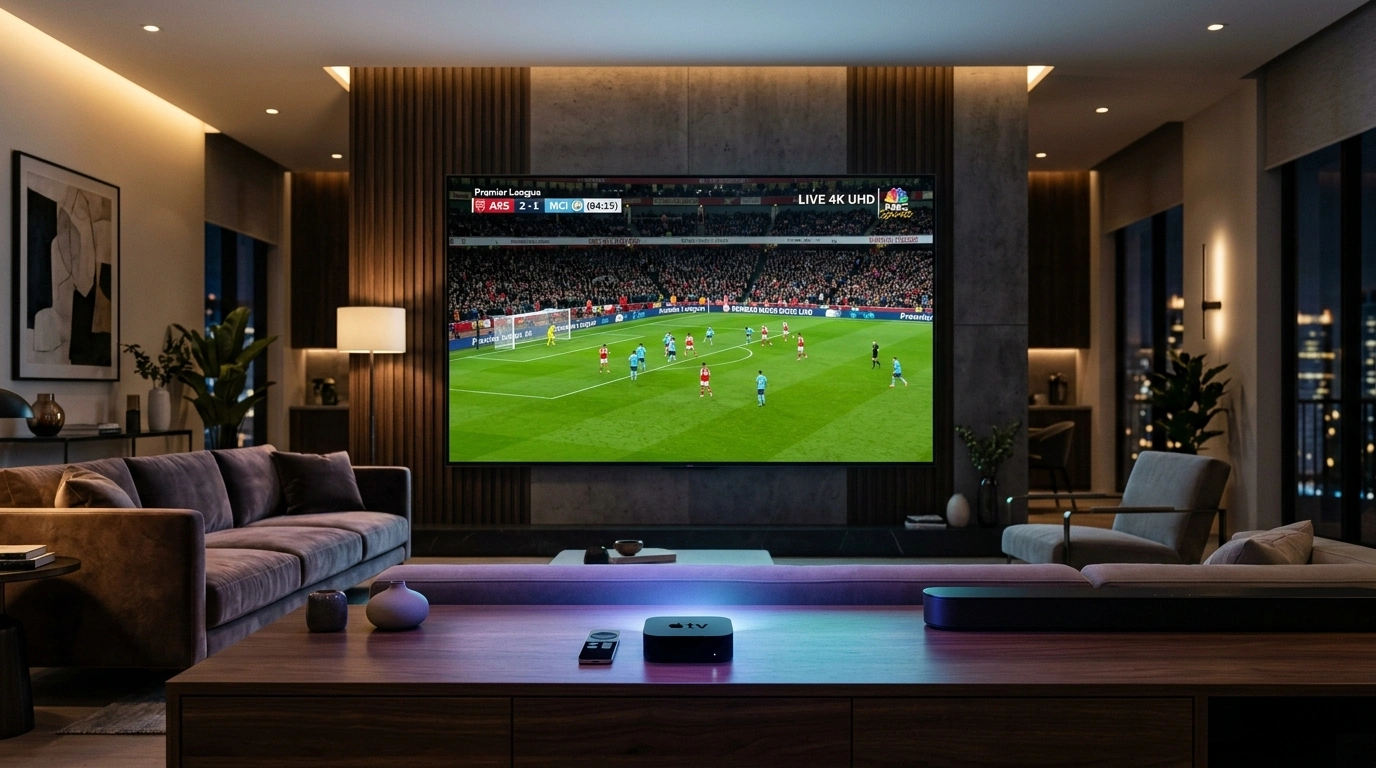
Nothing breaks the immersion of a major championship football match, a high-octane Formula 1 Grand Prix, or a cinematic Hollywood blockbuster quite like a muddy, pixelated, washed-out video stream. You invested in a modern 4K or 8K Smart television with vibrant OLED or Mini-LED display technology, set up a dedicated audio soundbar, prepared your refreshments, and settled comfortably on your couch. Yet instead of witnessing pristine grass textures and razor-sharp jersey numbers, you are confronted with blocky compression artifacts, color banding in dark scenes, ghosting around moving players, and intermittent drops to standard definition.
When picture quality degrades, the instinctive reaction for most streaming enthusiasts is to blame their IPTV subscription service immediately. While the stream source and delivery servers unquestionably play a fundamental role, digital television streaming over internet protocol operates across a complex multi-stage delivery pipeline. A degradation in visual clarity can occur at any link in that chain: the original encoding codec, content delivery network (CDN) edge routing, household ISP peering, wireless local network interference, streaming device hardware decoding limits, video player buffer configuration, or television post-processing settings.
If you are experiencing blurry streams, muted colors, or unexpected resolution drops, you do not need to replace your television set or abandon streaming television. By systematically evaluating each stage of your streaming setup and applying targeted optimizations, you can transform a mediocre video feed into breathtaking, crystal-clear 4K Ultra HD. In this comprehensive master guide, we explore the science behind video streaming fidelity and deliver fifteen proven, field-tested technical steps to maximize your IPTV visual performance.
The Technical Anatomy of IPTV Picture Quality
Before applying technical adjustments, it is vital to demystify what actually governs picture quality in digital video streaming. Many consumers equate video fidelity strictly with resolution—believing that any stream labeled "1080p" or "4K" will look identical across all platforms. In reality, resolution is merely a canvas measurement; several interrelated technical metrics determine whether that canvas appears sharp or smudged.
1. Resolution vs. Video Bitrate
Resolution measures the grid of pixels displayed on your screen. Standard Definition (SD) consists of roughly 720x480 pixels, Full High Definition (FHD) operates at 1920x1080 pixels (approximately 2.07 million pixels), and 4K Ultra High Definition (UHD) delivers 3840x2160 pixels (over 8.29 million pixels).
However, resolution without adequate bitrate produces visual disaster. Bitrate represents the volume of digital data transmitted per second to render those pixels, typically measured in megabits per second (Mbps). Consider two streams broadcast at 1080p:
- Stream A (Low Bitrate): Transmitting at 2.5 Mbps. To fit within this restrictive bandwidth pipeline, the video encoder ruthlessly discards high-frequency detail. Moving grass, confetti, water splashes, and fast camera pans dissolve into blocky "macroblocks."
- Stream B (High Bitrate): Transmitting at 12 to 18 Mbps. The encoder preserves subtle gradients, sharp edges, textural details, and rapid kinetic motion without breaking down.
A high-bitrate 1080p stream frequently looks dramatically sharper, cleaner, and more vibrant than a heavily compressed, low-bitrate 4K stream. When assessing visual quality, bitrate consistency is paramount.
2. Video Compression Codecs: H.264 (AVC) vs. H.265 (HEVC) vs. AV1
Streaming raw, uncompressed 4K video across the consumer internet would require hundreds of megabits per second per user—an impossible load for global networks. Providers therefore compress video using sophisticated encoding codecs:
- H.264 / AVC: The legacy industry workhorse. Widely compatible with virtually every device manufactured over the past fifteen years, but requires high bitrates to maintain crisp detail in fast-motion scenes.
- H.265 / HEVC: The modern standard for premium IPTV. HEVC delivers approximately 50% better data compression efficiency compared to H.264 at identical visual quality. This allows a 4K 60FPS stream to broadcast at 15–25 Mbps with pristine sharpness and deep color reproduction.
- AV1: The emerging royalty-free open codec offering exceptional compression efficiency, but requiring modern streaming hardware equipped with dedicated hardware decoders.
If your streaming client or device lacks dedicated HEVC hardware decoding, the player may fall back to software emulation or request an inferior H.264 transcode, reducing clarity and introducing visual noise.
3. Frame Rate: 30 FPS vs. 60 FPS
Cinema films are traditionally captured and broadcast at 24 frames per second (FPS), creating a deliberate motion cadence. Live sports broadcasts, however, demand high temporal resolution. A stream broadcast at 30 FPS drops every other frame compared to native broadcast television, causing tennis balls, soccer passes, and racing cars to appear juddery, blurred, or double-imaged during camera pans. Premium services broadcast live sports at a native 50 or 60 FPS, ensuring buttery-smooth kinetic tracking where fast-moving objects retain sharp edges.
4. Color Bit Depth and Dynamic Range (SDR vs. HDR)
Standard Dynamic Range (SDR) utilizes 8-bit color depth, rendering approximately 16.7 million colors. High Dynamic Range (HDR10, HDR10+, or Dolby Vision) utilizes 10-bit or 12-bit color depth, unlocking over one billion colors. When watching HDR content, subtle color gradations in night skies, stadium lights, and shadows render smoothly without noticeable color banding steps.
1. Verify and Benchmark Real-World Network Throughput
The most prevalent cause of degraded IPTV picture quality is adaptive bitrate throttling triggered by an unstable internet connection. Modern streaming protocols—specifically HTTP Live Streaming (HLS) and Dynamic Adaptive Streaming over HTTP (DASH)—are engineered with dynamic fallback logic. When your local network throughput dips or packet loss spikes, the player prioritizes continuous playback over visual fidelity, instantly stepping down the stream profile from 2160p 60FPS to 720p or 480p to prevent video stoppage.
How to Diagnose Bandwidth Bottlenecks
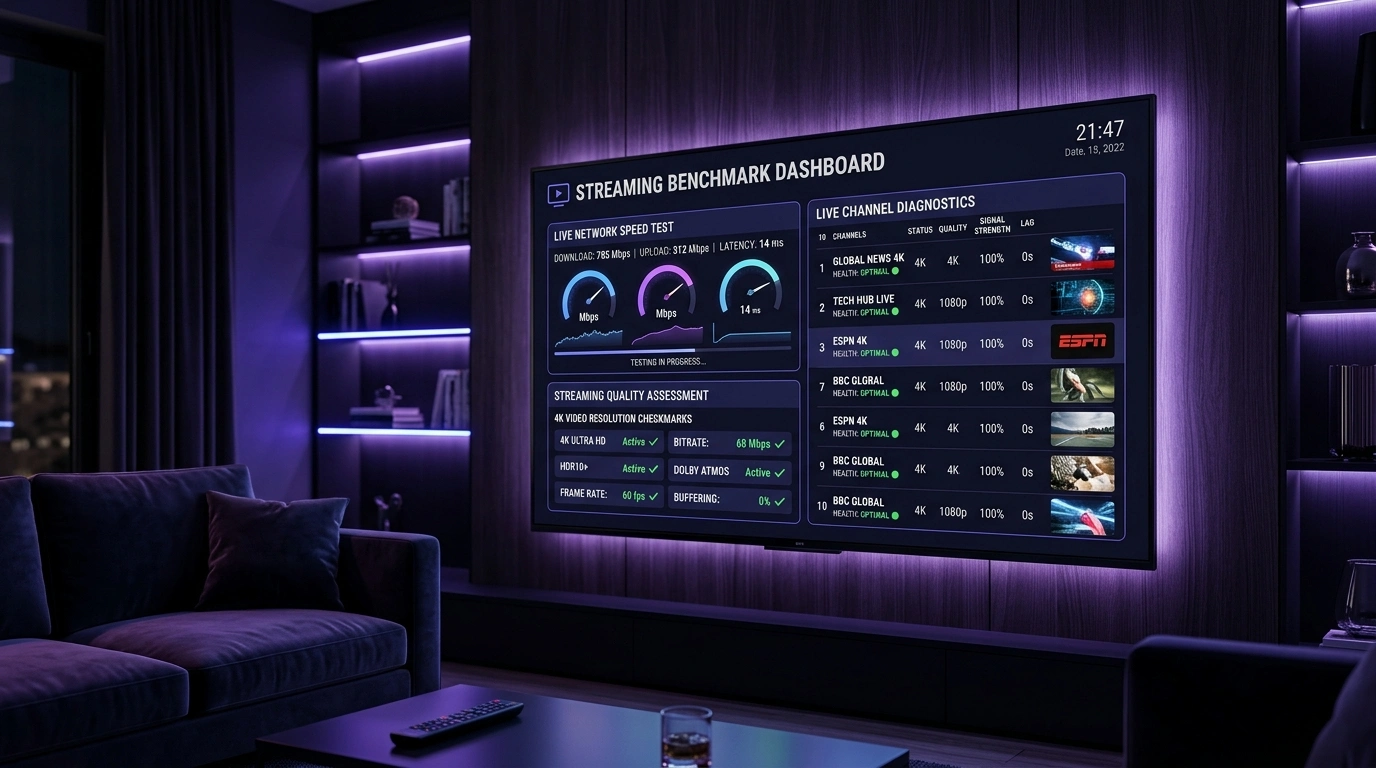
Do not rely on generic internet speed tests run on your mobile smartphone or laptop sitting near your router. You must benchmark the connection directly on the streaming device connected to your television:
- Open the web browser or download a network utility application (such as Analiti or Speedtest by Ookla) directly on your streaming box (Firestick, Apple TV, Android TV, or Smart TV).
- Execute multiple speed test runs at different periods: morning, afternoon, and peak evening hours (8:00 PM – 11:00 PM).
- Record three critical metrics:
- Sustained Download Speed: For uninterrupted Full HD streaming, a consistent 25 Mbps is required. For uncompressed 4K 60FPS HDR streaming, you need a minimum sustained 50 Mbps dedicated to that device alone.
- Ping Latency: Should remain under 30 milliseconds. High ping causes handshaking delays between the client and the content distribution node.
- Jitter & Packet Loss: Jitter should remain below 5 ms, and packet loss must be strictly 0.0%. Even a 1% packet loss forces the video decoder to drop keyframes, resulting in immediate pixelation and grey macroblock smear across your screen.
If your raw bandwidth drops during evening hours while family members stream video on other screens, your IPTV client will downgrade picture clarity to survive.
Upgrade to SofaIPTV Premium 4K
Experience buffer-free entertainment with 50,000+ live channels and 200,000+ on-demand movies & series in pristine 4K.
- 4K & Full HD Quality
- Anti-Freeze v8.2 Tech
- All Devices Supported
- Instant 5-Min Activation
2. Eliminate Wi-Fi Interference with Direct Ethernet Connections
While modern Wi-Fi standards (Wi-Fi 5, Wi-Fi 6, and Wi-Fi 6E) advertise theoretical speeds exceeding gigabits per second, wireless radio frequencies are vulnerable to environmental interference, signal attenuation, physical obstructions, and channel saturation.
In a typical home environment, 2.4 GHz and 5 GHz wireless signals must penetrate drywall, brick, glass, and furniture while competing against neighboring routers, smart home appliances, Bluetooth transmitters, and microwave ovens. When a wireless packet drops during a live sports stream, the IPTV buffer rapidly depletes, forcing immediate resolution downgrades or buffering pauses.
Implementing a Hardwired Ethernet Pipeline
Connecting your streaming device directly to your router via a Cat6 or Cat6a shielded twisted pair Ethernet cable eliminates 99% of local wireless latency and packet drops:
- For Smart TVs and Streaming Boxes with RJ45 Ports: Plug directly into a LAN port on your main router or network switch.
- For Amazon Fire TV Sticks and Google Chromecast: These compact dongles lack built-in LAN ports. Procure an official micro-USB or USB-C Ethernet adapter (typically rated at 100 Mbps or 1000 Mbps). While 100 Mbps sounds lower than theoretical 866 Mbps Wi-Fi, a solid, jitter-free 100 Mbps wired pipeline outperforms fluctuating wireless signals every single time.
- When Direct Cable Runs Are Impractical: If your router is situated across rooms or floors, avoid cheap wireless signal repeaters, which halve network bandwidth and introduce latency. Instead, utilize G.hn Powerline Adapters (which route network packets through your home's copper electrical wiring) or MoCA 2.5 Adapters (which transmit multi-gigabit data over unused coaxial TV cables in your walls).
3. Configure Hardware Acceleration vs. Software Decoding
One of the most consequential yet misunderstood settings inside modern IPTV media players—including TiviMate, IPTV Smarters Pro, OTT Navigator, and XCIPTV—is video decoder configuration.
Digital video files consist of compressed data streams that must be decoded in real-time into displayable video frames. This computation can be executed in two distinct ways:
| Decoding Mode | Processing Unit | Performance Characteristics | Visual Impact |
|---|---|---|---|
| Hardware Decoding (HW) | Dedicated GPU / VPU video processing ASIC | Highly efficient, native chip-level processing, minimal CPU heat | Flawless 60 FPS playback, zero dropped frames, crisp edges |
| Hardware+ Decoding (HW+) | Enhanced hybrid decoder using proprietary media frameworks | Bypasses standard OS limitations, applies custom post-processing | Excellent dynamic range, handles complex audio pass-through |
| Software Decoding (SW) | General CPU cores executing mathematical decompression | High CPU consumption, generates significant thermal throttling | Frame drops, stuttering, resolution scaling artifacts |
Optimizing Your Video Player Decoder Settings
- Open your player's settings menu (in TiviMate: Settings > Playback).
- Locate the Video Decoder option for Live TV, Movies (VOD), and TV Series.
- Switch the decoder from Auto or Software to Hardware (HW).
- If your player supports Hardware+ (HW+), test this mode on high-bitrate 4K sports channels.
- If a specific channel format fails to render video or displays a black screen with audio, only then toggle that individual channel or category to Software mode as a temporary fallback.
By enforcing hardware decoding, your device's graphics processing unit handles the computationally intensive HEVC 4K matrix calculations natively, ensuring the display panel receives every single pixel without frame degradation.
4. Tune Video Buffer Size for Stable Bitrate Ingestion
Video buffering acts as a shock absorber between your internet provider's delivery speed and your television's display rendering. When you watch live IPTV, the client downloads chunks of video data a few seconds ahead of what you currently see on the screen.
If your buffer size is configured incorrectly, picture quality suffers in distinct ways:
- Buffer Size Set Too Small (None / Minimal): Any micro-second delay in packet delivery causes the decoder buffer to empty instantly. The player panic-downgrades resolution to keep playing, or stutters violently.
- Buffer Size Set Too Large (Extreme / Maximum): While it prevents freezes on slow connections, an oversized buffer delays live channel zapping speed and can cause memory exhaustion on budget devices with limited RAM (such as older Firesticks with only 1 GB or 1.5 GB of memory).
Recommended Buffer Configurations
- High-Speed Stable Connection (Fiber / Direct Ethernet): Set Video Buffer to Normal (approx. 2 to 3 seconds). This preserves rapid channel zapping while providing adequate protection against micro-bursts of packet latency.
- Moderate or Variable Connection (Wi-Fi / Rural DSL): Set Video Buffer to Large (approx. 5 to 7 seconds). This allows the player to absorb brief dips in throughput without triggering the adaptive bitrate engine to lower picture resolution.
5. Enable Auto Frame Rate (AFR) Matching
Have you ever observed that an IPTV stream looks strangely unnatural—as if rapid camera pans stutter or skip slightly, even when the picture appears sharp? This common visual flaw is known as judder, and it occurs due to a frame rate mismatch between the source broadcast and your television's refresh rate.
Most modern televisions refresh their displays at 60 Hz or 120 Hz. However, global broadcast streams originate in varied native cadences:
- European and UK sports broadcasts (Sky Sports, TNT Sports, BBC) are transmitted at 50 Hz (50 FPS).
- North American sports broadcasts (ESPN, Fox Sports, NBC) are transmitted at 59.94 Hz or 60 Hz (60 FPS).
- Feature films and prestige television dramas are produced at 23.976 Hz or 24 Hz (24 FPS).
When a 50 Hz European football broadcast is displayed on a television locked into 60 Hz output mode, the streaming box must perform a mathematical interpolation known as 3:2 pull-down or frame duplication. Every few milliseconds, a frame is displayed twice to bridge the timing discrepancy. The human eye perceives this as motion blur, stutter, and apparent loss of focal sharpness.
How to Enable AFR Matching
- Inside TiviMate: Navigate to Settings > Playback > Turn on Auto Frame Rate (AFR). Set the switch delay to 500 ms to give your HDMI handshake time to stabilize.
- Inside Fire OS: Go to Fire TV Settings > Display & Sounds > Display > Match Original Frame Rate > Turn ON. Ensure Resolution is set to Auto (up to 4K).
- Inside Apple TV 4K: Go to Settings > Video and Audio > Match Content > Turn on both Match Dynamic Range and Match Frame Rate.
When AFR is engaged, your streaming box instructs your television panel to switch its physical refresh cycle to match the exact broadcast cadence (e.g., 50 Hz for European Premier League, 60 Hz for NFL, 24 Hz for cinema). Motion smoothing artifacts vanish instantly, restoring authentic, razor-sharp kinetic resolution.
6. Calibrate Your Television Picture & Motion Settings
In many instances, the video stream arriving from your IPTV provider is pristine, but the television's internal image post-processing engine ruins the picture. Television manufacturers often ship displays in aggressive "Standard," "Vivid," or "Store Demo" preset modes designed to pop under fluorescent retail lighting rather than deliver accurate home theater fidelity.
Critical TV Settings to Adjust Immediately
+--------------------------------+-------------------------------------------------------+
| Picture Setting                | Recommended Adjustment                                |
+--------------------------------+-------------------------------------------------------+
| Picture Preset Mode            | Cinema, Filmmaker Mode, or Movie (Avoid Vivid/Dynamic)|
| Sharpness Control              | Set to 0% - 15% (Never exceed 20%)                    |
| Motion Smoothing / TruMotion   | Set to OFF or Custom (De-Judder: 1-2, De-Blur: 8-10)  |
| Noise Reduction / MPEG Clean   | Set to OFF or Low                                     |
| Dynamic Contrast / Contrast+   | Set to OFF                                            |
| Color Temperature              | Warm 2 or Warm 1 (Industry standard D65)             |
| Aspect Ratio / Overscan        | Set to "Just Scan," "1:1 Pixel Mapping," or "Original" |
+--------------------------------+-------------------------------------------------------+
Why Excessive Sharpness Ruins Picture Quality
Many viewers mistakenly believe that turning the television's "Sharpness" slider to 100% will make standard streams look high-definition. In reality, modern TV sharpness controls do not add detail; they apply artificial edge enhancement algorithms. This adds glowing white halos around text, introduces severe digital noise into background textures, and accentuates compression artifacts. Setting sharpness between 0% and 10% reveals the true, unadulterated source detail.
Eliminating the "Soap Opera Effect"
Motion interpolation algorithms (branded as TruMotion by LG, Auto Motion Plus by Samsung, or Motionflow by Sony) fabricate intermediate frames between real broadcast frames. While useful for slow panning shots, this processing struggles with fast-moving sports balls, creating digital tearing, ghost trails, and making cinematic movies look like cheap home video footage. Disabling these post-processors allows the raw stream frames to shine naturally.
7. Verify HDMI Port Capabilities and High-Speed Cabling
A subtle hardware bottleneck that frequently cripples 4K HDR IPTV streaming is outdated HDMI cabling and legacy television input port configurations.
Streaming 4K video at 60 FPS with 10-bit HDR color requires tremendous local data transfer bandwidth across the HDMI cable connecting your streaming box to your television panel:
- HDMI 1.4: Max bandwidth of 10.2 Gbps. Can only handle 4K resolution at 30 FPS with 8-bit color. Fast-action sports will stutter severely.
- HDMI 2.0 / 2.0b: Max bandwidth of 18.0 Gbps. Capable of 4K at 60 FPS with HDR10 color. This is the baseline minimum for modern 4K IPTV.
- HDMI 2.1: Max bandwidth of 48.0 Gbps. Supports 4K at 120 FPS and 8K at 60 FPS with dynamic HDR metadata.
Checking HDMI Deep Color Inputs
On many Samsung, LG, and Sony televisions manufactured between 2018 and 2024, only one or two HDMI ports support full 18 Gbps bandwidth, and full color depth must be activated manually inside the system menu:
- LG webOS: Settings > All Settings > General > Devices > HDMI Settings > Turn on HDMI Ultra HD Deep Color for the active port.
- Samsung Tizen: Settings > General > External Device Manager > Turn on Input Signal Plus (or HDMI UHD Color).
- Sony Bravia: Settings > Watching TV > External Inputs > HDMI Signal Format > Switch from Standard format to Enhanced format.
If this setting remains disabled, your streaming box will automatically downsample its video output to 8-bit YCbCr 4:2:0 or drop the resolution to 1080p, preventing true 4K HDR playback regardless of what your IPTV service provides.
8. Prevent ISP Bandwidth Throttling and Peering Saturation
Internet Service Providers (ISPs) actively inspect customer data packets using Deep Packet Inspection (DPI) technology. When major sports events take place—such as the UEFA Champions League, Premier League Super Sunday, NFL Super Bowl, or high-profile boxing PPV fights—millions of households stream concurrent high-bitrate video feeds.
To protect their network routing nodes from congestion, certain ISPs systematically throttle high-bandwidth video traffic originating from known IPTV server hosting ranges, while keeping generic speed test benchmarks artificially high. When your connection is throttled, your stream bitrate crashes, causing instantaneous pixelation, resolution degradation, or continuous buffering loops.
Bypassing ISP Video Throttling
- Implement Secure Tunneling: Utilizing an encrypted virtual private network or private proxy protocol encapsulates your streaming packets within strong encryption (such as AES-256 or ChaCha20). Your ISP can only observe that data is passing between your home and a secure host; they cannot inspect the video stream payload or destination servers, preventing automated traffic shaping algorithms from engaging.
- Select High-Performance Streaming Protocols: Ensure your encrypted connection utilizes modern lightweight protocols such as WireGuard, which introduces virtually zero processing overhead or latency compared to legacy OpenVPN configurations.
- Switch to High-Speed Public Anycast DNS: Internet providers frequently route domain lookups through overloaded internal DNS resolvers that fail to locate optimal CDN edge servers. Configure your streaming device or home router to utilize Cloudflare DNS (1.1.1.1 / 1.0.0.1) or Google Public DNS (8.8.8.8 / 8.8.4.4) for rapid, uninhibited server domain resolution.
Upgrade to SofaIPTV Premium 4K
Experience buffer-free entertainment with 50,000+ live channels and 200,000+ on-demand movies & series in pristine 4K.
- 4K & Full HD Quality
- Anti-Freeze v8.2 Tech
- All Devices Supported
- Instant 5-Min Activation
9. Upgrade from Underpowered Streaming Sticks to High-Performance Hardware
Not all streaming hardware is created equal. Many consumers attempt to run demanding, multi-gigabyte 4K IPTV channel playlists through budget streaming sticks manufactured with entry-level mobile processors, minimal RAM, and slow eMMC flash storage.
When an underpowered streaming stick attempts to decompress an uncompressed 25 Mbps HEVC 4K 60FPS video stream while concurrently processing an electronic program guide (EPG) database and maintaining network buffers, the internal system-on-a-chip (SoC) overheats and thermal throttles. The graphics chip begins dropping frames, resulting in stuttering, micro-freezing, and blurry macroblock rendering.
Streaming Hardware Performance Comparison
+---------------------------+----------------+----------------+--------------------+------------------------+
| Device Model              | RAM Capacity   | Processor Type | Network Interface  | 4K 60FPS HEVC Decoding |
+---------------------------+----------------+----------------+--------------------+------------------------+
| Fire TV Stick Lite / HD   | 1.0 GB         | Quad-core 1.7G | Wi-Fi 5 Only       | Poor (Frequent Drops)  |
| Fire TV Stick 4K Max (G2) | 2.0 GB         | Quad-core 2.0G | Wi-Fi 6E (LAN Opt) | Excellent              |
| Google TV Streamer 4K     | 4.0 GB         | Quad-core 2.0G | Gigabit Ethernet   | Outstanding            |
| Apple TV 4K (3rd Gen)     | 4.0 GB         | A15 Bionic     | Gigabit Ethernet   | Industry Benchmark     |
| Nvidia Shield TV Pro      | 3.0 GB         | Tegra X1+      | Gigabit Ethernet   | Superior (AI Upscale)  |
+---------------------------+----------------+----------------+--------------------+------------------------+
Upgrading from an older, entry-level stick to a modern high-performance client equipped with at least 2 GB to 4 GB of RAM ensures the hardware video processor decodes complex HEVC and AV1 streams effortlessly without dropping a single frame.
10. Clear Application Cache Bloat and Memory Leaks
IPTV streaming applications continuously download and cache channel logos, EPG data tables, VOD poster artwork, and video chunk segments into local device storage. Over weeks and months of heavy viewing, these cached files can swell to several gigabytes of fragmented data.
On Android TV and Fire OS operating systems, when internal flash storage fills beyond 80% capacity, system write speeds plummet and RAM becomes severely fragmented. This storage bottleneck starves the video player's read/write buffer pipeline, manifesting as visual stutter, sluggish interface response, and unexpected resolution drops.
Step-by-Step Cache Maintenance Routine
- Open your device system settings:
- On Fire TV: Settings > Applications > Manage Installed Applications > Select your IPTV player (e.g., TiviMate or IPTV Smarters Pro).
- On Android TV / Google TV: Settings > Apps > See all apps > Select your player.
- Review the storage breakdown: Cache vs. Data.
- Click Clear Cache (Do not click Clear Data unless you wish to wipe your login credentials and re-enter your playlist).
- Navigate back to your device storage settings and verify that at least 2.0 GB of free internal space remains available for active system buffer allocation.
- Perform a full cold reboot of your streaming device once per week to flush residual memory leaks and initialize a clean operating system kernel.
11. Implement Quality of Service (QoS) on Your Home Router
In a contemporary household, your streaming television rarely commands exclusive access to your internet bandwidth. While you are attempting to enjoy a live 4K broadcast, other family members or roommates may be downloading large video game updates on a PlayStation or Xbox, attending video conference calls on Zoom, uploading cloud backups, or streaming 4K TikTok and YouTube videos simultaneously.
Without active network management, a heavy background download will saturate your router's upstream and downstream queues, inducing a destructive network condition known as bufferbloat. When bufferbloat occurs, ping latency spikes from 15 ms to over 800 ms, causing immediate packet loss on your live IPTV stream. Your player instantly drops picture quality to standard definition to prevent a total freeze.
Configuring Smart Queue Management (SQM) / QoS
- Log into your home router's web administrative dashboard via your browser (typically
192.168.1.1or192.168.0.1). - Locate the Quality of Service (QoS) or Traffic Management tab.
- If your router supports Smart Queue Management (SQM) (found in modern routers running AsusWRT, OpenWrt, or eero TrueMesh), enable it immediately. SQM dynamically prevents any single device from monopolizing network queues.
- If your router utilizes traditional bandwidth-priority QoS:
- Assign highest priority ("High" or "Highest") to the MAC address or static local IP of your primary streaming television or box.
- Assign lower priority to background gaming consoles and torrent clients.
- Reserve a dedicated bandwidth allocation of at least 35 Mbps specifically for your television.
With QoS correctly implemented, home network congestion will never compromise your live streaming video quality again.
12. Switch Between MPEG-TS and HLS Stream Output Formats
When you subscribe to a premium IPTV service using Xtream Codes API or M3U playlist credentials, the streaming server typically delivers live television channels in one of two fundamental data container formats:
- MPEG-TS (.ts): The traditional digital broadcast transport stream format. It features minimal container overhead, rapid packet transmission, and instant decoding on most hardware decoders. It is historically the standard format for live satellite and cable broadcasts.
- HLS (.m3u8): HTTP Live Streaming, developed by Apple. It breaks streams into small file chunks (typically 2 to 6 seconds in length). HLS is exceptionally resilient against minor packet drops and provides dynamic adaptive switching capabilities.
How to Toggle Stream Formats in Your Player
Certain streaming devices and video decoders handle MPEG-TS significantly better than HLS, while others render HLS with fewer compression artifacts:
- In your IPTV player (such as TiviMate or IPTV Smarters Pro), navigate to Playlist Settings or Account Details.
- Locate the Stream Format or Output Format setting.
- By default, many players are set to MPEG-TS. If you experience visual micro-stutter or blocky artifacts on live channels, switch the format to HLS (m3u8) and test playback.
- Conversely, if HLS channels exhibit a delay in rendering full resolution upon channel change, toggle to MPEG-TS for immediate raw-stream clarity.
13. Optimize Screen Resolution & Color Space Output
Your streaming device communicates with your television panel via an HDMI handshake to negotiate the exact output resolution and color space format. In many default configurations, streaming sticks select safe, conservative output parameters rather than the maximum capabilities of your display.
Configuring Display Output Settings
- Resolution Locking: In your device display settings (e.g., Fire TV or Apple TV Settings > Display), change Resolution from "Auto" to 4K 60Hz (2160p - 60Hz) or 1080p 60Hz matching your native TV panel. Leaving this on auto can cause the streaming device to miscommunicate with your TV, downscaling the video before it ever reaches the screen.
- Color Depth Configuration: Select 10-bit or 12-bit color depth (Up to 12-bit YCbCr 4:2:2 or 4:2:0) if your television panel supports HDR10 or Dolby Vision.
- Color Format (RGB vs. YCbCr): For television panels, YCbCr is the native digital video broadcast standard. Setting your device to RGB can occasionally induce "black crush" (loss of detail in dark shadow areas) or clipped highlights, degrading the apparent contrast and sharpness of your picture.
14. Eliminate Internal App Scaling Issues: 1:1 Pixel Mapping
A subtle visual defect that degrades picture sharpness is improper aspect ratio scaling or overscan.
In the early eras of analog television, television sets utilized a technique called overscan, cropping the outer 5% of the broadcast image to hide transmission artifacts and broadcast synchronization signals. Unfortunately, many modern digital Smart TVs still have overscan enabled by default on HDMI inputs under marketing labels such as "16:9," "Wide Zoom," or "Fit to Screen: Off."
When overscan is active on a 1080p or 4K broadcast, your television zooms in slightly on the image. Because the physical pixels of the stream no longer align perfectly with the physical sub-pixels of your 4K panel, the image processor must interpolate and blur the entire image, immediately softening text and fine details.
How to Enforce 1:1 Pixel Mapping
- On your television remote control, press the Settings or Picture menu button.
- Locate the Aspect Ratio or Screen Fit settings.
- Switch the aspect ratio from "16:9" or "Standard" to:
- Samsung: Picture Size > Custom > Turn Fit to Screen: ON.
- LG: Aspect Ratio > Just Scan: ON (Never set to Auto).
- Sony: Screen > Display Area > Full Pixel (or +1).
- Verify that text, channel bugs, and scoreboards now align with pixel-perfect digital precision.
15. Choose a High-Bitrate, Anti-Freeze IPTV Service
You can implement every router optimization, purchase the most expensive HDMI cables, and meticulously calibrate your OLED television settings, but you cannot display visual information that does not exist in the source transmission.
Many low-cost, oversold IPTV resellers operate by taking a single broadcast feed, heavily compressing and downsampling it through low-budget software encoders to conserve server bandwidth costs, and redistributing a muddy 720p or low-bitrate 1080p stream disguised as "4K." No television processor or software filter can reconstruct genuine detail from an inherently crippled source stream.
This is precisely why choosing an elite provider like SofaIPTV is the ultimate foundation of superior visual fidelity. SofaIPTV engineers its streaming infrastructure around three core principles:
- Uncompressed Source Ingestion: Live sports channels and premium networks are ingested directly from native satellite and fiber broadcast master feeds, preserving genuine 1080p and 4K 60FPS high-bitrate video signals.
- Anti-Freeze 9.8 Cloud Network: Distributed multi-cluster Content Delivery Networks ensure massive bandwidth overhead across Europe, North America, and international regions, guaranteeing that peak-demand events never force dynamic bitrate throttling or stream downgrades.
- Full EPG & Catchup Integration: Ensuring metadata, stream flags, and aspect ratios align seamlessly with modern IPTV players.
If your current provider delivers dull, blocky feeds that crumble during high-motion sports, explore SofaIPTV's premium subscription plans or test the service through a dedicated trial account to witness what true uncompressed streaming clarity looks like on your home display.
Troubleshooting Matrix: Identifying & Resolving Visual Artifacts
+-----------------------------------+-----------------------------------+-----------------------------------+
| Visual Symptom                    | Primary Root Cause                | Definitive Technical Solution     |
+-----------------------------------+-----------------------------------+-----------------------------------+
| Pixelation / Macroblocking during | Insufficient stream bitrate or    | Switch to high-bitrate stream;    |
| rapid camera motion               | aggressive encoder compression    | connect via Cat6 Ethernet cable   |
+-----------------------------------+-----------------------------------+-----------------------------------+
| Judder / Micro-stutter during     | Frame rate mismatch (e.g., 50 Hz  | Enable Auto Frame Rate (AFR)      |
| sports pans                       | broadcast on 60 Hz display)       | in player & streaming box settings|
+-----------------------------------+-----------------------------------+-----------------------------------+
| Washed out colors / Gray blacks   | Incorrect HDMI dynamic range or   | Set TV HDMI input to Deep Color / |
|                                   | mismatched RGB/YCbCr color space  | Enhanced format; set YCbCr 4:2:2  |
+-----------------------------------+-----------------------------------+-----------------------------------+
| Blurry text / Fuzzy channel logos | Television overscan active or     | Enable 1:1 Pixel Mapping ("Just   |
|                                   | player internal scaling failure   | Scan" / "Fit to Screen: ON")      |
+-----------------------------------+-----------------------------------+-----------------------------------+
| Stream downgrades to low-res      | Local bandwidth dip triggering    | Increase player buffer to Large;  |
| after a few minutes               | adaptive bitrate drop             | configure router QoS prioritization|
+-----------------------------------+-----------------------------------+-----------------------------------+
| Black screen with audio only      | Video decoder failure on complex  | Switch player Video Decoder from  |
|                                   | HEVC/H.265 profile                | Software to Hardware (HW/HW+)     |
+-----------------------------------+-----------------------------------+-----------------------------------+
Frequently Asked Questions
Elevate Your Home Viewing Experience
Achieving true broadcast-grade picture quality is not a matter of luck; it is the natural outcome of aligning every stage of your streaming pipeline. By replacing flaky Wi-Fi connections with shielded Ethernet, tuning player decoders to native hardware acceleration, enabling Auto Frame Rate matching, turning off counterproductive TV post-processing filters, and securing high-bitrate uncompressed source feeds, you unlock the full cinematic potential of your television display.
Take control of your home entertainment today. Explore SofaIPTV's complete channel catalog, review our comprehensive device installation tutorials, or browse our transparent subscription packages to experience live sports, premium cinema, and international entertainment in stunning, uncompromised 4K clarity.