IPTV Login Failed? How to Fix Username, Password, Server URL & Authentication Errors
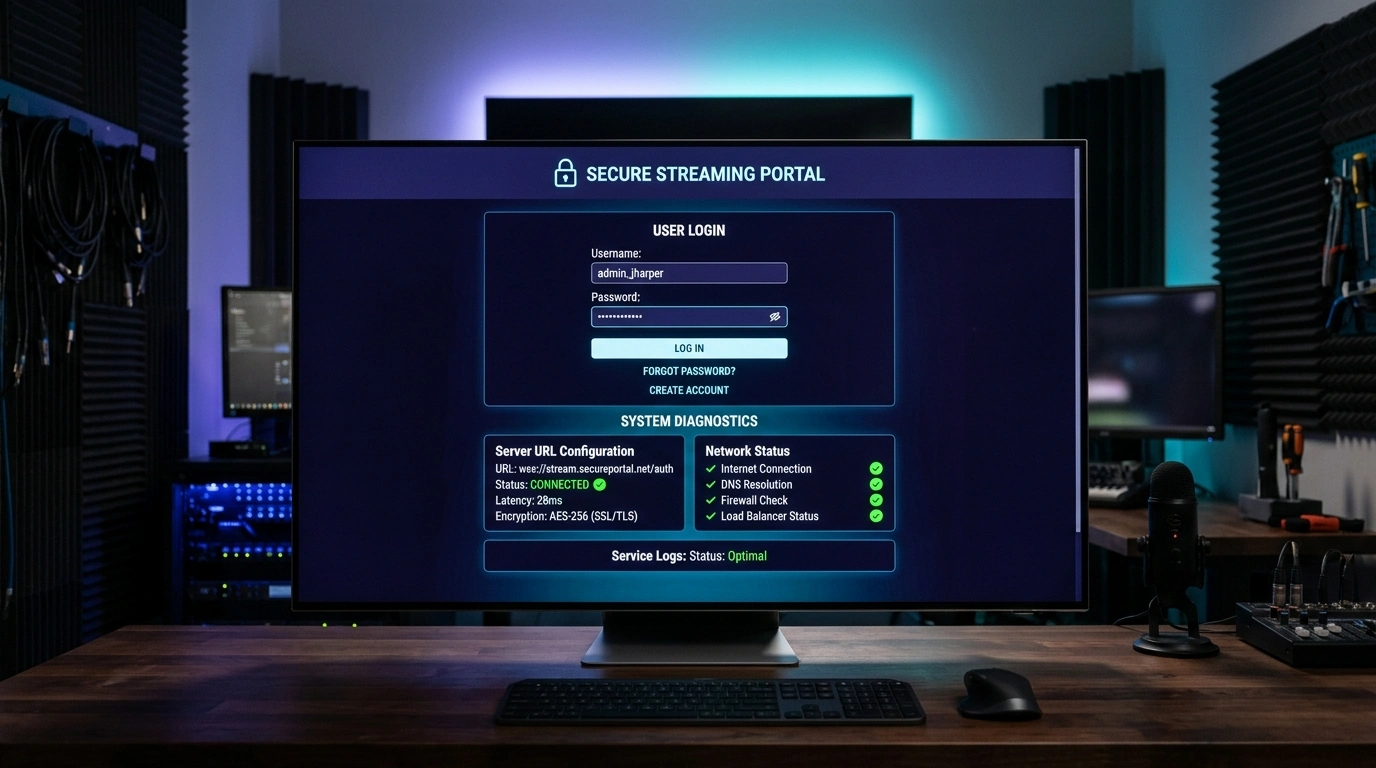
There are few digital experiences more jarring than preparing for an eagerly anticipated live sports derby, the season finale of your favorite drama series, or an evening movie marathon, only to launch your IPTV application and be met with a stark, unyielding error prompt: "Login Failed," "Authentication Error," "Invalid Server URL," or "Authorization Denied."
When authentication collapses, access to your entire entertainment library evaporates instantly. For many television viewers, this triggers immediate panic and frustration. Did the subscription expire? Did the service provider shut down? Is the streaming device broken? Has the account been compromised?
In the vast majority of cases, an IPTV login failure is not a catastrophic failure of the service itself. Instead, it is the predictable outcome of a breakdown during the cryptographic handshake between your local IPTV player and the remote server middleware. Because internet protocol television relies on strict authentication protocols—such as the Xtream Codes API, M3U playlist tokenization, or MAC address binding—a single mistyped character, an invisible whitespace injected by a mobile keyboard, an unannounced server port migration, an ISP-level DNS block, or an active connection conflict will abruptly halt the login process.
In this definitive troubleshooting guide, we dissect the inner mechanics of the IPTV authentication handshake, explain what every common error code actually means under the hood, and walk you through a step-by-step diagnostic roadmap to identify and eliminate login failures permanently.
Under the Hood: The IPTV Authentication Handshake
To effectively diagnose why an IPTV login fails, it helps to understand what transpires behind the scenes the moment you press the "Submit," "Login," or "Add User" button in your streaming player.
+-----------------------------------------------------------------------------------+
|                            The IPTV Authentication Pipeline                       |
+-----------------------------------------------------------------------------------+
|  [IPTV Player Client]                                                             |
|  (TiviMate / Smarters / TV)                                                       |
|        |                                                                          |
|        | 1. HTTP GET /player_api.php?username=USER&password=PASS                  |
|        v                                                                          |
|  [Household Local Router & DNS]                                                   |
|        |  (Resolves domain name to server IP; subject to ISP DNS tampering)       |
|        v                                                                          |
|  [Content Delivery Network (CDN) & Load Balancer]                                 |
|        |  (Validates SSL certificate, mitigates DDoS attacks, inspects headers)   |
|        v                                                                          |
|  [IPTV Middleware Database (Xtream UI / Stalker Portal)]                          |
|        |                                                                          |
|        +---> Query: Does USER exist?                                              |
|        +---> Query: Does PASS match salted cryptographic hash?                    |
|        +---> Query: Is subscription expiration timestamp > Current Time?          |
|        +---> Query: Are active concurrent connections < Allowed Connection Limit? |
|        |                                                                          |
|        +--------------------------------------------------------------------------+
|        |  SUCCESS: HTTP 200 OK -> Returns JSON User Info + Live/VOD Category URLs |
|        |  FAILURE: HTTP 401 / 403 / 500 -> Returns "Authentication Failed" error  |
+-----------------------------------------------------------------------------------+
When you enter your login credentials into an application such as TiviMate, IPTV Smarters Pro, or XCIPTV, the client formats an HTTP or HTTPS request directed at your provider's authentication endpoint (traditionally /player_api.php). This request transmits your username, password, and system details.
Upon receiving the packet, the provider's server middleware executes four sequential database checks:
- Account Identification: Does the specified username exist in the active user table?
- Credential Verification: Does the provided password match the encrypted record in the database?
- Subscription Status & Expiration: Is the account in good standing, or has the active billing cycle lapsed?
- Concurrency Audit: How many active IP sockets are currently streaming under this token? If your subscription plan permits two concurrent connections, and two devices are already streaming, a third connection request is instantly rejected with an authentication refusal.
If every check passes, the server issues an HTTP 200 OK response containing a structured JSON payload with account metadata, server time, allowed stream formats (MPEG-TS or HLS), and encrypted tokens for the channel bouquets. If any single check fails, the handshake is aborted, and your player displays an error.
1. Eliminate Typography Errors & Hidden Input Flaws
By far the most common cause of IPTV login failure—accounting for over 60% of all reported support tickets—is human error during credential entry. Typing complex alphanumeric strings using a directional remote control on a television screen is inherently awkward, and several subtle input flaws frequently slip through unnoticed.
Case Sensitivity Is Mandatory
IPTV middleware servers run on Unix/Linux platforms where file systems and database lookups are strictly case-sensitive.
- A username issued as
sofa_user99is completely distinct fromSofa_User99orSOFA_USER99. - Passwords containing uppercase and lowercase characters (e.g.,
TvStream77) will fail instantly if typed in all-lowercase (tvstream77). - Always verify the exact capitalization shown in your official SofaIPTV subscription confirmation email.
The Invisible Trailing Whitespace Trap
If you copied and pasted your username, password, or server URL from an email, SMS, or messaging app on a smartphone or computer, modern operating systems frequently append an invisible space character to the end of the selected string.
- When pasted into an IPTV app,
myusernamecontains 11 characters instead of 10. - Because the space is invisible, the input field appears correct to the naked eye. However, the server treats that trailing space as a literal character, resulting in a cryptographic hash mismatch and an immediate Login Failed error.
- The Fix: Click into the input field, position the cursor at the very end of your username and password, and press the backspace key once or twice to ensure no trailing spaces exist.
Easily Confused Characters
Examine your login credentials closely for characters that render nearly identically in standard television fonts:
- The Number 0 vs. The Capital Letter O:
0(zero) is typically narrower or has a slash, whileO(capital letter) is round. - The Number 1 vs. Capital I vs. Lowercase l: In many sans-serif television fonts, the digit
1, capitalI(India), and lowercasel(lima) look identical. - Special Symbols: Ensure that underscores (
_), hyphens (-), and tildes (~) are entered using their exact ASCII keys on your device's virtual keyboard.
Television Virtual Keyboard Auto-Capitalization
Modern streaming operating systems—including Amazon Fire TV OS, Android TV, Google TV, and Apple TV—feature virtual software keyboards configured by default to capitalize the first letter of any text input field. When you begin typing your username or server URL, the system may automatically force a capital letter without your consent. Always double-check that the first character matches the exact case required.
Upgrade to SofaIPTV Premium 4K
Experience buffer-free entertainment with 50,000+ live channels and 200,000+ on-demand movies & series in pristine 4K.
- 4K & Full HD Quality
- Anti-Freeze v8.2 Tech
- All Devices Supported
- Instant 5-Min Activation
2. Verify and Format the IPTV Server URL Flawlessly
When utilizing the Xtream Codes API connection method, entering the correct Server URL is just as critical as your username and password. The server URL directs your streaming player to the precise digital doorstep of the authentication cluster.
+---------------------------------------------------------------------------------+
|                       Anatomy of an IPTV Server URL                             |
+---------------------------------------------------------------------------------+
|  Protocol       Domain Name or IP Address             Port (Optional/Required) |
|  [ http:// ]    [ stream.sofaiptv.site ]              [ :8080 ]                 |
+---------------------------------------------------------------------------------+
| Common Trailing Slash Mistake:                                                  |
| INCORRECT: http://stream.sofaiptv.site:8080/    <-- (Trailing slash breaks API) |
| CORRECT  : http://stream.sofaiptv.site:8080     <-- (Clean root endpoint)       |
+---------------------------------------------------------------------------------+
The Protocol Prefix: HTTP vs. HTTPS
A frequent point of confusion is whether the server URL requires an http:// or https:// protocol prefix:
- Some older IPTV middleware servers do not have valid SSL/TLS certificates configured on their stream ports and operate strictly over unencrypted
http://. If you forcehttps://, the SSL handshake fails, and the app reports that the server cannot be reached. - Modern, secure IPTV platforms utilize valid SSL encryption and require
https://. - In applications like TiviMate or IPTV Smarters Pro, omitting the protocol prefix entirely can cause the player to default to the wrong transport scheme. Always input the full, explicit prefix exactly as specified in your setup instructions.
The Trailing Slash Problem
Pay close attention to the end of the server URL. Many IPTV player applications automatically append the path /player_api.php to the server address you provide.
- If you input
http://stream.domain.com:8080/(with a trailing slash), the application concatenates the strings intohttp://stream.domain.com:8080//player_api.php. - The double forward slash (
//) confuses many reverse proxies and web server configurations, triggering an HTTP 404 Not Found or HTTP 400 Bad Request error. - Rule of Thumb: Always end your server URL after the domain or port number without a trailing slash (e.g.,
http://stream.domain.com:8080).
The Port Number
Most IPTV servers do not operate on default web ports (Port 80 for HTTP or Port 443 for HTTPS). Instead, they utilize custom ports such as :8080, :8000, :25461, or :2095. If your activation email lists a port number following a colon at the end of the domain or IP address, that port number is mandatory. Omitting it directs your connection request to a closed or non-existent web service.
3. Diagnose HTTP Error Status Codes
When an IPTV login fails, advanced players will often display a specific three-digit HTTP status code. Understanding these codes turns random guesswork into precision troubleshooting.
+-------------+-----------------------------+---------------------------------------------------------------+
| HTTP Code   | Standard Definition         | Root Cause in IPTV Environments                               |
+-------------+-----------------------------+---------------------------------------------------------------+
| 400         | Bad Request                 | Malformed URL syntax, double slashes, or unsupported chars    |
| 401         | Unauthorized                | Invalid username or password; cryptographic hash mismatch     |
| 403         | Forbidden                   | Account expired, max concurrent connections exceeded, IP lock |
| 404         | Not Found                   | Incorrect server URL path, decommissioned DNS, wrong port     |
| 429         | Too Many Requests           | Rate limiting triggered by rapid reconnect attempts           |
| 500         | Internal Server Error       | Database failure or crash on provider's middleware backend    |
| 502 / 503   | Bad Gateway / Unreachable   | Server undergoing maintenance, CDN node down, or offline      |
+-------------+-----------------------------+---------------------------------------------------------------+
Decoding HTTP 401 Unauthorized
An HTTP 401 status indicates that the server is alive and reachable, but it has explicitly rejected the credentials you submitted. If you see a 401 error:
- Your username or password contains a typo.
- Capitalization does not match the database record.
- An extra space was accidentally added.
- Your provider updated or reset your password on the backend.
Decoding HTTP 403 Forbidden
An HTTP 403 status is more nuanced than a simple typo. A 403 error confirms that the server recognized your credentials, but access has been administratively refused:
- Account Expiration: Your subscription term has concluded and must be renewed through your client billing portal.
- Concurrent Connection Breach: You are attempting to stream on more screens simultaneously than your subscription tier permits.
- Geographical or IP Lock: Certain legacy IPTV providers lock an account to the external IP address of the first device used. If you attempt to connect from a mobile network, a vacation home, or through a VPN, the server returns 403 Forbidden. (Note: SofaIPTV accounts feature flexible connection policies that do not penalize dynamic household IPs).
Decoding HTTP 404 Not Found & 502/503 Service Unavailable
These errors indicate that the problem lies along the routing path or with the server host itself:
- 404 Not Found: You typed the server domain name incorrectly, or the provider has retired that specific server URL in favor of an upgraded cluster.
- 502 / 503: The provider's load balancer or upstream database is undergoing scheduled maintenance or experiencing a temporary outage. In this scenario, client-side reconfiguration will not solve the issue; you must await server restoration or check your provider's status channel.
4. Circumvent ISP DNS Hijacking & Censorship Blocks
In numerous regions across the globe—most notably the United Kingdom, Spain, Italy, Australia, and parts of North America—major commercial Internet Service Providers (ISPs) actively deploy automated censorship systems. During premier live sporting events (such as the Premier League, UEFA Champions League, La Liga, or NFL broadcasts), ISPs are legally mandated or voluntarily program their systems to intercept and block IPTV connections.
+---------------------------------------------------------------------------------+
|                       How ISP DNS Tampering Blocks IPTV                         |
+---------------------------------------------------------------------------------+
| 1. Default Setup (Vulnerable to Blocking):                                      |
|    Player -> Router -> ISP DNS Server [Detects IPTV Domain] -> Returns 127.0.0.1|
|    Result: Player attempts to connect to localhost -> "Server URL Invalid"      |
+---------------------------------------------------------------------------------+
| 2. Optimized Setup (Encrypted / Independent DNS):                               |
|    Player -> Router -> Cloudflare DNS (1.1.1.1) -> Resolves True Server IP      |
|    Result: Player connects directly to streaming node -> Instant Login Success  |
+---------------------------------------------------------------------------------+
How ISPs Trigger "Server URL Not Found"
When your streaming player attempts to reach stream.provider.com, it asks your router's default DNS server (managed by your ISP) to translate that domain name into a numeric IP address. If the ISP has blacklisted the domain:
- The ISP DNS server injects a fraudulent response, returning NXDOMAIN (Non-Existent Domain) or redirecting your device to an internal loopback address like
127.0.0.1or a police landing page. - Your IPTV player attempts to connect to the false IP, fails to find a media server, and displays an unhelpful error: "Invalid Server URL" or "Cannot Connect to Server."
Solution A: Switch to Independent Public DNS
You can bypass elementary ISP DNS tampering by reconfiguring your streaming device or home router to use trusted, censorship-resistant public DNS resolvers:
- Cloudflare Public DNS:
- Primary:
1.1.1.1 - Secondary:
1.0.0.1
- Primary:
- Google Public DNS:
- Primary:
8.8.8.8 - Secondary:
8.8.4.4
- Primary:
- Quad9 (Security Focused):
- Primary:
9.9.9.9 - Secondary:
149.112.112.112
- Primary:
To change DNS on an Amazon Firestick or Android TV device:
- Navigate to Settings > Network (or Wi-Fi).
- Select your Wi-Fi network and choose Forget Network, then reconnect.
- In advanced IP settings, switch from DHCP to Static IP.
- Enter your device's current IP address, gateway (router IP, e.g.,
192.168.1.1), and subnet mask (24or255.255.255.0). - Set DNS 1 to
1.1.1.1and DNS 2 to8.8.8.8. Save and reconnect.
Solution B: Deploy a High-Performance VPN
If your ISP employs Deep Packet Inspection (DPI) to analyze and throttle IPTV traffic beyond simple DNS poisoning, an encrypted Virtual Private Network (VPN) becomes essential.
- A VPN encapsulates all network traffic from your television inside an encrypted tunnel using modern protocols like WireGuard.
- Because the ISP can only see encrypted packets moving to a generic VPN server, they cannot inspect the destination domain, port, or streaming protocol.
- Crucial Rule: Always select a VPN server located geographically close to your physical location to minimize latency and preserve download bandwidth.
5. Resolve Local App Cache Corruption & Stale Sessions
IPTV applications maintain local internal databases and cache stores to accelerate navigation and remember your previous authentication state. Over weeks and months of daily streaming, software updates, and frequent channel switching, these local databases can become corrupted or retain outdated authentication tokens that prevent new logins.
+---------------------------------------------------------------------------------+
|                       Application Storage Hygiene                               |
+---------------------------------------------------------------------------------+
| Operation       | What It Deletes                       | When to Use           |
+-----------------+---------------------------------------+-----------------------+
| Clear Cache     | Temporary video chunks, cached EPG    | Periodic maintenance; |
|                 | graphics, temporary network logs      | minor login glitches  |
+-----------------+---------------------------------------+-----------------------+
| Clear Data      | All user accounts, saved passwords,   | Persistent login      |
| (Factory Reset) | custom groupings, downloaded playlists| errors; total reset   |
+-----------------+---------------------------------------+-----------------------+
Step-by-Step Cache Clearing on Firestick & Fire TV
- From the Fire TV home screen, open Settings (the gear icon on the far right).
- Select Applications, then choose Manage Installed Applications.
- Scroll through the list and select your IPTV application (e.g., TiviMate, IPTV Smarters Pro, or XCIPTV).
- Select Force Stop to ensure the app is not running in background memory.
- Select Clear Cache. (This safely flushes temporary junk files without deleting your saved playlists).
- Relaunch the application and test the login.
- If the login continues to fail with a corrupted session, return to this menu and select Clear Data. Note: Clearing Data completely resets the app to its factory state, requiring you to re-enter your credentials from scratch.
Step-by-Step Cache Clearing on Android TV & Google TV
- On your TV remote, press the Home or Settings button and navigate to Settings > Apps > See all apps.
- Locate and select your IPTV player.
- Select Force stop, confirm with OK, then select Clear cache.
- Restart your television by holding the Power button on your remote for 5 seconds and selecting Restart.
Smart TV App Reset (Samsung Tizen / LG webOS)
Smart televisions manufactured by Samsung or LG do not utilize traditional Android file storage menus. To clear corrupted sessions on these platforms:
- Delete the IPTV application (such as IBO Player, Smart IPTV, or Nanomid) completely from your television's app manager.
- Power down your television, then physically unplug the power cord from the wall outlet for a full 60 seconds (this discharges the television's internal motherboard capacitors and clears cold volatile memory).
- Plug the television back in, open the Samsung Smart Hub or LG Content Store, reinstall the application, and re-enter your login credentials.
6. Audit Multi-Connection and Device Limit Conflicts
Every legitimate IPTV subscription operates under strict concurrent connection limitations established by your provider's billing tiers. A standard subscription typically includes 1, 2, or up to 4 concurrent connections.
What Defines an Active Connection?
A connection is counted whenever an active network socket is pulling media data from the server. Common scenarios that unintentionally exhaust connection limits include:
- The Living Room TV Left on Pause: In many IPTV applications, pressing "Pause" on a live channel does not close the network stream; the player continues downloading the live broadcast into a temporary buffer. The server registers this as an active connection.
- Background Streaming on Mobile Devices: If an IPTV app on a smartphone or tablet was minimized rather than fully exited, it may continue background audio playback or maintain an open keep-alive socket.
- Multi-Screen Mode: Running a 4-channel multiview grid in TiviMate consumes four individual connections simultaneously. If your plan only permits two connections, opening a third and fourth window will immediately invalidate your account token and trigger authentication errors across all screens.
+---------------------------------------------------------------------------------+
|                       Connection Limit Conflict Scenario                        |
+---------------------------------------------------------------------------------+
| Subscription Tier: 2 Concurrent Connections Allowed                             |
|                                                                                 |
| Device 1 (Bedroom TV)  : Actively Streaming Sky Sports        -> [Slot 1 Used]  |
| Device 2 (Living Room) : Streaming Movie on VOD               -> [Slot 2 Used]  |
|                                                                                 |
| Device 3 (Smartphone)  : Attempts Login at 20:15                                |
| Server Middleware Response: Connection Limit Reached -> HTTP 403 Forbidden      |
| Client Display Prompt   : "LOGIN FAILED: EXCEEDED MAXIMUM CONNECTIONS"          |
+---------------------------------------------------------------------------------+
How to Release Locked Connections
- Fully close the IPTV app on all secondary devices in your home (navigate to your device's app switcher or force stop the application).
- If a ghost connection remains hung on the server side due to an unexpected power outage or network drop, restart your home router to force a lease renewal.
- Most modern middleware platforms will automatically purge inactive dead sockets after an idle timeout of 5 to 15 minutes.
- If your household regularly streams on multiple screens simultaneously, upgrade your plan to include additional connections through our pricing dashboard.
Upgrade to SofaIPTV Premium 4K
Experience buffer-free entertainment with 50,000+ live channels and 200,000+ on-demand movies & series in pristine 4K.
- 4K & Full HD Quality
- Anti-Freeze v8.2 Tech
- All Devices Supported
- Instant 5-Min Activation
7. Account Verification & Provider Status Validation
If you have verified spelling, eliminated whitespace, validated the server URL, cleared application cache, changed your DNS, and verified that no other devices are streaming, you must evaluate whether the issue originates on the provider's side.
Verify Account Expiration Date
IPTV subscriptions operate on fixed calendar cycles (1 Month, 3 Months, 6 Months, or 12 Months). Unlike automated subscription services that silently bill your credit card on file, many IPTV services prioritize user privacy and do not store sensitive payment details for auto-billing. When your term expires, service terminates automatically.
- Log in to your provider's official customer portal or review your initial activation receipt to confirm your renewal date.
- If your subscription has lapsed, renewing your account will instantly reactivate the same username and password on the server cluster.
Server Maintenance & IP Migrations
Like any enterprise-scale cloud infrastructure, IPTV server clusters occasionally undergo hardware upgrades, data center migrations, or emergency DDoS mitigation routing changes. During these windows, a specific server URL may become temporarily unavailable.
- Check your provider's official announcement channels, customer support portal, or status dashboard.
- If a server URL has been updated, replace the old address in your player settings with the new operational domain provided by support.
8. MAC Address & Stalker Portal Authentication Failures
While Xtream Codes API and M3U playlists represent the most widespread modern connection standards, millions of streaming households utilize MAC Address Binding (often referred to as Stalker Middleware or Ministra Portal). This authentication architecture is standard on dedicated IPTV set-top boxes such as the Formuler Z-Series (running MyTVOnline 2 or 3), MAG Boxes (MAG 254, 322, 524, 540), and advanced software emulators like STB Emu Pro.
+---------------------------------------------------------------------------------+
|                   Stalker Portal / MAC Binding Architecture                     |
+---------------------------------------------------------------------------------+
|  Client Device (Hardware MAC: 00:1A:79:XX:XX:XX)                                |
|        |                                                                        |
|        | 1. HTTP GET /c/ -> Handshake with Device MAC & Token                   |
|        v                                                                        |
|  Stalker Middleware Server                                                      |
|        |                                                                        |
|        +---> Query: Does MAC "00:1A:79:XX:XX:XX" match database whitelist?      |
|        |                                                                        |
|        +---> MATCH: Download Portal Theme, Channel Lists, and DRM Tokens        |
|        |                                                                        |
|        +---> MISMATCH / UNREGISTERED: Returns "Your STB is Blocked / Call Prov" |
+---------------------------------------------------------------------------------+
Why Stalker Portals Fail to Authenticate
Unlike username and password setups where you can freely move your credentials between a smartphone, television, and laptop, MAC address authentication creates a rigid 1-to-1 hardware lock:
- The MAC Address Typo: The standard IPTV virtual MAC address begins with the vendor prefix
00:1A:79followed by six unique hexadecimal characters (e.g.,00:1A:79:C4:2B:10). When registering your device with SofaIPTV, an error in a single alphanumeric character means the server will fail to recognize your hardware upon connection. - Device Replacement or App Reinstallation: If you upgrade from an older streaming box to a new television or reinstall STB Emu, your device may generate a new virtual MAC address. If the database still holds your old MAC address, the server will immediately display "Your STB is Not Supported" or "Contact Your Provider."
- Hardware MAC vs. Virtual MAC Confusion: MAG boxes feature a physical MAC address printed on a sticker underneath the chassis. However, software emulators (like STB Emu on Firestick) create a virtual software MAC address in their settings menu. Submitting your physical Wi-Fi or Ethernet MAC address to your provider instead of the app's virtual MAC address guarantees a connection failure.
How to Fix MAC Address Authentication Errors
- Open your player's settings, locate the exact MAC address string, and copy it down with absolute precision.
- Contact customer support through our support helpdesk and request a MAC Address Reset or Update. Our team can update the active record in our database within minutes.
- Verify that the Portal URL entered into your STB settings ends with
/c/if required by your device's middleware specification (e.g.,http://portal.domain.com:8080/c/).
9. User-Agent Filtering & Security Header Conflicts
In modern cloud networking, web application firewalls (WAF) and reverse proxies inspect incoming HTTP headers to distinguish between legitimate human streaming clients and automated scraping bots, DDoS tools, or pirate restreamers. A key element of this inspection is the User-Agent header.
+---------------------------------------------------------------------------------+
|                     User-Agent Header Filtering Mechanisms                      |
+---------------------------------------------------------------------------------+
|  Default Incompatible Request:                                                  |
|  User-Agent: python-requests/2.28.1  --> WAF Rules: REJECT (HTTP 403 Forbidden) |
|  User-Agent: VLC/3.0.18 LibVLC       --> WAF Rules: REJECT (Potential Restreamer)|
+---------------------------------------------------------------------------------+
|  Optimized Emulated Request:                                                    |
|  User-Agent: IPTVSmartersPro/3.1.5   --> WAF Rules: ACCEPT (HTTP 200 OK)        |
|  User-Agent: TiviMate/5.0.4          --> WAF Rules: ACCEPT (HTTP 200 OK)        |
+---------------------------------------------------------------------------------+
The Problem with Generic or Default User-Agents
When using flexible media players like Kodi, VLC Media Player, or certain open-source GitHub IPTV apps, the player transmits a generic User-Agent header (such as Mozilla/5.0 or Lavf/58.76.100). If your IPTV provider's server infrastructure has blacklisted generic User-Agents to prevent bandwidth scraping, your login request will be dropped silently with an HTTP 403 Forbidden error, even when your username and password are 100% correct.
How to Custom Configure Your User-Agent
Leading IPTV applications allow you to specify a custom User-Agent in advanced playback settings:
- In TiviMate: Navigate to Settings > General > User-Agent and enter a recognized client string such as
IPTVSmartersProorTiviMate/5.0.4. - In OTT Navigator: Navigate to Settings > Network > User-Agent and enter
VLCorAppleCoreMedia. - In Kodi PVR IPTV Simple Client: Open the add-on settings, navigate to the Network tab, and set the User-Agent parameter explicitly. This simple adjustment bypasses overzealous WAF filtering and restores uninterrupted authentication.
10. Overcoming Carrier-Grade NAT (CGNAT) & Router Firewall Interference
Many contemporary residential internet service providers—especially those offering fiber-to-the-home (FTTH), 5G home internet, or mobile broadband—no longer assign a unique public IPv4 address to every household. Instead, they deploy Carrier-Grade NAT (CGNAT), grouping hundreds of residential customers behind a single shared external IP address.
Why CGNAT Triggers False Positive Security Bans
When hundreds of residential households share a single public IP address, security algorithms on IPTV content delivery networks (CDNs) can be triggered falsely:
- If five other households sharing your carrier IP are streaming high-bandwidth channels simultaneously, the server's automated DDoS protection system may flag the IP as an aggressive traffic source.
- The server temporarily blacklists the shared IP, resulting in an unexpected "Login Failed" or "Server Connection Timed Out" error on your television.
How to Diagnose and Bypass CGNAT Restrictions
- The Cellular Hotspot Benchmark: Disconnect your streaming device from your home Wi-Fi and connect it to your mobile smartphone's cellular hotspot. If your IPTV app logs in instantly over cellular but refuses to connect on your home broadband, your home ISP's routing or CGNAT configuration is directly causing the failure.
- Request a Static IPv4 Address: Many residential ISPs allow customers to purchase a dedicated, static public IPv4 address for a nominal monthly fee. This removes your connection from the shared CGNAT pool and permanently eliminates false IP security bans.
- Activate an Encrypted VPN Tunnel: Routing your traffic through a high-performance WireGuard VPN assigns your device a clean, private VPN gateway IP, completely bypassing your local ISP's CGNAT architecture and firewall packet inspection.
11. Platform-Specific Credential Recovery Walkthroughs
Because every operating system handles storage, virtual keyboards, and application management differently, use these device-specific instructions to resolve persistent login errors across popular streaming platforms.
Amazon Firestick & Fire TV Devices
- From the Fire TV home screen, open Settings (gear icon) > Applications > Manage Installed Applications.
- Select your IPTV application and choose Force Stop.
- Select Clear Cache, then launch the app to test.
- If login continues to fail, return to the menu and select Clear Data.
- Relaunch the application. When entering your credentials, ensure the Fire TV on-screen keyboard has not enabled auto-capitalization on the first character.
- Verify your device's date and time: navigate to Settings > Preferences > Time Zone and ensure your local time is accurate. An incorrect system clock will cause SSL security handshakes to fail.
Android TV & Google TV (Sony, TCL, Philips, Nvidia Shield)
- On your TV remote, navigate to Settings > Apps > See all apps.
- Scroll to your IPTV client (e.g., TiviMate or Sparkle TV) and select Force stop.
- Select Clear cache.
- Check your device storage: navigate to Settings > System > Storage. If your internal flash memory has less than 500 MB of free space remaining, the operating system cannot allocate SQLite scratch files for authentication tokens. Uninstall unused apps to free up storage.
- Restart your television completely by holding the remote's power button and selecting Restart.
Apple TV & iOS (Smarters Player Lite, GSE Smart IPTV)
- In iOS or tvOS, swipe up on the Siri Remote trackpad while in the app switcher to force-close the IPTV application.
- If using Apple TV, navigate to Settings > General > Software Updates to ensure your tvOS is fully updated.
- In your iOS device settings, scroll down to the IPTV app and ensure Local Network Access and Background App Refresh are toggled to ON.
- If using an M3U playlist link on iOS, ensure the URL begins with
https://if iOS App Transport Security (ATS) blocks unencrypted HTTP traffic.
Smart TV (Samsung Tizen & LG webOS)
- Because Samsung and LG smart TVs feature limited internal RAM and flash memory, background processes frequently corrupt application sessions.
- Delete the IPTV app (such as IBO Player, Smart IPTV, or Nanomid) from the TV app menu.
- Perform a Cold Reboot: With the TV turned on, press and hold the Power button on your physical remote control until the manufacturer logo appears, or unplug the TV power cable from the wall for 60 seconds.
- Reinstall the app from the Samsung Smart Hub or LG Content Store.
- In your TV's network settings, change the DNS server from "Automatic" to "Manual" and enter
1.1.1.1(Cloudflare) or8.8.8.8(Google).
Troubleshooting Matrix: Common IPTV Login Errors
+-----------------------------------+-----------------------------------+-----------------------------------+
| Error Message / Status            | Root Technical Cause              | Definitive Remediation Step       |
+-----------------------------------+-----------------------------------+-----------------------------------+
| "Login Failed / Invalid Details"  | Typo in username/password, wrong  | Double-check capitalization, back-|
| (HTTP 401 Unauthorized)           | letter case, trailing space       | space trailing spaces from input  |
+-----------------------------------+-----------------------------------+-----------------------------------+
| "Authorization Failed"            | Subscription term expired or max  | Check billing portal renewal date;|
| (HTTP 403 Forbidden)              | concurrent streams exceeded       | close streams on secondary devices|
+-----------------------------------+-----------------------------------+-----------------------------------+
| "Invalid Server URL / Cannot      | Missing http:// prefix, trailing  | Remove ending slash (/); verify   |
| Connect" (HTTP 404 / Timeout)     | slash, wrong port, ISP DNS block  | port number; switch DNS to 1.1.1.1|
+-----------------------------------+-----------------------------------+-----------------------------------+
| "Your STB is Blocked"             | MAC address mismatch or device    | Submit MAC reset ticket to support|
| (Stalker Middleware Portal)       | unwhitelisted in provider database| with exact 00:1A:79 hexadecimal ID|
+-----------------------------------+-----------------------------------+-----------------------------------+
| "SSL Handshake Failed"            | System clock incorrect or server  | Correct TV date/time zone; test   |
| or Certificate Error              | lacks valid SSL on stream port    | switching https:// to http://     |
+-----------------------------------+-----------------------------------+-----------------------------------+
| Login works on phone, fails on TV | ISP blocking IPTV via home router | Change TV DNS to 1.1.1.1 or enable|
| on same home Wi-Fi network        | or parental control content filter| WireGuard VPN on streaming device |
+-----------------------------------+-----------------------------------+-----------------------------------+
Master 8-Point Diagnostic Checklist
Whenever you encounter an IPTV login failure, execute this sequential checklist before requesting technical support:
+---------------------------------------------------------------------------------------+
|                         IPTV Login Diagnostic Action Matrix                           |
+----+-----------------------------+----------------------------------------------------+
| Step| Action                      | Diagnostic Objective                               |
+----+-----------------------------+----------------------------------------------------+
| 1  | Check Letter Capitalization | Confirm strict case sensitivity for User and Pass  |
| 2  | Eliminate Trailing Spaces   | Backspace at end of input strings to purge spaces  |
| 3  | Verify Server URL Format    | Ensure http:// or https:// prefix; remove end slash|
| 4  | Test on Cellular / Mobile   | Connect via mobile hotspot to rule out ISP blocks  |
| 5  | Force Stop & Clear Cache    | Purge stale application tokens and corrupted files |
| 6  | Audit Other Household TVs   | Disconnect secondary devices to free stream slots  |
| 7  | Test via Web Browser        | Paste server URL into browser to verify node health|
| 8  | Verify Device Storage & Clock| Confirm 500MB free storage and accurate system time |
+----+-----------------------------+----------------------------------------------------+
Frequently Asked Questions
Conclusion: Reliable Television Starts with Solid Foundations
An IPTV login failure is undeniably frustrating, but it is rarely permanent. By systematically eliminating typographic errors, stripping invisible clipboard whitespaces, validating server URL syntax, bypassing ISP DNS censorship with public resolvers or secure VPNs, and auditing concurrent connection limits, you can resolve virtually every authentication roadblock in minutes.
If you have executed these diagnostic steps and continue to experience persistent connection refusals, our dedicated technical support team is ready around the clock to assist you. Submit an inquiry through our customer contact center, explore our detailed device setup guides, or browse our high-availability SofaIPTV subscription packages to enjoy uninterrupted, ultra-reliable streaming entertainment.