How to Test an IPTV Service Before Buying: The Complete 12-Step Evaluation Guide
The modern cord-cutting movement has revolutionized how millions of households around the globe consume television. Rather than submitting to restrictive, expensive two-year cable or satellite contracts loaded with hidden broadcast fees and equipment rental charges, savvy consumers are turning to Internet Protocol Television (IPTV). With access to over 50,000 live international channels, premier pay-per-view sports events, and hundreds of thousands of on-demand movies and television series, IPTV represents the pinnacle of digital entertainment freedom and value.
However, the rapid expansion of the internet streaming landscape has also introduced significant variability in service quality. The internet is flooded with hundreds of streaming providers, resellers, and service portals making identical marketing claims: "100% buffer-free," "True 4K UHD," "99.9% uptime," and "Instant 24/7 VIP support."
Unfortunately, many unsuspecting buyers purchase long-term 12-month subscriptions based solely on flashy promotional landing pages, only to discover that their streams freeze incessantly on Saturday afternoons during major Premier League matches, customer service disappears after payment, or half the advertised sports channels show blank black screens.
Purchasing an IPTV subscription without conducting a structured, thorough trial test is the single biggest mistake cord-cutters make. An IPTV trial is not merely a free afternoon of entertainment; it is your essential diagnostic window to benchmark server infrastructure, verify stream encoding fidelity, and ensure compatibility with your personal home hardware. In this definitive guide, we provide an exhaustive, 12-step technical evaluation methodology to test any IPTV service like an industry professional before committing your hard-earned money.
Understanding the IPTV Trial Landscape
Before launching your testing workflow, it is important to understand the various types of trial accounts offered across the digital television industry and how to approach them strategically.
1. Free 24-Hour Trials
The standard industry trial format. Providers issue an active test line valid for exactly 24 hours from the moment of account generation.
- The Strategic Advantage: Gives you immediate access without financial risk.
- The Critical Caveat: Because 24 hours passes rapidly, you must never activate a free trial on a quiet Tuesday morning when network traffic is low. You should deliberately request and activate your trial window immediately prior to a major live sports weekend or evening peak viewing period.
2. Paid Extended Trials (48 Hours to 7 Days)
Certain premium providers charge a nominal fee (typically $2 to $5) for a 48-hour or 7-day extended evaluation pass.
- Why This Is Often Superior: Free trials are frequently abused by automated bots and hit-and-run viewers during high-demand pay-per-view events, prompting some providers to temporarily disable free trials during championship boxing or football finals. A paid evaluation pass guarantees dedicated server resource allocation and affords you sufficient time to test the service across multiple days, varied network loads, and different household devices.
3. Account Delivery Methods: M3U URL vs. Xtream Codes API
When your trial credentials arrive, they will generally be formatted in one of two delivery protocols:
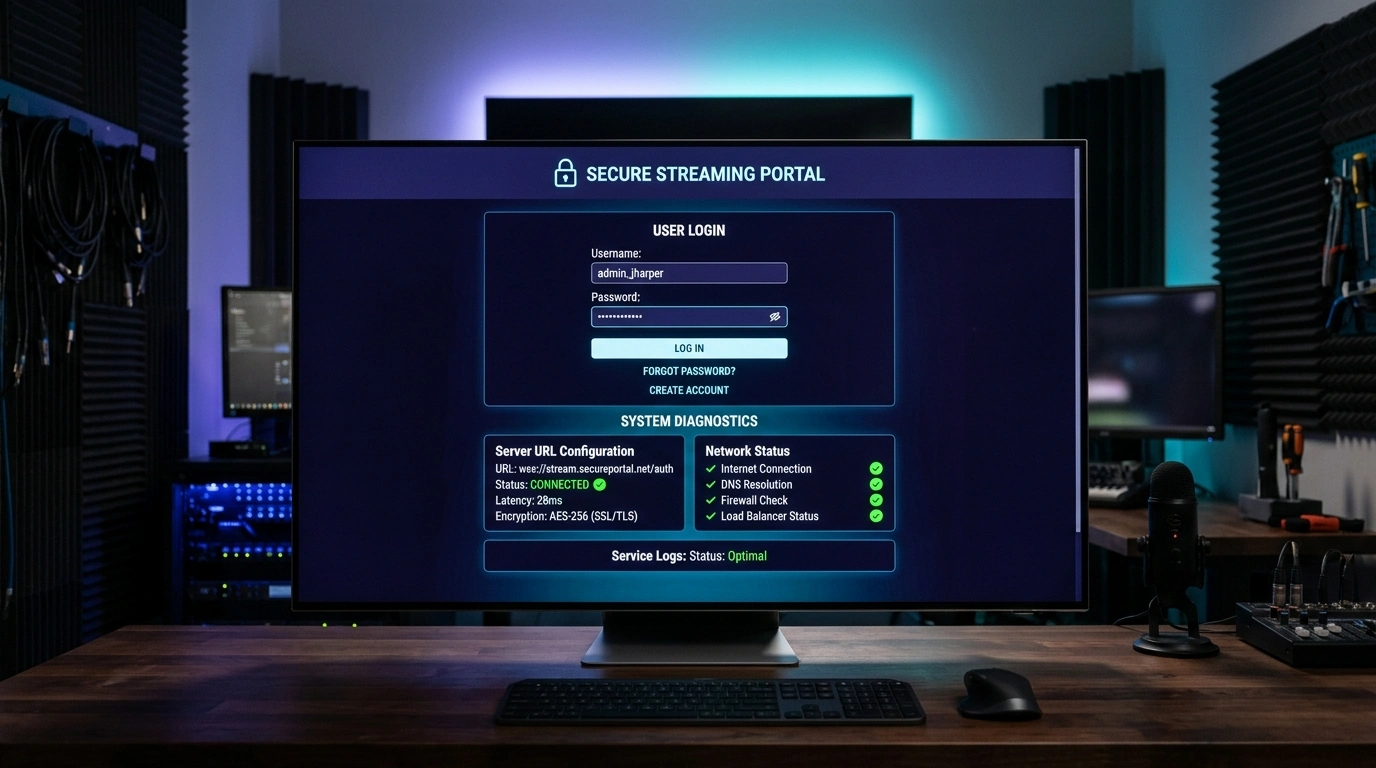
- Xtream Codes API: Consists of three clean parameters: a Server URL (domain or IP with port), a Username, and a Password. This is the gold standard for modern IPTV players (such as TiviMate, IPTV Smarters Pro, and XCIPTV) because it cleanly separates Live TV, Movies, Series, and Electronic Program Guides (EPG).
- M3U / M3U8 Playlist Link: A single long web URL containing your authentication token. While universally supported, it can be unwieldy to type on a TV remote control without a QR code scanner or companion keyboard.
Phase 1: Preparing Your Testing Environment
To conduct a fair, accurate evaluation, you must first ensure that your local hardware and home network are not creating artificial bottlenecks. If your home Wi-Fi is fluctuating, your testing results will be skewed, and you will misattribute local network issues to the IPTV provider's servers.
Pre-Test Optimization Checklist
- Connect via Hardwired Ethernet: Whenever physically possible, connect your streaming device (Smart TV, Android TV Box, Fire TV Stick, or Apple TV) directly to your router using a shielded Cat6 Ethernet cable. If wireless is your only option, ensure you are connected to your router's 5 GHz frequency band rather than the crowded, interference-prone 2.4 GHz band.
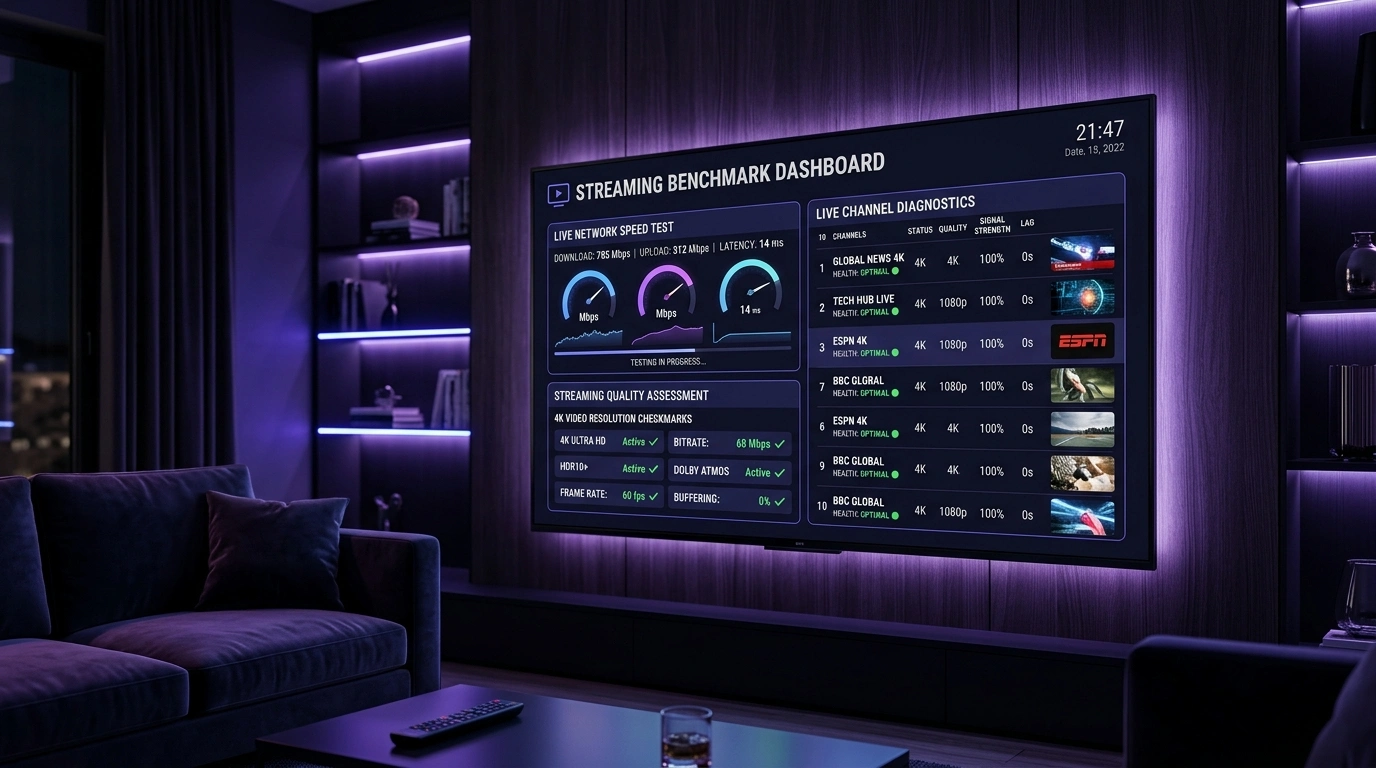
- Benchmark Raw Connection Speed: Before opening your IPTV application, run an independent network speed benchmark on your streaming box. Verify that your sustained download speed exceeds 30 Mbps for HD or 50 Mbps for 4K streams, ping latency is below 30 ms, and packet loss is strictly 0.0%.
- Use a High-Performance IPTV Client: Avoid testing through generic, ad-bloated mobile apps. Use industry-standard, hardware-accelerated media clients such as TiviMate on Android TV/Firestick, IPTV Smarters Pro, OTT Navigator, or UHF / GSE Smart IPTV on Apple TV.
- Clear Device Storage and Cache: Navigate to your streaming device settings and ensure you have at least 2 GB of free internal flash storage so local video player buffers can operate without memory starvation.
With your local testing baseline established, execute the following 12 diagnostic steps systematically.
Upgrade to SofaIPTV Premium 4K
Experience buffer-free entertainment with 50,000+ live channels and 200,000+ on-demand movies & series in pristine 4K.
- 4K & Full HD Quality
- Anti-Freeze v8.2 Tech
- All Devices Supported
- Instant 5-Min Activation
Step 1: Stress-Test During Peak Traffic Hours
The true measure of an IPTV server cluster is not how flawlessly it streams at 10:00 AM on a Wednesday; it is how resiliently it performs on Sunday at 4:30 PM during a title-deciding Premier League derby or during an international Champions League broadcast.
Budget providers rent cheap, low-capacity virtual servers that operate smoothly during off-peak hours. However, when thousands of subscribers tune into the same high-bitrate live broadcast simultaneously, the hosting bandwidth caps out, CPU loads reach 100%, and streams begin to stutter, loop, or collapse into infinite buffering spirals.
The Peak-Hour Testing Protocol
- Schedule your test between 7:30 PM and 11:00 PM local time on a weekday, and during major Saturday/Sunday sports broadcast windows.
- Navigate directly to high-profile sporting channels (Sky Sports Main Event, TNT Sports, beIN Sports, ESPN, SuperSport).
- Keep a single high-profile channel playing continuously for at least 45 consecutive minutes. Do not touch the remote.
- Pass Criteria: Playback remains rock-solid with zero buffering interruptions, no audio desynchronization, and zero spontaneous drops in resolution.
Step 2: Audit True 60 FPS Sports Motion and Temporal Resolution
For cinematic movies and episodic dramas, a 24 or 30 frames-per-second (FPS) broadcast is standard. For live sports, however, 30 FPS is entirely unacceptable. When viewing soccer, basketball, hockey, tennis, or auto racing at 30 FPS, rapid lateral camera tracking induces visible motion blur, ball ghosting, and micro-stutter that causes severe eye fatigue.
Top-tier IPTV services ingest direct broadcast satellite master feeds and output high-demand sports channels at a native 50 FPS or 60 FPS.
How to Verify Stream Frame Rate
- Open your stream in an IPTV player that displays technical stream statistics (in TiviMate: press the Down button or select the Information panel).
- Look for the stream metadata overlay:
- Resolution: Look for
1920x1080or3840x2160. - Frame Rate: Verify whether the stream is flagged as 50.00 fps (European/UK feeds) or 59.94 / 60.00 fps (North American feeds).
- Codec: Confirm whether the video stream is encoded in modern HEVC (H.265) or AVC (H.264).
- Resolution: Look for
- Observe kinetic motion: Track a moving soccer ball or hockey puck across the field. If the object appears crisp without trailing ghost artifacts or jagged edges, the feed is rendering at authentic high-temporal broadcast resolution.
Step 3: Inspect Video Bitrate and Compression Artifacts
Do not be misled by channel names labeled "4K" or "FHD." An unscrupulous provider can easily slap a "4K UHD" label onto a low-bitrate 720p transcode.
Diagnosing Real vs. Fake High-Definition Streams
- Inspect High-Frequency Textures: Examine detailed surfaces on the screen: individual blades of grass on a sports pitch, player jersey weaves, crowd faces in wide stadium shots, and metallic reflections. On a high-bitrate stream, these textures remain distinct. On an over-compressed stream, they smudge into a blurry green or grey wash.
- Examine Fast-Motion Scenes: When confetti bursts into the air after a trophy presentation, or during intense pyrotechnics at an entertainment concert, low-bitrate streams break apart into blocky digital squares called macroblocking. High-bitrate streams maintain coherent pixel integrity.
- Check Dark Background Gradients: During nighttime cinematic scenes, observe dark walls and night skies. If you see stepped bands of varying shades of grey rather than a smooth, continuous transition, the stream is suffering from heavy 8-bit compression and low bitrate allocation.
Step 4: Measure Channel Zapping Speed and Startup Latency
When you change channels on traditional cable or satellite television, the transition is near-instantaneous. On poorly optimized IPTV services, switching channels can feel like an excruciating test of patience—taking anywhere from 6 to 15 seconds of black screen and spinning loading icons for each channel handshake.
Channel zapping speed is determined by server routing optimization, content delivery network (CDN) edge caching, and stream keyframe interval configuration.
Channel Zapping Benchmark Test
- Open your channel directory and cycle through 10 consecutive channels, counting the seconds between pressing the button and hearing clear audio with fluid video rendering.
- Rating Scale:
- 1 to 2 Seconds: Superior tier-1 server infrastructure.
- 2 to 4 Seconds: Acceptable, high-quality performance.
- 5 to 8 Seconds: Sub-par server routing or overloaded local buffer.
- 9+ Seconds: Severely bottlenecked or oversold server network.
Step 5: Verify Electronic Program Guide (EPG) Coverage & Accuracy
An IPTV subscription without a functional Electronic Program Guide (EPG) transforms channel surfing into an aimless, frustrating chore. You are left guessing what program is currently airing, when a match begins, or what movie is scheduled next.
Key EPG Verification Checks During Your Trial
- Data Completeness: Browse through the channel list across multiple international categories (UK, US, Canada, Sports, News, Entertainment). Verify that program titles, episode descriptions, and start/finish times populate across at least 85% of active channels.
- Timeline Accuracy & Timezone Sync: Check whether the current program listed in the EPG matches what is physically broadcasting on your screen at that precise moment. If a program listed for 8:00 PM is actually showing a show scheduled for 7:00 PM or 9:00 PM, the provider's EPG server suffers from uncorrected timezone or UTC offset errors.
- EPG Refresh Reliability: Force an EPG data update inside your player settings. The client should download and parse the XMLTV database smoothly without throwing HTTP 404, 500 server errors, or causing your player to crash.
Step 6: Test Video on Demand (VOD) Library & Server Bandwidth
A premier IPTV service is much more than a live television portal; it acts as a comprehensive streaming replacement for Netflix, Disney+, and Amazon Prime Video. A robust VOD library should contain hundreds of thousands of regularly updated movies and complete television series boxsets.
However, many IPTV providers host their VOD catalog on secondary, slow storage servers that crawl under load.
The VOD Diagnostic Checklist
- Search for Recent Releases: Search the VOD section for blockbuster films that recently left theatrical release or the latest episodes of current prestige TV series. High-quality providers update their on-demand servers within 24 to 48 hours of official digital releases.
- Test Video Playback Scrubbing (Fast Forward & Rewind): Start a 4K movie and let it play for 2 minutes. Then, skip forward 30 minutes, skip backward 10 minutes, and resume playback. A high-performance VOD server will re-buffer and resume video playback in under 3 seconds. If the player hangs indefinitely, crashes, or loses audio sync upon scrubbing, the provider's storage network is inadequate.
- Verify Audio Tracks & Multilingual Subtitles: Check whether major movies include multi-channel audio options (Dolby Digital 5.1 / AC3) and clean, synchronized subtitle tracks rather than poorly synced automated machine translations.
Step 7: Test Catchup TV Functionality
Catchup TV (sometimes called Timeshift) is one of the most transformative features of modern IPTV. If you arrive home 45 minutes late for a football match, or miss an episode of your favorite evening news broadcast, Catchup allows you to rewind the live broadcast schedule and stream programs that aired hours or days prior.
How to Audit Catchup Functionality
- Open your player's channel guide and look for channels marked with a clock icon or rewind badge.
- Scroll backward in time on a major sports or news channel to a program that aired 6 hours earlier.
- Click play. The historical broadcast should load seamlessly from the provider's archive servers.
- Verify that you can pause, skip forward, and rewind through the historical stream without buffering interruptions.
- Inquire with the provider whether Catchup is supported across 3 days, 7 days, or 14 days of broadcast history.
Upgrade to SofaIPTV Premium 4K
Experience buffer-free entertainment with 50,000+ live channels and 200,000+ on-demand movies & series in pristine 4K.
- 4K & Full HD Quality
- Anti-Freeze v8.2 Tech
- All Devices Supported
- Instant 5-Min Activation
Step 8: Multi-Device and Platform Compatibility Testing
In a contemporary household, entertainment is consumed across varied form factors: living room televisions, bedroom streaming sticks, kitchen tablets, office desktop computers, and smartphones on the go.
During your trial window, install and test your credentials across multiple physical devices:
- Television Display: Amazon Fire TV Stick, Google TV, Samsung Tizen, or LG webOS.
- Mobile / Tablet: Android smartphone or Apple iPad.
- Computer: Windows PC or Mac running VLC Media Player, IPTV Smarters Pro desktop, or a web player client.
Device-Specific Testing Nuances to Check
- On Amazon Fire TV Sticks (Fire OS): Verify whether your IPTV player sideloads cleanly via Downloader without signature verification warnings. Ensure that navigating heavy 50,000-channel playlists does not cause memory exhaustion or remote control lag on older Firestick models.
- On Apple TV 4K (tvOS): Test whether your trial credentials interface smoothly with top-tier tvOS applications such as UHF, GSE Smart IPTV, or iPlayTV. Ensure that Apple's native AVPlayer engine handles the provider's audio tracks without dropping sound or requiring external software transcoding.
- On Samsung (Tizen) & LG (webOS) Smart TVs: Verify compatibility with apps like IBO Player, Smart IPTV, or IPTV Smarters Pro. Confirm that the television's native remote control directional pad, color shortcut buttons, and channel up/down triggers operate seamlessly within the channel grid.
- On Android TV & Google TV (Nvidia Shield, Chromecast 4K): Check whether the app integrates with Android TV's system-level "Live Channels" framework or home screen recommendations channel rows.
- Things to Observe: Does the provider utilize standard Xtream Codes and M3U formats that integrate seamlessly with third-party software, or do they force you to install proprietary, locked-down, ad-filled APK applications? Reputable providers like SofaIPTV allow complete freedom of player choice across all major operating systems.
Step 9: Multi-Connection and Line Locking Verification
If you reside in a household with multiple viewers, simultaneous multi-device streaming is an indispensable requirement. You may wish to watch live sports in the living room while your spouse watches a documentary in the bedroom and children stream cartoons on a tablet.
Critical Connection Rules to Test
- Review Connection Allowances: Verify how many simultaneous connections your subscription tier permits (typically 1, 2, or 3 simultaneous streams).
- Test Concurrent Playback: Launch active live streams on two separate devices simultaneously within your home network. Verify that both streams play smoothly without either screen receiving an "Account in use" or "Authentication limit reached" disconnect notice.
- Inquire About IP Locks vs. Roaming Freedom: Many restrictive IPTV resellers enforce rigid IP locks, terminating or banning accounts if a stream is detected outside the primary home Wi-Fi network. Ask the provider whether account connections are locked to a single public IP address or whether you can utilize your secondary connection while traveling, commuting on mobile cellular data, or vacationing in a hotel. High-quality providers offer flexible connection policies that accommodate modern mobile viewing lifestyles without punishing users for streaming on the go.
Step 10: Test Customer Support Responsiveness
When your streaming service is functioning perfectly, customer support is invisible. But when a major sports broadcast experiences an audio sync bug or your account credentials require a password reset on a Saturday afternoon, responsive, professional customer support is the difference between watching the game and staring at a blank screen.
The Customer Service Stress Test
During your trial period, submit a polite, technical inquiry to the provider's support desk (via their official WhatsApp channel, Telegram desk, or website ticketing system):
- Example query: "Hello! I am currently testing the service on a Fire TV Stick 4K Max. Which video decoder (Hardware vs Hardware+) do you recommend for your 4K 60FPS sports feeds, and what is your primary EPG refresh URL?"
- Observe the Response:
- Response Speed: Did they respond within 10 to 30 minutes, or did hours pass without acknowledgement? A response time under 15 minutes during regular hours indicates a dedicated operational support team.
- Technical Competence: Was the answer provided by a knowledgeable human technician who understands decoders and codecs, or did you receive an unhelpful automated generic bot response saying "Please restart your app"?
- Professionalism: Were they courteous, eager to help, and transparent about server status?
A provider that responds rapidly and technically during an unpaid trial will treat you with priority when you become a paying customer.
Step 11: Evaluate ISP Freedom vs. VPN Requirements
Certain low-tier IPTV providers utilize blacklisted, unencrypted server hosting clusters that are aggressively flagged and blocked by major Internet Service Providers (such as Comcast, AT&T, Spectrum, BT, Virgin Media, or Vodafone) the moment live sports events begin.
How to Test for ISP Throttling and Blocking
- Stream a high-bitrate live channel for 15 minutes without a VPN. Note picture quality and buffering stability.
- If the channel begins to buffer, stutter, or refuse to load, connect your streaming device to a fast VPN (using the modern WireGuard protocol) connected to a local city server.
- If the stream instantly recovers and plays smoothly the second the VPN is activated, your ISP is actively throttling that provider's server IP addresses.
- While using a VPN is always a sound privacy practice, a truly premium IPTV service—such as SofaIPTV—utilizes dynamic anti-blocking routing and clean CDN edge relays that stream flawlessly both with and without a VPN.
Step 12: Scrutinize Billing Security and Subscription Terms
Before executing a purchase, thoroughly inspect the provider's checkout architecture, payment methods, and renewal terms.
Safety Red Flags to Avoid
- Mandatory Auto-Recurring Subscriptions: Be wary of services that lock you into automated monthly credit card rebilling that is difficult or impossible to cancel through a self-service customer portal. Insist on manual renewal options where you explicitly authorize each renewal period.
- Unencrypted, Shady Payment Gateways: Never input credit card credentials into unencrypted HTTP payment forms or through obscure third-party peer-to-peer personal transfer requests without buyer protection.
- Reputable Providers Offer Modern, Secure Options: Professional services provide secure, encrypted credit/debit card processing, verified PayPal gateways, and privacy-centric cryptocurrency payments (Bitcoin, USDT, Ethereum).
Common Mistakes Cord-Cutters Make During IPTV Trials
Even experienced cord-cutters can make critical mistakes during their evaluation window that lead to inaccurate conclusions:
- Testing Only Familiar Local Channels: Many users log into a trial, flip to two local news channels, confirm they work, and immediately purchase a subscription. Local channels often use low bitrates and rarely buffer. You must test high-demand international sports and 4K cinema channels where server load is heaviest.
- Ignoring Device Temperature and Cache: Running tests on a streaming stick packed tightly behind a hot TV panel can cause device thermal throttling that mimics server buffering. Ensure your device is ventilated and free of cache bloat before judging stream quality.
- Evaluating on Outdated Apps: Testing a premium service through an unmaintained, 5-year-old IPTV app with buggy internal decoders will make even the world's best server look poor. Always test with modern, updated software like TiviMate or IPTV Smarters Pro.
- Failing to Test Peak-Hour Sunday Games: A service that streams flawlessly on Tuesday afternoon may completely collapse on Sunday during simultaneous NFL and Premier League action. Always ensure your test covers a high-traffic sporting window.
The 100-Point IPTV Trial Evaluation Scorecard
To help you objectively assess any IPTV service you test, use our structured 100-point diagnostic scorecard. Grade each category during your trial:
+------------------------------------+----------------+--------------------+
| Evaluation Metric                  | Maximum Points | Minimum Pass Score |
+------------------------------------+----------------+--------------------+
| Peak Hour Stability (8pm - 11pm)   | 25 Points      | 20 Points          |
| Sports 50/60 FPS Fluidity & Motion | 20 Points      | 16 Points          |
| True Video Bitrate & Sharpness     | 15 Points      | 12 Points          |
| Channel Zapping Speed (< 3 sec)    | 10 Points      | 7 Points           |
| EPG Schedule Accuracy & Timezones  | 10 Points      | 7 Points           |
| VOD Catalog Depth & Seek Speed     | 10 Points      | 7 Points           |
| Support Responsiveness (< 30 min)  | 5 Points       | 4 Points           |
| Payment Security & Transparency    | 5 Points       | 4 Points           |
+------------------------------------+----------------+--------------------+
| TOTAL SCORE                        | 100 Points     | 77 Points          |
+------------------------------------+----------------+--------------------+
- 90 – 100 Points (Elite Tier): Outstanding service. Safe for long-term (6 or 12-month) commitment.
- 77 – 89 Points (Good Tier): Solid service. Recommended for 3-month or 6-month plans.
- Below 77 Points (Failing Tier): High risk of weekend buffering and abandonment. Do not purchase.
What to Do After Your Test: Selecting the Right Subscription Plan
Once an IPTV provider successfully passes your evaluation scorecard, you face a final decision: which subscription duration offers the optimal balance of value and security?
The "Ladder Strategy" for New Cord-Cutters
- Never Start with a Multi-Year Plan: Even if a service offers an absurdly cheap 2-year or 3-year deal, never buy multi-year subscriptions from any provider. The digital streaming ecosystem evolves rapidly.
- Begin with a 3-Month Plan: A 3-month subscription plan is the ideal sweet spot for new subscribers. It delivers substantial savings over single-month rates while protecting you against unexpected long-term server changes.
- Upgrade to a 12-Month Plan After Establishing Trust: Once a provider proves rock-solid stability across multiple months of major sports tournaments, holiday periods, and system updates, upgrading to a 12-month pass unlocks maximum annual savings (often 50% to 65% cheaper than monthly billing).
Why SofaIPTV Sets the Industry Benchmark for Trial Excellence
At SofaIPTV, we believe prospective subscribers should never have to gamble on streaming quality. We operate on complete transparency, inviting cord-cutters worldwide to put our streaming servers through the most demanding testing protocols imaginable.
When you test SofaIPTV, you experience:
- Over 50,000 Live Broadcast Channels: Spanning the UK, US, Canada, Europe, Latin America, the Middle East, Asia, and Africa in pristine 4K, FHD, and HD.
- Native 50/60 FPS Sports Streams: Crystal-clear kinetic motion for Premier League, Champions League, NFL, NBA, UFC, and Formula 1 events.
- Proprietary Anti-Freeze 9.8 Cloud Servers: Multi-location redundant server clusters delivering 99.9% uptime, eliminating peak-hour buffering bottlenecks.
- Massive VOD Library: More than 200,000 regularly refreshed movies and television series with multi-language audio and subtitle support.
- Instant Activation & 24/7 Live Support: Transparent setup assistance via WhatsApp and email, with zero hidden fees and no automated recurring rebilling traps.
Explore our comprehensive channel directory, review our step-by-step device installation guides, or select your preferred subscription package to start streaming with total peace of mind.
Frequently Asked Questions
The Verdict: Test Smart, Stream Better
Cutting the cord should be a liberating, exhilarating upgrade to your home entertainment lifestyle—not an ongoing technical headache. By following this 12-step testing methodology, benchmarking real peak-hour bandwidth, auditing frame rates, evaluating EPG reliability, and verifying payment safety, you insulate yourself from substandard providers and ensure an extraordinary viewing experience.
Ready to test what true high-performance streaming looks like? Contact SofaIPTV Support to request your trial credentials, browse our exclusive subscription plans, or consult our frequently asked questions to begin your premium streaming journey today.