IPTV Buffering Every Few Minutes? 14 Proven Fixes for Freezing Streams & Stuttering
There is nothing quite as exasperating in modern home entertainment as settling down to watch an intensely competitive live football derby, a crucial playoff basketball game, or an engrossing cinema release, only for the broadcast to freeze into a motionless still frame every two to three minutes. A spinning loading icon appears in the center of the screen, the audio drops out, and by the time the stream coughs back to life five seconds later, a game-winning goal has been scored, an exhilarating action sequence has passed, or a critical plot revelation has been missed.
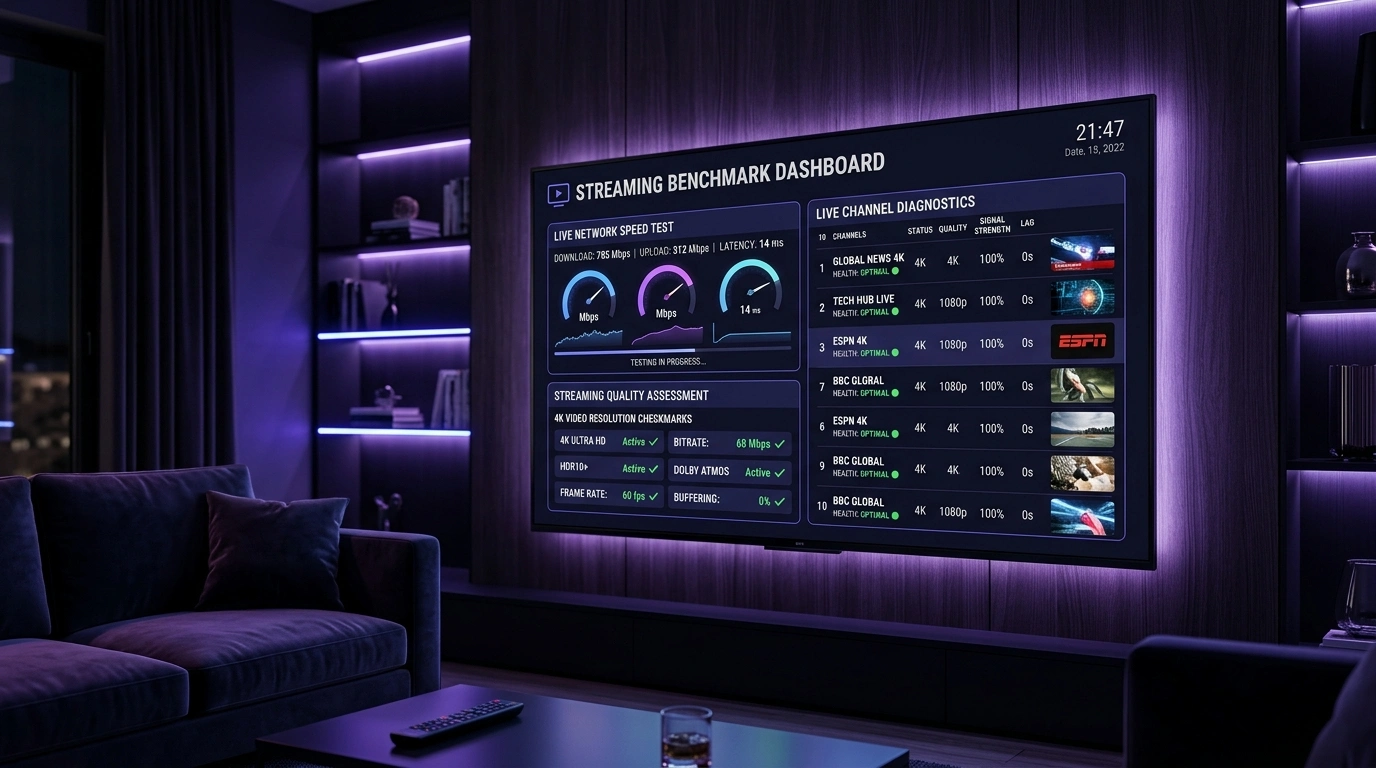
When video streams freeze periodically, many subscribers instinctively place 100% of the blame on their IPTV provider's servers. While low-grade, overcrowded streaming providers certainly suffer from server-side infrastructure bottlenecks, periodic buffering—specifically the frustrating phenomenon where a channel plays smoothly for ninety seconds, freezes briefly, plays for another two minutes, and freezes again—is frequently governed by local and intermediate network dynamics.
Streaming live linear broadcast television over Internet Protocol operates fundamentally differently from on-demand platforms like Netflix or YouTube. Netflix can aggressively download ten minutes of future video into your device's memory cache while you watch the opening scene; live IPTV broadcasts, by their very nature, are happening in real time. Your device cannot buffer minutes into the future because those moments have not yet occurred. Consequently, live streaming requires an uninterrupted, low-latency, zero-loss data pipeline. Even a momentary micro-burst of packet jitter or a temporary bandwidth restriction will instantly drain your player's buffer and freeze the display.
In this exhaustive technical guide, we break down the exact physics of video buffer underruns, examine why streams collapse at regular time intervals, and present fourteen field-tested, step-by-step technical remedies to permanently eradicate IPTV buffering from your television setup.
The Technical Anatomy of a Video Buffer Underrun
To permanently eliminate buffering, one must first demystify what actually occurs inside your television's memory during a stream freeze. In streaming engineering, this breakdown is known as a buffer underrun.
+-----------------------------------------------------------------------------------+
|                        The IPTV Stream Playback Buffer                            |
+-----------------------------------------------------------------------------------+
|  Incoming Data Pipeline (Internet / Wi-Fi)                                        |
|  ======>> [ Sustained Bitrate: 15 Mbps ] >>======+                                |
|                                                  |                                |
|                                                  v                                |
|  +-----------------------------------------------------------------------------+  |
|  |                 Device RAM Playback Buffer (2 to 5 Seconds)                 |  |
|  | [ Frame 1 ] [ Frame 2 ] [ Frame 3 ] [ Frame 4 ] [ Frame 5 ] [ Frame 6 ] ... |  |
|  +---------------------------------------+-------------------------------------+  |
|                                          |                                        |
|                                          v                                        |
|  Outgoing Video Pipeline (Hardware MediaCodec Engine)                             |
|  ======>> [ Consumes Video at Fixed Broadcast Rate: 50 / 60 FPS ] >>===> Display  |
+-----------------------------------------------------------------------------------+
| NORMAL STATE : Incoming Rate > Consumption Rate -> Buffer Remains Full (Stable)   |
| UNDERRUN     : Incoming Rate Dips for 400ms     -> Buffer Drains to Zero (FREEZE) |
+-----------------------------------------------------------------------------------+
How Live Buffering Operates
When you tune to a live channel, your IPTV player (such as TiviMate, IPTV Smarters Pro, or Sparkle TV) connects to the server and begins filling a reserved partition of your device's system RAM. This reserved memory pool is your playback buffer.
If a channel is broadcast at a bitrate of 15 Mbps, the player must continuously download at least 1.875 megabytes of uncorrupted video data every single second. The player deliberately delays video playback by two to four seconds to build this cushion. Once the cushion is established, the hardware video decoder begins pulling frames from the buffer and rendering them onto your screen at a steady 50 or 60 frames per second.
Why Streams Buffer Cyclically (Every Few Minutes)
If buffering occurred completely at random, it would point to erratic hardware failures. But when buffering repeats like clockwork every few minutes, it reveals a cyclic network pattern:
- The TCP Window Collapse: When streaming over HTTP/TCP, packet loss triggers TCP flow-control algorithms (such as Cubic or BBR). If your local Wi-Fi drops just 1% of incoming packets, TCP interprets this as severe network congestion and slashes your download throughput by 50% instantly. The buffer drains, the video freezes, TCP slowly ramps bandwidth back up, the buffer refills, and playback resumes—until the next packet drop repeats the cycle two minutes later.
- Wi-Fi Beacon and Roaming Scans: Consumer Wi-Fi routers and streaming sticks perform periodic background channel scans every 60 to 120 seconds to monitor neighboring frequencies. During these micro-scans, wireless transmission pauses for 200 to 500 milliseconds—more than enough to starve an aggressive low-latency IPTV buffer.
- ISP Token Bucket Rate Limiting: Certain residential Internet Service Providers utilize traffic shaping algorithms that allow burst speeds for the first 60 seconds of a connection before enforcing an artificial bandwidth cap. Once the cap engages, incoming data falls below the stream's bitrate requirement, triggering a freeze.
1. Eliminate Wi-Fi Interference with Direct Ethernet Connections
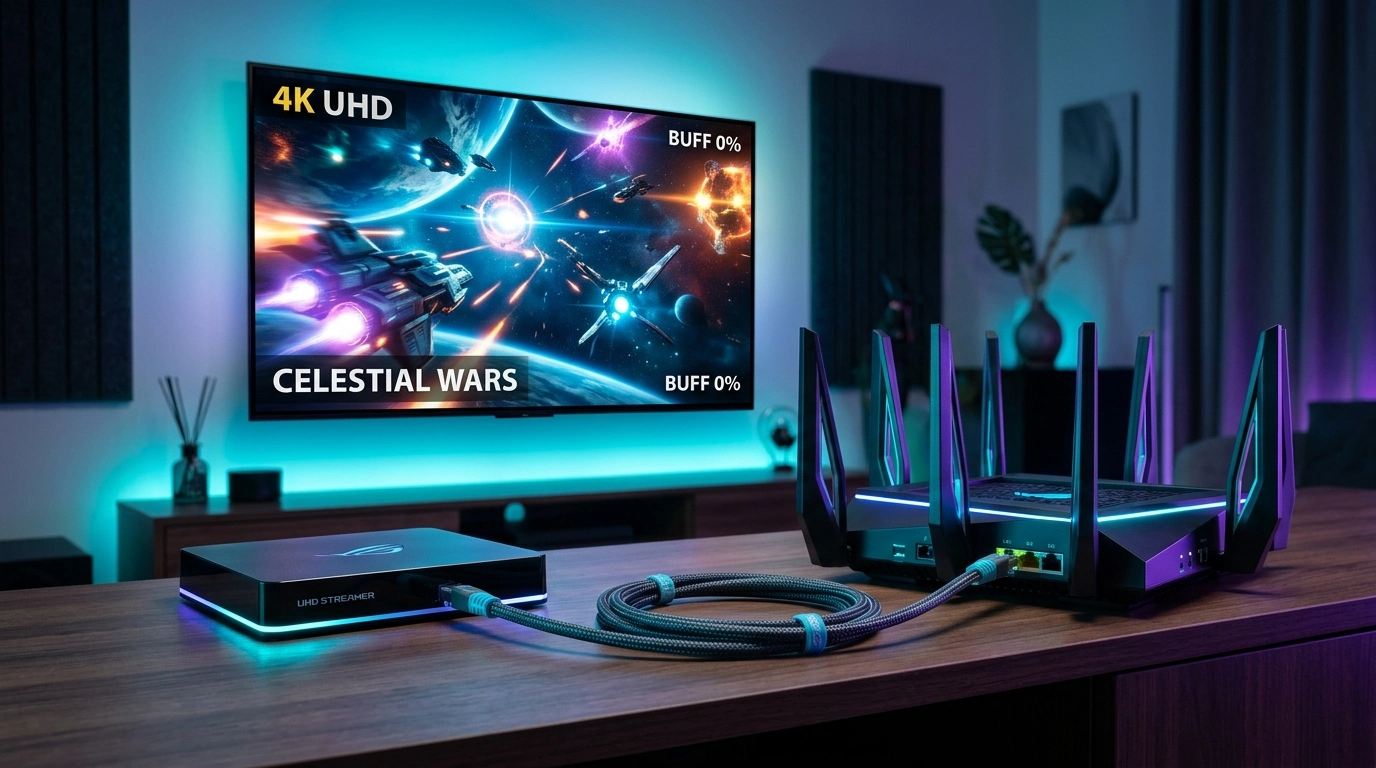
The single most impactful upgrade any streaming enthusiast can execute is abandoning wireless Wi-Fi in favor of a physical, shielded Cat6 Ethernet connection.
+---------------------------------------------------------------------------------+
|                       Wi-Fi vs. Ethernet Transmission Stability                 |
+---------------------------------------------------------------------------------+
| Metric                      | 5 GHz Wi-Fi Connection  | Direct Cat6 Ethernet    |
+-----------------------------+-------------------------+-------------------------+
| Peak Bandwidth (Speed Test) | 350 Mbps (High)         | 100 - 1000 Mbps (Stable)|
| Packet Loss Rate            | 0.5% - 2.5% (Fluctuating| Strictly 0.0% (Zero)    |
| Latency Jitter (Ping Var.)  | 15 ms - 80 ms (Unstable)| 1 ms - 2 ms (Rock Solid)|
| Susceptibility to RFI       | High (Walls, Microwaves)| Zero (Shielded Copper)  |
| IPTV Playback Result        | Periodic Buffering Spikes| Completely Freeze-Free |
+-----------------------------+-------------------------+-------------------------+
Why a "Fast" Speed Test Is Misleading
Many users adamantly insist: "My internet cannot be the problem; I ran a speed test on my laptop and got 400 Mbps!"
This stems from a fundamental misunderstanding of video transmission protocols:
- A standard web speed test measures aggregate HTTP file download burst throughput over a brief 10-second window. It does not measure packet consistency over an unbroken two-hour live television broadcast.
- Wi-Fi operates over shared, unlicensed radio frequency spectrum. Physical barriers (drywall, brick, metal studs), electrical appliances (microwave ovens, cordless phones), and competing broadcasts from neighboring residential routers introduce electromagnetic interference.
- While web browsing and Netflix can easily tolerate intermittent 500 ms packet delays through background caching, a live 60 FPS sports stream demands continuous, zero-loss data delivery.
How to Hardwire Streaming Sticks (Firestick & Chromecast)
Streaming sticks like the Amazon Fire TV Stick 4K Max or Chromecast with Google TV do not feature built-in RJ45 Ethernet ports on their chassis. Fortunately, hardwiring them is simple and inexpensive:
- Acquire an official or third-party USB-to-Ethernet OTG power adapter.
- Connect the micro-USB or USB-C adapter into the streaming stick, plug an Ethernet cable from your router into the adapter, and connect the power cable.
- In your streaming stick's network settings, verify that Wi-Fi is disconnected and the network status indicates "Connected via Ethernet."
Upgrade to SofaIPTV Premium 4K
Experience buffer-free entertainment with 50,000+ live channels and 200,000+ on-demand movies & series in pristine 4K.
- 4K & Full HD Quality
- Anti-Freeze v8.2 Tech
- All Devices Supported
- Instant 5-Min Activation
2. Optimize 5 GHz Wi-Fi Settings When Cabling Is Impractical
If running a physical Ethernet cable from your living room router to your television is structurally impossible due to rented accommodation or architectural constraints, you must aggressively optimize your wireless local network.
+---------------------------------------------------------------------------------+
|                       2.4 GHz vs. 5 GHz Wi-Fi for Live IPTV                     |
+---------------------------------------------------------------------------------+
| Feature / Characteristic    | 2.4 GHz Wi-Fi Band      | 5 GHz Wi-Fi Band        |
+-----------------------------+-------------------------+-------------------------+
| Physical Range through Walls| Superior (Long Range)   | Shorter (Higher Atten.) |
| Available Clean Channels    | Only 3 Non-Overlapping  | Up to 24 Clean Channels |
| Susceptibility to Jamming   | Extreme (Bluetooth, etc)| Very Low                |
| Maximum Real-World Bitrate  | 20 - 45 Mbps            | 200 - 600 Mbps          |
| Jitter & Packet Loss        | High (Causes Freezes)   | Ultra-Low (If line-of-sight|
| Verdict for 4K Live IPTV    | UNACCEPTABLE            | MANDATORY (If no cable) |
+-----------------------------+-------------------------+-------------------------+
Migrate Away from 2.4 GHz Immediately
Never stream live IPTV over a 2.4 GHz Wi-Fi connection. The 2.4 GHz frequency spectrum is severely overcrowded, offering only three non-overlapping channels (1, 6, and 11). It is constantly bombarded by smart home lightbulbs, Bluetooth devices, baby monitors, and neighboring networks. Connect your television strictly to your router's 5 GHz (or Wi-Fi 6 / 6 GHz) broadcast band.
Separate Wi-Fi SSIDs in Router Firmware
Many modern mesh routers deploy a feature called "Smart Connect" or "Band Steering," broadcasting both the 2.4 GHz and 5 GHz bands under a single unified Wi-Fi network name (SSID). The router automatically shuffles devices between frequencies based on signal strength.
- If your television experiences a momentary signal dip, the router aggressively demotes the TV to the slow, high-jitter 2.4 GHz band.
- The Fix: Log into your router's administrative dashboard (typically
192.168.1.1or192.168.0.1). Disable Band Steering and assign distinct names to each band (e.g.,HomeNetwork_5GandHomeNetwork_2.4G). Manually connect your streaming television exclusively to the_5Gnetwork.
Select Clean, Non-DFS Wireless Channels
Routers set to "Auto Channel" frequently hop between frequencies, causing momentary connection dropouts that crash IPTV streams. Download a Wi-Fi analyzer utility on your smartphone, identify the least congested 5 GHz channel in your living space (typically Channel 36, 40, 44, or 48 for non-DFS channels), and lock your router to that specific channel permanently.
3. Circumvent ISP Bandwidth Throttling with Encrypted VPN Routing
In many countries—most notably across the United Kingdom, Western Europe, North America, and Australia—residential Internet Service Providers deploy sophisticated automated traffic management systems.
+---------------------------------------------------------------------------------+
|                    How ISPs Detect and Throttle Live IPTV Traffic                |
+---------------------------------------------------------------------------------+
| 1. Unencrypted Streaming (Subject to Throttling):                               |
|    Player -> ISP Router -> Deep Packet Inspection (DPI) detects MPEG-TS video   |
|    ISP Action: Applies rate-limiting policy -> Bandwidth capped at 4 Mbps       |
|    Result: High-bitrate 1080p/4K stream (15 Mbps) starved -> CYCLIC BUFFERING   |
+---------------------------------------------------------------------------------+
| 2. Encrypted WireGuard VPN Tunnel (Immune to Throttling):                       |
|    Player -> Encrypted VPN Tunnel -> ISP Router (Sees generic encrypted UDP)    |
|    ISP Action: Cannot identify traffic type -> Full 100+ Mbps bandwidth passed |
|    Result: Flawless, uninterrupted 60 FPS playback with zero throttling        |
+---------------------------------------------------------------------------------+
The Mechanism of Peak-Hour Throttling
Have you observed that your IPTV service streams with zero buffering on Tuesday morning at 10:00 AM, but becomes virtually unwatchable on Saturday afternoon at 3:00 PM or Wednesday evening at 8:00 PM during major football tournaments?
- This time-specific degradation is the classic hallmark of ISP Traffic Shaping.
- During high-demand evening periods, residential networks experience massive aggregate bandwidth strain. To prevent their local infrastructure from collapsing, ISPs use Deep Packet Inspection (DPI) to categorize data types.
- Web browsing, online banking, and enterprise traffic are prioritized, while high-bandwidth UDP video transport streams originating from IPTV content delivery networks are aggressively throttled down to 3 or 4 Mbps.
- Because a pristine 4K 60FPS sports stream requires 15 to 25 Mbps, throttling immediately triggers repetitive buffer underruns.
How a VPN Permanently Eliminates Throttling
By installing a premium Virtual Private Network (such as Surfshark, NordVPN, or ExpressVPN) directly onto your streaming stick or television, you encapsulate all outgoing and incoming packets inside an impenetrable layer of AES-256 or ChaCha20 encryption.
- Your ISP's DPI inspection engines can no longer see the destination server URL, port numbers, or the nature of the data packets.
- Because the ISP cannot identify the traffic as an IPTV stream, automated throttling filters fail to engage.
- Critical Selection Rule: Always configure your VPN client to use the WireGuard protocol (or proprietary variants like NordLynx or Lightway) rather than legacy OpenVPN. WireGuard delivers vastly superior throughput, lower CPU overhead on low-power streaming sticks, and near-zero connection latency.
4. Tune Your IPTV Player's Playback Buffer Curve
The default playback buffer settings configured out-of-the-box in popular IPTV applications are not universally optimal for every residential network. Depending on your connection stability, adjusting these parameters can transform a freezing stream into rock-solid playback.
+---------------------------------------------------------------------------------+
|                      IPTV Player Buffer Sizing Trade-Offs                       |
+---------------------------------------------------------------------------------+
| Buffer Setting      | Memory Footprint | Network Tolerance | Channel Zapping   |
+---------------------+------------------+-------------------+-------------------+
| None (0 Seconds)    | Extremely Low    | Zero Margin       | Instant (< 1s)    |
| Small (1 - 2 Sec)   | Low              | Low (Minor Jitter)| Fast (1 - 2s)     |
| Medium (3 - 5 Sec)  | Balanced         | High (Recommended)| Normal (2 - 3s)   |
| Large (8 - 10 Sec)  | High             | Exceptional       | Slow (4 - 5s)     |
+---------------------+------------------+-------------------+-------------------+
How to Adjust Buffer Size in TiviMate
- Open TiviMate on your television and press the Left arrow to reveal the side menu.
- Navigate down to Settings (gear icon) > Playback.
- Locate Buffer size. By default, it is frequently set to None or Small.
- Change the setting to Medium (or test Large if your connection experiences frequent packet drops).
- Setting the buffer to Medium allows the application to store approximately 3 to 5 seconds of pre-fetched video in your device's RAM. If your local Wi-Fi experiences a momentary 1-second transmission hiccup, the player continues reading from the RAM buffer without freezing the on-screen video.
How to Adjust Buffer Settings in OTT Navigator
- Open OTT Navigator, press the Menu button, and select Settings.
- Navigate to Playback > Buffer duration.
- Manually specify the buffer target: set it to 3000 ms (3 seconds) or 5000 ms (5 seconds).
- Enable Dynamic buffer scaling, which allows the player to automatically expand the buffer window when packet jitter is detected.
5. Switch Video Decoders: Hardware (HW) vs. Software (SW)
A stream freeze does not always originate on the network; it is frequently caused by a hardware video decoder bottleneck inside your streaming stick or television processor.
+---------------------------------------------------------------------------------+
|                     Hardware vs. Software Video Decoding                        |
+---------------------------------------------------------------------------------+
| Feature / Metric            | Hardware Decoder (HW)   | Software Decoder (SW)   |
+-----------------------------+-------------------------+-------------------------+
| Processing Unit             | Dedicated Silicon ASIC  | General Purpose CPU     |
| CPU Load on Firestick/TV    | 2% - 8% (Minimal)       | 95% - 100% (Overload)   |
| Thermal Generation          | Very Low (Runs Cool)    | Extreme (Thermal Thrott)|
| Frame Stability on 4K 60FPS | Perfectly Smooth        | Dropped Frames & Stutter|
| Codec Compatibility         | Standard HEVC/H.264/AV1 | Universal (Plays Any)   |
| Recommended Setting         | DEFAULT CHOICE (HW/HW+) | FALLBACK ONLY           |
+-----------------------------+-------------------------+-------------------------+
The Peril of Accidental Software Decoding
Digital television streams are compressed using complex encoding algorithms—most commonly High-Efficiency Video Coding (H.265 / HEVC) or Advanced Video Coding (H.264).
- Hardware Decoding (HW): Your streaming device contains a dedicated microchip block engineered specifically to decompress these algorithms at zero computational expense to the main processor.
- Software Decoding (SW): If your player is set to Software decoding, the device's central processor (CPU) must mathematically calculate every single pixel of every frame in real time.
- On entry-level streaming sticks and smart TVs, software decoding instantly saturates all CPU cores at 100%. After two minutes of playback, the device overheats, thermal throttling engages to protect the silicon from melting, CPU clock speeds are cut in half, and the video begins freezing and buffering violently.
How to Ensure Hardware Acceleration Is Active
- In TiviMate: Navigate to Settings > Playback > Video Decoder and confirm it is set to Hardware. If you encounter compatibility quirks with interlaced broadcast streams, test Hardware+.
- In IPTV Smarters Pro: Open Settings > Player Selection and ensure the internal hardware player or VLC is designated for Live TV.
- In Sparkle TV: Open Settings > Player > Video Decoder and verify that Hardware Acceleration (MediaCodec) is enabled.
6. Configure High-Performance Public DNS Resolvers
When you tune to an IPTV channel, your streaming client must resolve the domain name of the content delivery network edge server to an IP address. Most residential households rely on the default DNS servers assigned automatically by their Internet Service Provider.
+---------------------------------------------------------------------------------+
|                       How DNS Affects IPTV Stream Routing                       |
+---------------------------------------------------------------------------------+
| Default ISP DNS Resolver:                                                       |
| - Often slow, poorly maintained, and subject to geographic misrouting.          |
| - May resolve your IPTV stream domain to an overseas server edge 4,000 miles    |
|   away, introducing 150ms latency and high packet loss -> BUFFERING.            |
+---------------------------------------------------------------------------------+
| Optimized Public Anycast DNS (Cloudflare / Google):                             |
| - Resolves requests in under 10 milliseconds.                                   |
| - Correctly utilizes EDNS Client Subnet (ECS) to route your connection to the   |
|   geographically closest CDN server node located in your city -> SMOOTH STREAM. |
+---------------------------------------------------------------------------------+
Recommended Public DNS Servers
Reconfigure your device or router to use these world-class public resolvers:
- Cloudflare DNS (Speed & Privacy Optimized):
- Primary IPv4:
1.1.1.1 - Secondary IPv4:
1.0.0.1
- Primary IPv4:
- Google Public DNS (High Availability):
- Primary IPv4:
8.8.8.8 - Secondary IPv4:
8.8.4.4
- Primary IPv4:
Changing DNS on Amazon Firestick
- Navigate to Settings > Network.
- Highlight your connected Wi-Fi network and press the Play/Pause button on your remote to view connection details. Note down your IP address and Gateway address (e.g.,
192.168.1.1). - Press the Options button (three horizontal lines) to forget the network.
- Select the network again, enter your Wi-Fi password, and select Advanced.
- Input your IP address, Gateway address, set Network Prefix Length to
24, and enter1.1.1.1for DNS 1 and8.8.8.8for DNS 2. Save and connect.
7. Clear Application Cache and Free Up Device Flash Storage
Streaming television players write hundreds of megabytes of temporary data to your device's internal flash storage: channel guide schedules, station logo icons, movie poster artwork, and video cache segments.
+---------------------------------------------------------------------------------+
|                     Flash Memory Exhaustion on Streaming Sticks                 |
+---------------------------------------------------------------------------------+
| Total Internal Flash Storage on Typical Firestick: 8.0 GB                       |
| - OS System Image & Factory Firmware: - 4.5 GB                                  |
| - Pre-installed Amazon Apps & Services: - 1.5 GB                                |
| - Available User Storage Space: ~ 2.0 GB                                        |
+---------------------------------------------------------------------------------+
| DANGER ZONE:                                                                    |
| When remaining free storage drops below 500 MB:                                 |
| - Operating system cannot allocate virtual RAM swap partitions.                 |
| - IPTV player fails to write video buffer cache files to disk.                  |
| - Result: Video stutters, drops frames, and freezes every few minutes.          |
+---------------------------------------------------------------------------------+
How to Clear Cache Without Losing Login Details
- On Amazon Fire TV: Open Settings > Applications > Manage Installed Applications. Select your IPTV app, choose Force Stop, and click Clear Cache. (Never click Clear Data unless you intend to completely reset your account and re-enter your credentials).
- On Android TV / Google TV: Navigate to Settings > Apps > See all apps. Select your IPTV client, choose Force stop, and click Clear cache.
- Audit Installed Applications: Uninstall streaming apps, games, and screensavers you no longer use to maintain at least 1.5 GB of free storage space on your device.
Upgrade to SofaIPTV Premium 4K
Experience buffer-free entertainment with 50,000+ live channels and 200,000+ on-demand movies & series in pristine 4K.
- 4K & Full HD Quality
- Anti-Freeze v8.2 Tech
- All Devices Supported
- Instant 5-Min Activation
8. Configure Router Quality of Service (QoS) Prioritization
In a modern connected household, your television is competing for bandwidth against dozens of other wireless devices: smartphones downloading automatic software updates, gaming consoles downloading 50 GB game patches, work laptops conducting video conferences, and smart security cameras uploading continuous cloud footage.
+---------------------------------------------------------------------------------+
|                    Router Bandwidth Contention Scenario                         |
+---------------------------------------------------------------------------------+
| Total Household Internet Bandwidth: 100 Mbps                                    |
|                                                                                 |
| Device A (Gaming PC)   : Downloading Game Update -> Consuming 85 Mbps           |
| Device B (Smartphone)  : Cloud Photo Backup       -> Consuming 10 Mbps          |
|                                                                                 |
| Device C (Living Room TV) : Streaming 4K IPTV    -> Left with only 5 Mbps!      |
| Result: Required 18 Mbps not available -> STREAM COLLAPSES INTO BUFFERING       |
+---------------------------------------------------------------------------------+
| The Solution: Router QoS (Quality of Service) Prioritization                    |
| - Router reserves a guaranteed 30 Mbps pipeline strictly for Television MAC ID. |
| - Background downloads on PCs and phones are throttled during live TV streaming.|
+---------------------------------------------------------------------------------+
How to Configure QoS for Your Television
- Open a web browser on your computer or phone and navigate to your router's administrative gateway IP (e.g.,
192.168.1.1). - Log in using your router's administrator credentials (printed on the router chassis sticker if not customized).
- Locate the Quality of Service (QoS) or Bandwidth Management tab.
- Enable QoS and locate your television or streaming stick in the connected device client list using its local IP or MAC address.
- Assign your streaming device the Highest Priority tier.
- Save and apply settings. Your router will now automatically deprioritize background downloads and torrents whenever your television demands bandwidth for live video streaming.
9. Single Channel vs. Universal Buffering: Identifying the Culprit
When troubleshooting buffering, you must determine whether the issue is systemic across your entire subscription or isolated to an individual channel broadcast.
+---------------------------------------------------------------------------------+
|                   Diagnostic Isolation: Single vs. Universal                    |
+---------------------------------------------------------------------------------+
| Test Action: Switch to 5 completely different channel bouquets                   |
| (e.g., UK Sports, US Entertainment, French News, Canadian Cinema, 24/7 Series)  |
+---------------------------------------------------------------------------------+
| Scenario A: ONLY ONE SPECIFIC CHANNEL BUFFERS                                   |
| - Diagnosis: The issue is server-side at the source restream encoder.           |
| - Action   : Switch to the channel's backup / alternate link (e.g., 50 FPS vs   |
|              FHD vs HD); report the broken stream link to provider support.     |
+---------------------------------------------------------------------------------+
| Scenario B: EVERY SINGLE CHANNEL BUFFERS EQUALLY                                |
| - Diagnosis: The issue is local network congestion, ISP throttling, Wi-Fi      |
|              packet loss, or device memory exhaustion.                          |
| - Action   : Execute the network and device optimization steps in this guide.   |
+---------------------------------------------------------------------------------+
If you discover that only one specific channel freezes, do not waste time adjusting your router or reinstalling your app. High-tier providers like SofaIPTV frequently offer backup feeds for premier sports and entertainment networks (such as Sky Sports Main Event FHD, HD, and 50 FPS). Switching to an alternate feed immediately circumvents an upstream satellite link failure.
10. Mitigate Hardware Thermal Throttling
Streaming media sticks like the Amazon Firestick are remarkably compact engineering achievements, packing quad-core processors, Wi-Fi radios, and 4K video decoders into a device the size of a cigarette lighter. However, their compact size makes them exceptionally vulnerable to thermal heat saturation.
Why Heat Causes Cyclical Stutter
When your streaming stick is plugged directly into an HDMI port on the back panel of a large television, it is trapped in an environment of concentrated heat:
- The television's internal power supply and LED backlight generate continuous ambient heat radiating from the back panel.
- As the streaming stick decodes high-bitrate 4K 60FPS HEVC video continuously, its internal silicon core temperature rises above 75°C (167°F).
- Once the processor breaches safety thresholds, the device's thermal governor automatically throttles clock speeds down by 40% to 60% to prevent hardware damage.
- At reduced clock speeds, the processor can no longer decode incoming video frames fast enough to keep up with the broadcast rate, producing stutter, dropped frames, and cyclical buffering.
How to Cool Down Your Streaming Hardware
- Always Use the HDMI Extender Cable: Amazon and Google package an official flexible 4-inch HDMI extender cable inside every streaming stick box. Never plug the stick directly into the TV's HDMI port. Using the extender positions the stick several inches away from the television's hot back panel, allowing convective ambient airflow to cool the casing.
- Never Power via TV USB Ports: Powering your streaming stick using a television's built-in 5V USB port starves the device of electrical current during high-load processing spikes, causing micro-freezes. Always connect the streaming stick directly to a dedicated wall power outlet using the original high-amperage power adapter.
11. Disable Aggressive Frame-Rate Interpolation (Motion Smoothing)
Television manufacturers equip modern displays with proprietary motion smoothing algorithms—known variously as "Auto Motion Plus" (Samsung), "TruMotion" (LG), or "Motionflow" (Sony). These post-processing filters attempt to artificially interpolate intermediate frames to create a "soap opera effect."
When watching high-bitrate live television streams—particularly 50 FPS European football or 60 FPS North American sports—your television's internal video processor can easily become overwhelmed trying to calculate fake interpolation frames for an already fast 60 FPS broadcast. The TV's video processor drops real frames, creating visual micro-stutter that viewers frequently mistake for network buffering.
- Open your television's native Picture Settings.
- Locate Clarity, Motion, or Picture Options.
- Turn Motion Smoothing / TruMotion / Auto Motion Plus completely OFF.
- Turn on Auto Frame Rate (AFR) directly inside your IPTV player settings to allow the broadcast to display in its natural, judder-free native frame cadence.
12. Full Network Power Cycle & Gateway Lease Renewal
Over weeks and months of continuous operation, residential broadband modems and Wi-Fi routers accumulate memory fragmentation, routing table bloat, and stale NAT connection states in their internal volatile memory.
+---------------------------------------------------------------------------------+
|                       The Proper 60-Second Power Cycle Routine                  |
+---------------------------------------------------------------------------------+
| Step 1: Unplug power cable from Broadband Modem                                 |
| Step 2: Unplug power cable from Wi-Fi Router / Mesh Nodes                       |
| Step 3: Power off Television and Streaming Sticks                               |
| Step 4: WAIT A FULL 60 SECONDS (Discharges capacitors and purges ISP NAT lease)|
| Step 5: Plug in Modem FIRST -> Wait 2 minutes for WAN sync lights to stabilize  |
| Step 6: Plug in Router SECOND -> Wait 2 minutes for local Wi-Fi / DHCP to start |
| Step 7: Power on Television and launch IPTV player -> Clean, fresh network link |
+---------------------------------------------------------------------------------+
Executing this sequential 60-second reboot forces your local Internet Service Provider's head-end gateway to release your stale dynamic IP lease, assigns your modem a clean public IP route, purges local router NAT tables, and clears network bottlenecks.
13. Audit Background Applications and Virtual Memory Leaks
Modern streaming television operating systems (including Fire OS, Google TV, and Android TV) allow multiple applications to remain suspended in background RAM. When you leave apps like Netflix, Disney+, YouTube, or web browsers, those processes frequently continue executing background network requests and consuming memory resources.
- Install an application management utility (such as Background Apps & Process List on Fire TV) to inspect all currently running processes.
- Selectively Force Close all background streaming apps and social media clients before launching your IPTV player.
- By reserving maximum system RAM exclusively for your IPTV player, you provide your playback engine with the memory headroom required to maintain a robust, uncompromised video buffer.
14. Choose an Enterprise-Grade, High-Availability IPTV Provider
If you have hardwired your device with Cat6 Ethernet, verified zero packet loss, installed a WireGuard VPN, tuned your player buffer to Medium, enabled hardware acceleration, and rebooted your equipment, yet every channel continues to freeze every few minutes, you have conclusively eliminated your local setup as the root cause.
The failure originates entirely on the provider's server infrastructure:
- Overcrowded Restream Panels: Budget providers routinely pack 5,000 active subscribers onto a single virtual private server designed for 500, resulting in CPU saturation and bandwidth starvation during premier live sporting events.
- Low-Tier Content Delivery Networks: Providers utilizing cheap, unoptimized server hosting lack multi-homed tier-one network backbones, causing severe international peering bottlenecks.
- Poor Source Encoders: Low-grade operations capture live broadcasts from consumer satellite dishes during bad weather, encoding streams with damaged keyframes that cause local video decoders to freeze.
To enjoy broadcast-quality live television, partnering with a premier provider like SofaIPTV is essential. Our platform is built on enterprise-grade cloud architecture featuring high-capacity load balancers, multi-region CDN edge caching, and uncompressed 50/60 FPS master broadcast feeds designed for zero-buffering reliability.
The Definitive Buffering Troubleshooting Action Matrix
+-----------------------------------+-----------------------------------+-----------------------------------+
| Observable Symptom                | Most Probable Root Cause          | Definitive Technical Solution     |
+-----------------------------------+-----------------------------------+-----------------------------------+
| Stream freezes every 2-3 minutes  | Local Wi-Fi packet loss / jitter  | Connect via Cat6 Ethernet cable;  |
| on all channels                   | or router band-steering drop      | lock Wi-Fi strictly to 5 GHz band |
+-----------------------------------+-----------------------------------+-----------------------------------+
| Buffering occurs strictly during  | ISP traffic shaping / bandwidth   | Enable WireGuard VPN on device;   |
| peak evening hours & live sports  | throttling via Deep Packet Inspect| switch DNS to Cloudflare 1.1.1.1  |
+-----------------------------------+-----------------------------------+-----------------------------------+
| Audio plays smoothly, but video   | Hardware video decoder crash      | Switch Video Decoder setting from |
| stutters and drops frames         | or accidental Software decoding   | Software to Hardware (HW/HW+)     |
+-----------------------------------+-----------------------------------+-----------------------------------+
| Only one specific sports channel  | Upstream source restream encoder  | Switch to backup/alternate feed   |
| freezes; other channels work fine | failure or satellite dish fade    | (e.g., HD vs 50FPS vs 4K feed)    |
+-----------------------------------+-----------------------------------+-----------------------------------+
| Streaming stick freezes after 30  | Thermal heat throttling from      | Use HDMI extender cable; power    |
| minutes of continuous viewing     | proximity to hot TV back panel    | via wall outlet, not TV USB port  |
+-----------------------------------+-----------------------------------+-----------------------------------+
| Video stutters during camera pans | Refresh rate mismatch between     | Enable Auto Frame Rate (AFR); turn|
| on football / basketball games    | 50Hz broadcast and 60Hz display   | off TV Motion Smoothing (TruMotion|
+-----------------------------------+-----------------------------------+-----------------------------------+
Frequently Asked Questions
Conclusion: Achieve the Uninterrupted Streaming You Deserve
Living with persistent IPTV buffering is completely unnecessary. By systematically moving from unstable Wi-Fi to shielded Ethernet, defeating ISP traffic shaping with an encrypted VPN, setting your player decoders to native hardware acceleration, tuning your buffer curves, and cooling your streaming hardware, you eliminate the technical vulnerabilities that cause playback freezes.
When your local environment is optimized, the final step is ensuring your service is powered by an uncompromising, high-availability stream infrastructure. Explore SofaIPTV's complete global channel catalog, review our step-by-step device installation tutorials, or select your preferred subscription package today to experience live television with zero buffering, pristine 4K clarity, and uninterrupted peace of mind.