How to Fix IPTV EPG Not Working: The Complete Troubleshooting Guide (2026)
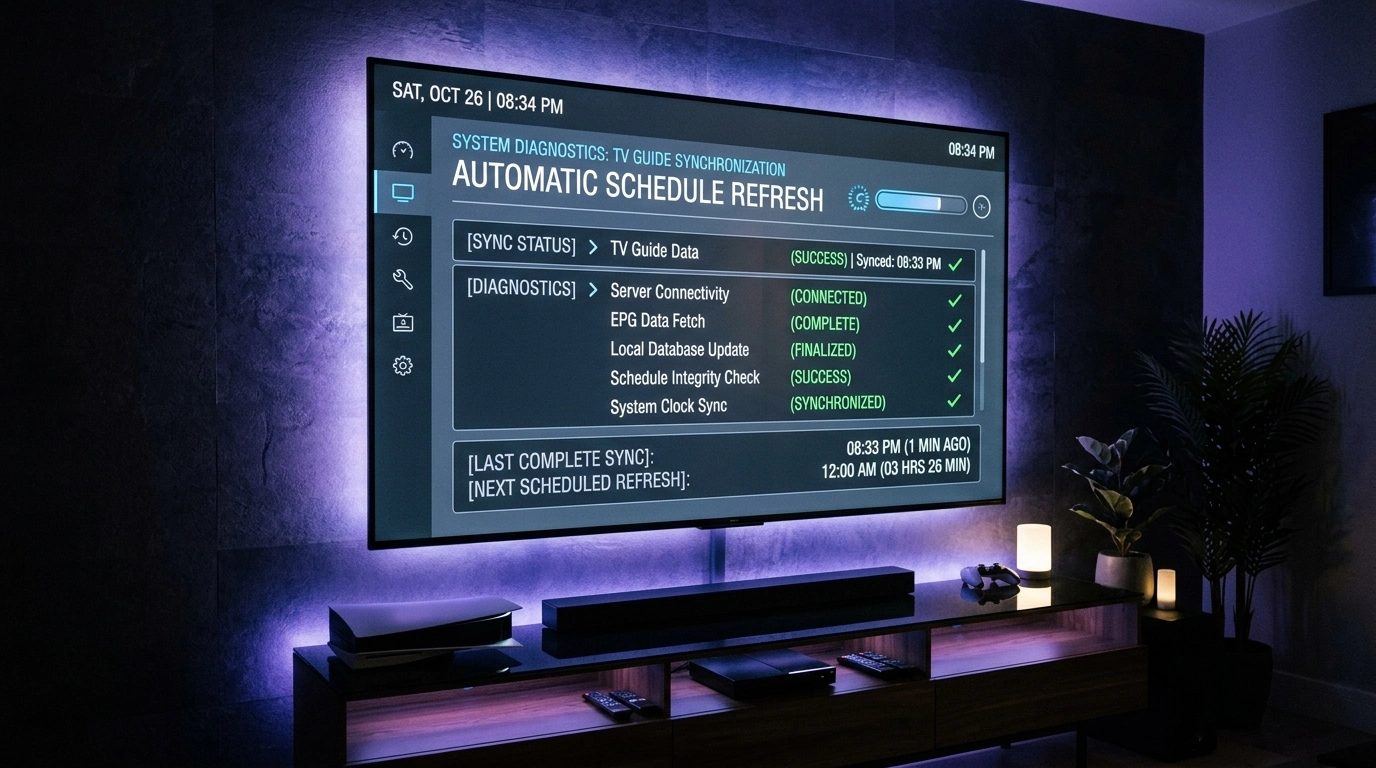
There is nothing quite as disruptive to a premium home entertainment experience as turning on your television, launching your IPTV media player, and discovering that your Electronic Programme Guide (EPG) has completely failed. Instead of a rich, vibrant grid detailing live sports events, prime-time movies, news broadcasts, and series descriptions, you are confronted with an empty spreadsheet: row after row of cold, uninformative "No Information" banners, black placeholder boxes, or program schedules that are displaced four hours into the future.
When your IPTV EPG is not working, channel surfing transforms from a relaxing visual experience into an exhausting guessing game. You are forced to click into each live stream blindly, waiting several seconds for the video buffer to initialize, simply to see what is currently airing. Features like Catch-Up TV, scheduled cloud DVR recordings, and search functions become entirely unusable.
Viewers frequently jump to the conclusion that a broken TV guide means their IPTV service provider is suffering a catastrophic server collapse. In reality, EPG metadata is transmitted across an entirely separate network pipeline from live video streams. While video streams travel over high-bandwidth protocols like HLS or MPEG-TS, EPG data consists of XML metadata downloaded periodically in the background. Consequently, a live 4K football match can stream in crystal-clear definition even while its EPG title displays "No Information."
In this definitive 2026 master engineering guide, we break down every technical reason why IPTV Electronic Programme Guides fail. We examine the exact failure modes—from corrupted local SQLite database caches and system clock drift to XMLTV parsing crashes and channel binding mismatches—and provide twelve field-tested, step-by-step solutions to restore your TV guide permanently across Firestick, Android TV, Smart TVs, and desktop systems.
Understanding EPG Architecture: Why Video Plays While the Guide Fails
To effectively diagnose an IPTV guide failure, one must understand how modern IPTV applications handle metadata versus media.
+-----------------------------------------------------------------------------------+
|                        Dual-Pipeline IPTV Delivery Architecture                   |
+-----------------------------------------------------------------------------------+
|                                                                                   |
|  [SofaIPTV CDN Edge Servers]                                                      |
|         |                                                                         |
|         +---> PIPELINE A: High-Bandwidth Video Delivery                           |
|         |     - Protocol: HLS / MPEG-TS / Unicast HTTP Chunked                    |
|         |     - Bandwidth: 15 Mbps - 45 Mbps per 4K Channel                       |
|         |     - Destination: Hardware Video Decoder (SoC GPU Engine)              |
|         |                                                                         |
|         +---> PIPELINE B: Low-Bandwidth Metadata Delivery                         |
|               - Protocol: Periodic HTTP GET (XMLTV / JSON REST API)               |
|               - Bandwidth: 15 MB - 50 MB Compressed (.xml.gz) once per 24 hours   |
|               - Destination: Local SQLite Storage -> UI Rendering Grid            |
|                                                                                   |
+-----------------------------------------------------------------------------------+
Because these two delivery pipelines operate independently:
- Media Stream Independence: A failure in the EPG pipeline (such as a timeout downloading a 30 MB XMLTV file) has zero impact on video stream decoders. Your channels will play smoothly regardless of guide availability.
- Local Client Responsibility: Once the XMLTV file is downloaded, your local streaming device's CPU and internal flash memory are responsible for unzipping, parsing, indexing, and rendering the schedule. Many EPG failures occur entirely on the client hardware rather than on the provider's server.
The 6 Distinct EPG Failure Modes
Not all EPG malfunctions are identical. Identifying your exact symptom allows you to bypass irrelevant fixes and target the underlying root cause immediately:
+-----------------------------------+-----------------------------------+-----------------------------------+
| Failure Mode                      | Visual Symptom on Screen          | Underlying Technical Failure      |
+-----------------------------------+-----------------------------------+-----------------------------------+
| 1. Completely Blank Grid          | Total empty grid; no channels or  | Network download timeout, expired |
|                                   | show cells visible anywhere       | credentials, or invalid EPG URL   |
+-----------------------------------+-----------------------------------+-----------------------------------+
| 2. "No Information" Placeholders  | Channels list names & logos, but  | tvg-id channel mapping mismatch or|
|                                   | show slots display "No Data"      | corrupted local SQLite cache      |
+-----------------------------------+-----------------------------------+-----------------------------------+
| 3. Chronological Time Drift       | Show titles are correct, but air  | Timezone offset calculation error |
|                                   | times are displaced by hours      | or drifting TV hardware clock     |
+-----------------------------------+-----------------------------------+-----------------------------------+
| 4. Frozen / Outdated Schedule     | Guide displays yesterday's shows; | Background update scheduler       |
|                                   | fails to ingest upcoming week     | throttled by OS power-saving      |
+-----------------------------------+-----------------------------------+-----------------------------------+
| 5. Partial Bouquet Failure        | UK/US channels show guide data;   | Secondary provider bouquet lacks  |
|                                   | international bouquets are blank  | digital XMLTV scraping source     |
+-----------------------------------+-----------------------------------+-----------------------------------+
| 6. App Crash on EPG Ingestion     | App force-closes at 15% or 80%    | Out-of-memory (OOM) crash or      |
|                                   | during XMLTV file download        | flash storage capacity exhaustion |
+-----------------------------------+-----------------------------------+-----------------------------------+
Upgrade to SofaIPTV Premium 4K
Experience buffer-free entertainment with 50,000+ live channels and 200,000+ on-demand movies & series in pristine 4K.
- 4K & Full HD Quality
- Anti-Freeze v8.2 Tech
- All Devices Supported
- Instant 5-Min Activation
12 Field-Tested Technical Fixes for IPTV EPG Failures
Follow this logical engineering sequence to isolate the breakdown and restore your Electronic Programme Guide to complete operational health.
+---------------------------------------------------------------------------------+
|                       12-Step EPG Diagnostic Workflow Matrix                    |
+----+-----------------------------+----------------------------------------------+
| #  | Technical Remediation        | Target Fault Addressed                       |
+----+-----------------------------+----------------------------------------------+
| 1  | Channel Playback Test       | Isolates network/account from metadata bug   |
| 2  | Forced Manual EPG Update    | Bypasses dormant background update daemon    |
| 3  | Purge Local SQLite Cache    | Eliminates corrupted database tables         |
| 4  | Sync Hardware Clock via NTP | Resolves expired timestamp cullings          |
| 5  | Calibrate Timezone Offset   | Aligns UTC timestamps with local time        |
| 6  | Manual Channel ID Binding   | Reconnects orphaned tvg-id playlist tags     |
| 7  | Decompression URL Bypass    | Solves zlib decompression memory failures    |
| 8  | Audit Flash Storage Limits  | Guarantees >= 1.5 GB disk space for SQLite   |
| 9  | Switch to Xtream Codes API  | Replaces fragile M3U syntax with server sync |
| 10 | Router DNS Flush & Change   | Bypasses ISP CDN blocks on XML endpoints     |
| 11 | Multi-Source EPG Assignment | Bridges localized foreign channel gaps       |
| 12 | Test Secondary Media Player | Determines app bug vs server outage          |
+----+-----------------------------+----------------------------------------------+
1. Execute a Video Channel Playback Test
Before altering any internal settings, navigate to your channel list and test three separate channels from different bouquets (e.g., a national news station, a premium sports feed, and an entertainment channel):
- If video streams play smoothly: Your internet connection, subscription authentication, and provider streaming servers are operating normally. The problem is isolated entirely to the EPG metadata ingestion layer.
- If channels fail to open or display authorization errors: The EPG failure is merely a symptom of a broader account expiration or network outage. Refer to our guides on IPTV Channels Not Loading and IPTV Login Failed Solutions to restore connectivity first.
2. Force a Manual EPG Refresh (Bypassing Background Daemons)
Most IPTV applications update their program guide automatically once every 24 hours. However, if your streaming box was powered off or in low-power standby mode when the update was scheduled, the update daemon silently skips the cycle.
Do not wait for the next scheduled background interval. Trigger an immediate manual download:
In TiviMate:
- Open the left sidebar menu and navigate to Settings > EPG.
- Select EPG Sources.
- Highlight your active SofaIPTV source.
- Scroll down and click Update EPG.
- Observe the progress bar. Allow the percentage to reach 100% without leaving the menu.
In IPTV Smarters Pro:
- On the main dashboard, click the Settings (Gear Icon) in the top-right corner.
- Select Time & Date / EPG.
- Click Update EPG.
- Allow the application to fetch and parse the XMLTV data tables before returning to the home screen.
In Sparkle TV / OTT Navigator:
- Navigate to Settings > Guide / EPG Providers.
- Highlight your provider profile and choose Reload / Sync Guide Now.
3. Purge Local SQLite Cache (Fixing Corrupted Database Tables)
If your streaming stick lost power, restarted, or suffered a network drop while the IPTV player was actively writing XMLTV records into device memory, the local SQLite database file can become corrupted. When an SQLite database enters a corrupted or locked state, the player cannot insert new schedule rows or read existing tables, resulting in persistent "No Information" banners across every bouquet.
+---------------------------------------------------------------------------------+
|                    SQLite Cache Corruption Recovery Pipeline                    |
+---------------------------------------------------------------------------------+
|  [Corrupted State]                                                              |
|  epg.db has uncommitted transaction journal -> Player SQLite engine aborts read  |
|         |                                                                       |
|         v                                                                       |
|  [Action: In-App Clear EPG Cache]                                               |
|  Settings > EPG > "Clear EPG Data" -> Unlinks & deletes corrupt epg.db          |
|         |                                                                       |
|         v                                                                       |
|  [Action: Trigger Fresh Manual Sync]                                            |
|  Player executes clean "CREATE TABLE epg_listings..." in flash memory           |
|         |                                                                       |
|         v                                                                       |
|  [Restored State]                                                               |
|  Fresh XMLTV data parsed cleanly; zero database locking errors                  |
+---------------------------------------------------------------------------------+
How to Safely Flush EPG Cache:
- In TiviMate: Navigate to Settings > EPG. Select Clear EPG Data and confirm. (Crucial Note: This action only purges the schedule database; it does NOT affect your playlist credentials, favorite channel groupings, or custom category orders). Once flushed, click Update EPG.
- In Android System Settings: Go to Settings > Applications > Manage Installed Applications. Select your IPTV player, choose Force Stop, and click Clear Cache. Do NOT click "Clear Data", as doing so wipes your saved login credentials and resets the application to factory defaults.
4. Synchronize TV Operating System Clock via Network Time Protocol (NTP)
One of the most insidious reasons for an IPTV guide appearing completely blank is system clock drift.
When an IPTV player downloads an XMLTV file, it reads the start and stop timestamps for every program (e.g., 20260927140000 +0000). The player's internal logic compares each program's stop timestamp against the current system clock of your television or streaming box. If the program's stop time is earlier than the device clock, the application marks the show as "expired" and automatically deletes it from the visual grid.
If your television hardware clock drifts forward by even 30 minutes (frequently caused by power outages, unplugged power strips, or flat motherboard CMOS batteries), the application concludes that all downloaded programming has already finished airing. The player purges the listings immediately upon download, leaving your guide rows completely empty!
+---------------------------------------------------------------------------------+
|                         The System Clock Drift Trap                             |
+---------------------------------------------------------------------------------+
| Real World Time      : 14:00 UTC                                                |
| Drifting TV Hardware : 17:30 UTC (Clocks drifted +3.5 hours ahead)              |
| XMLTV Event Air Time : 14:00 - 16:00 UTC (Premier League Live Match)            |
+---------------------------------------------------------------------------------+
| Result: IPTV player compares Event End (16:00) against TV Clock (17:30).        |
| Player concludes show ended 90 minutes ago -> PURGES SHOW FROM ON-SCREEN GRID.  |
| Viewer sees: "No Information" across the entire guide!                          |
+---------------------------------------------------------------------------------+
How to Restore Clock Synchronization:
- On Amazon Fire TV / Firestick: Navigate to Settings > Preferences > Time Zone. Toggle daylight saving settings and reselect your exact geographic zone.
- On Android TV / Google TV: Open Settings > System > Date & Time. Ensure that Automatic date & time is set to "Use network-provided time" (NTP).
- On Samsung Smart TVs (Tizen): Navigate to Settings > General > System Manager > Time > Clock > Clock Mode and set to Auto.
- On LG Smart TVs (webOS): Navigate to All Settings > General > System > Time & Timer and toggle Set Automatically to ON.
5. Calibrate Timezone Offset (The "Displaced Schedule" Fix)
If your electronic program guide is fully populated with titles and descriptions, but all programs are displayed several hours early or late, you are experiencing an EPG Timezone Offset Discrepancy.
XMLTV files authored by SofaIPTV and international broadcasters use Coordinated Universal Time (UTC/GMT) as an immutable baseline. Your IPTV client application must perform real-time math, adding or subtracting hours depending on your local longitude. If your IPTV app or smart television fails to calculate this difference correctly, programs appear displaced on the timeline.
+---------------------------------------------------------------------------------+
|                   EPG Time Shift Mathematical Matrix                            |
+---------------------------------------------------------------------------------+
| Target Event: Evening News broadcast at 19:00 Local Time                        |
|                                                                                 |
| If guide shows show at 22:00 -> Guide is +3 Hours Ahead -> Apply -3 Hour Offset |
| If guide shows show at 16:00 -> Guide is -3 Hours Behind -> Apply +3 Hour Offset|
+---------------------------------------------------------------------------------+
How to Adjust Timezone Offset in TiviMate:
- Open TiviMate and navigate to Settings > EPG > EPG Sources.
- Select your active provider source.
- Scroll down to Time offset, hours.
- Adjust the numeric slider in increments of 1 hour (or 0.5 hours for regions like India or central Australia).
- Return to the visual TV guide grid. The schedule blocks will shift immediately to align with real-world broadcast clocks.
How to Adjust Timezone Offset in IPTV Smarters Pro:
- From the home screen, click Settings > Time & Date.
- Toggle between 12-hour / 24-hour display mode.
- Select EPG Time Shift and enter the required hourly positive or negative correction value.
6. Manually Bind Orphaned Channel Identifiers (tvg-id Matching)
If 90% of your channel bouquets display complete program schedules, but a specific collection of premium sports, cinema, or regional feeds display persistent "No Information" banners, the issue is an orphaned channel identifier.
In IPTV architecture, stream playlists and EPG feeds are bound together by a matching string known as tvg-id:
- In your playlist:
#EXTINF:-1 tvg-id="SkySportsMainEvent.uk", Sky Sports Main Event UHD - In the XMLTV feed:
<channel id="SkySportsMainEvent.uk">
If a broadcaster slightly alters its identity or your provider creates a temporary backup stream titled Sky Sports Main Event Backup with tvg-id="SkySportsMain.uk", the player fails to match the two strings. The stream plays perfectly, but the schedule remains completely blank.
+---------------------------------------------------------------------------------+
|                     Manual Channel EPG Assignment in TiviMate                   |
+---------------------------------------------------------------------------------+
| Step 1: Open the TV Guide and highlight the blank channel.                      |
| Step 2: Long-press the SELECT / OK button on your remote control.               |
| Step 3: From the right-hand context drawer, select "Assign EPG".                |
| Step 4: Type the channel name into the search bar (e.g., "Sky Sports Main").    |
| Step 5: Select the matching channel entry from the downloaded XMLTV database.   |
| Result: TiviMate permanently links the schedule; guide populates immediately!   |
+---------------------------------------------------------------------------------+
This manual association technique allows you to bridge naming discrepancies without waiting for backend provider updates.
7. Switch Between Compressed (.xml.gz) and Uncompressed (.xml) Endpoints
To optimize bandwidth, IPTV servers compress multi-megabyte XMLTV text documents using the Gzip compression algorithm, producing files ending in .xml.gz. A 150 MB text database compresses down to roughly 15 MB.
However, certain budget smart TVs, older Fire TV sticks, and third-party IPTV players contain buggy or outdated zlib decompression libraries. When these devices attempt to decompress a large Gzip archive in active RAM, the decompression engine can encounter a buffer overflow or silent memory allocation failure, aborting the process without saving the guide.
- The Workaround: Modify your EPG source URL in your player's settings to remove the trailing
.gzextension (pointing to the raw.xmlfile). - While downloading an uncompressed 100 MB+ file takes an extra 30 seconds over broadband, the client application bypasses the zlib decompression engine entirely, reading the raw XML stream directly into its SQLite database without memory crashes.
8. Audit Flash Memory Storage Limits on Streaming Sticks
IPTV program guides for massive global channel collections contain hundreds of thousands of individual broadcast entries spanning 7 days. When uncompressed and indexed into local SQLite databases, this metadata requires between 350 MB and 800 MB of local disk storage space.
If your streaming stick (such as an Amazon Firestick with only 8 GB of total internal storage) has less than 500 MB of free storage remaining, the underlying Android operating system will reject file-write requests from the IPTV player. The player successfully downloads the EPG file from the internet, but when it attempts to write the parsed records into flash memory, the operating system denies the write command. The download finishes, but the guide remains completely blank!
+---------------------------------------------------------------------------------+
|                    Streaming Device Storage Threshold Audit                     |
+---------------------------------------------------------------------------------+
| Total Internal Flash Storage (Firestick 4K) : 8.0 GB                            |
| Operating System & System Apps Overhead     : 4.5 GB                            |
| Other Streaming Apps (Netflix, YouTube, etc): 2.8 GB                            |
+---------------------------------------------------------------------------------+
| Remaining Free Disk Space                   : 0.7 GB (DANGER ZONE!)             |
| IPTV EPG Uncompressed XML + SQLite DB       : 0.5 GB Required                   |
| Result: SQLite "Disk Full" error -> Guide fails to populate silently            |
+---------------------------------------------------------------------------------+
How to Free Up Space:
- Navigate to device Settings > Applications > Manage Installed Applications.
- Inspect internal storage space. Ensure you have at least 1.5 GB of free flash storage space.
- Uninstall games, unused streaming utilities, and screensavers.
- Clear application caches across high-consumption apps like YouTube, Prime Video, and Netflix.
9. Switch from Static M3U Playlists to the Xtream Codes API
If you are currently configuring your IPTV player by manually copying and pasting a long M3U playlist URL, you are utilizing a legacy, error-prone protocol.
Manual M3U playlist setups require you to enter a separate, independent EPG URL. If you mistype a single character, omit an underscore, or if your provider updates their server domain, your guide will break permanently. Furthermore, static M3U playlists rely on fragile text-based tvg-id strings that frequently desynchronize.
+-----------------------------------+-----------------------------------+
| Feature / Characteristic          | Xtream Codes API                  | Static M3U Playlist Link          |
+-----------------------------------+-----------------------------------+
| EPG Configuration                 | 100% Automated by Server Backend  | Requires manual EPG URL entry     |
| Channel Matching Precision        | Relational Server Database Keys   | Relies on exact text tag syntax   |
| Background Sync Performance       | Incremental Delta Sync            | Re-downloads entire massive file  |
| Syntax Error Vulnerability        | Zero (Standardized REST JSON)     | High (Single typo breaks guide)   |
| Recommended Deployment            | THE INDUSTRY STANDARD (SofaIPTV)  | DEPRECATED / BACKUP ONLY          |
+-----------------------------------+-----------------------------------+
When you subscribe to SofaIPTV, you receive Xtream Codes API credentials (Server URL, Username, and Password). Logging into your player via the Xtream Codes API allows the player to query the server's /xmltv.php endpoint directly. The server automatically associates every channel with its verified database ID, virtually eliminating "No Information" errors forever.
10. Flush Router DNS Cache and Switch to Public DNS Servers
In certain regions, Internet Service Providers (ISPs) implement aggressive DNS filtering or rate-limiting on third-party XMLTV and CDN endpoints. If your router's default ISP DNS server fails to resolve the domain hosting your provider's EPG files, your IPTV player will report a "Connection Timeout" or "HTTP 404/403" error specifically on the EPG download, while channel streams (which often resolve through different CDN IP addresses) continue to work.
+---------------------------------------------------------------------------------+
|                     DNS Resolution Failure on EPG Pipeline                      |
+---------------------------------------------------------------------------------+
|  Player queries EPG Domain: http://epg.sofaiptv.site/xmltv.php                  |
|         |                                                                       |
|         v                                                                       |
|  [Default ISP DNS Server]                                                       |
|  Returns: NXDOMAIN (Domain blocked or filtered by ISP parental/security filter)  |
|         |                                                                       |
|         v                                                                       |
|  [IPTV Player EPG Download Aborted] -> Grid displays "No Information"           |
+---------------------------------------------------------------------------------+
How to Solve DNS Filtering:
- Access your home Wi-Fi router's administrative dashboard (typically
192.168.1.1or192.168.0.1). - Navigate to WAN / Network Settings > DNS.
- Change your DNS from "Automatic / ISP Assigned" to high-performance public resolvers:
- Cloudflare DNS: Primary:
1.1.1.1| Secondary:1.0.0.1 - Google Public DNS: Primary:
8.8.8.8| Secondary:8.8.4.4
- Cloudflare DNS: Primary:
- Apply settings and reboot your router.
- In your IPTV player, trigger a manual EPG update. The guide will resolve and download cleanly.
11. Configure Multi-Source EPG Aggregation (For Advanced Users)
If you subscribe to extensive international bouquets or niche foreign language channels, your provider's primary guide may not possess 100% schedule coverage for every obscure regional broadcast.
Advanced IPTV players—including TiviMate, Sparkle TV, and OTT Navigator—support Multi-Source EPG Aggregation. This feature allows you to add secondary and tertiary EPG schedule sources from public XMLTV repositories or custom scrapers:
- In TiviMate, navigate to Settings > EPG > EPG Sources > Add Source.
- Enter the URL of a secondary XMLTV provider or specialized open-source schedule feed.
- Save the source and allow TiviMate to download both feeds.
- If an international channel displays "No Information" under your primary feed, long-press the channel, select Assign EPG, choose your Secondary EPG Source, and select the matching station.
12. Test Playback in a Secondary IPTV Player App
To determine definitively whether your EPG failure is caused by a corrupted application database or an actual server-side provider outage, download and install an alternate IPTV player on your device:
- If your primary application is TiviMate, install IPTV Smarters Pro or Sparkle TV.
- If your primary app is on a Smart TV (e.g., IBO Player), install Smarters Player Lite.
Input your SofaIPTV credentials into the secondary application:
- If the EPG populates normally in the second app: Your primary player's database or internal settings are corrupted. You can safely uninstall and reinstall your primary application to restore it.
- If the EPG fails identically across multiple independent applications: Your provider's EPG server is actively undergoing scheduled maintenance or database regeneration. Wait 1 to 2 hours for the backend sync to conclude, or contact our 24/7 technical helpdesk for real-time status verification.
Device-Specific EPG Troubleshooting Guide
Different hardware operating systems handle file systems, memory allocation, and background tasks differently. Here are platform-specific optimization steps:
+-----------------------------------+-----------------------------------+-----------------------------------+
| Device Platform                   | Typical Platform Bottleneck       | Dedicated Technical Solution      |
+-----------------------------------+-----------------------------------+-----------------------------------+
| Amazon Fire TV / Firestick        | Aggressive OS process killing;    | Free up 1.5 GB flash storage; set |
|                                   | restricted background memory      | TiviMate background execution ON  |
+-----------------------------------+-----------------------------------+-----------------------------------+
| Android TV / Google TV            | Low internal flash storage on     | Use USB OTG drive for EPG cache;  |
| (Chromecast, Sony, Philips)       | budget streaming sticks           | ensure NTP network time is active |
+-----------------------------------+-----------------------------------+-----------------------------------+
| Samsung Smart TV (Tizen)          | Limited RAM; buggy zlib           | Switch from .xml.gz to raw .xml;  |
|                                   | decompression on large files      | cold reboot TV (unplug 60s)       |
+-----------------------------------+-----------------------------------+-----------------------------------+
| LG Smart TV (webOS)               | Strict app sandboxing; memory     | Clear app cache via LG Content    |
|                                   | limits abort large XML parses     | Store; reduce playlist bouquets   |
+-----------------------------------+-----------------------------------+-----------------------------------+
| Apple TV (tvOS)                   | Inability to run TiviMate;        | Use iSTB or UHF Player; verify    |
|                                   | strict cache eviction policies    | iCloud sync settings              |
+-----------------------------------+-----------------------------------+-----------------------------------+
| Windows PC / macOS                | Antivirus / Firewall blocking     | Whitelist player in firewall; use |
|                                   | bulk XML HTTP downloads           | VLC or IPTV Smarters Desktop      |
+-----------------------------------+-----------------------------------+-----------------------------------+
Upgrade to SofaIPTV Premium 4K
Experience buffer-free entertainment with 50,000+ live channels and 200,000+ on-demand movies & series in pristine 4K.
- 4K & Full HD Quality
- Anti-Freeze v8.2 Tech
- All Devices Supported
- Instant 5-Min Activation
EPG vs Channel List: The Fundamental Distinction
For viewers transitioning from legacy cable to IPTV, the distinction between a "Channel List" and an "EPG" is often confused. Understanding how they interact helps pinpoint failures immediately:
+-----------------------------------+-----------------------------------+-----------------------------------+
| Characteristic                    | IPTV Channel List (Playlist)      | Electronic Programme Guide (EPG)  |
+-----------------------------------+-----------------------------------+-----------------------------------+
| Primary Function                  | Contains stream URLs & server auth| Contains broadcast schedules & synopses|
| File Formats                      | M3U, M3U8, Xtream JSON endpoints  | XML, XMLTV (.xml / .xml.gz), JSON |
| Contains Video Addresses?         | YES (Direct HTTP media streams)   | NO (Pure text, dates & metadata)  |
| Playback Dependency               | MANDATORY (No streams without it) | OPTIONAL (Streams play without it)|
| Shows Current Program Title?      | NO (Only static channel name)     | YES (Shows live show & progress)  |
| Update Frequency                  | Only when channels change         | Every 24 hours (dynamic schedule) |
| Failure Impact                    | Black screen; no video playback   | Video plays; grid says "No Info"  |
+-----------------------------------+-----------------------------------+-----------------------------------+
8 Proactive Best Practices to Prevent EPG Failures
To ensure your Electronic Programme Guide remains responsive, rich, and synchronized 365 days a year, incorporate these eight maintenance habits:
- Adopt Xtream Codes Exclusively: Never use raw M3U playlist URLs unless your device strictly lacks API compatibility.
- Lock System Clock to NTP: Keep your streaming hardware configured to automatic network time to eliminate clock drift.
- Maintain Internal Storage Headroom: Preserve at least 1.5 GB of free flash storage on your streaming hardware at all times.
- Schedule Off-Peak EPG Updates: Configure your IPTV player to download fresh EPG tables automatically at 04:00 AM local time.
- Flush EPG Cache Monthly: Perform a proactive cache purge once every thirty days to eliminate orphaned database records.
- Hardwire via Ethernet: Connect your television via Cat6 Ethernet cable to prevent packet loss during large XMLTV downloads.
- Audit Channel Bouquets: In your player settings, hide unused international language categories to reduce the XMLTV file size and accelerate parsing speed.
- Choose an Enterprise-Grade Provider: Subscribe to a service like SofaIPTV that invests in dedicated, redundant EPG cluster infrastructure.
Comprehensive EPG Diagnostic Decision Tree
CANNOT SEE EPG PROGRAM LISTINGS
│
├── Do video channels play when clicked?
│   ├── NO  → Account or Network Failure (Check subscription status, Wi-Fi & login credentials)
│   └── YES → Metadata Pipeline Failure (Proceed to EPG troubleshooting)
│       │
│       ├── Entire guide displays "No Information"?
│       │   ├── Verify TV system clock (Enable NTP Network Time)
│       │   ├── Clear EPG Cache in player settings -> Force Manual Update
│       │   └── Verify device has > 1.0 GB free flash storage space
│       │
│       ├── Guide displays programs, but start times are wrong?
│       │   └── Adjust "Time Offset" slider in player settings (+/- hours)
│       │
│       ├── Only a few specific sports/movie channels are blank?
│       │   └── Long-press channel -> Select "Assign EPG" -> Link manually
│       │
│       └── EPG download crashes or freezes at 10%?
│           ├── Switch EPG URL from .xml.gz to raw .xml
│           └── Change router DNS to Cloudflare (1.1.1.1)
Frequently Asked Questions
Conclusion: Reclaim a Flawless Channel Surfing Experience
A non-functioning Electronic Programme Guide transforms the luxury of modern IPTV streaming into an irritating chore. However, by understanding that EPG failures stem from client-side database corruption, clock drift, timezone offset miscalculations, or channel binding mismatches—rather than catastrophic server breakdowns—you have the knowledge to systematically diagnose and resolve any guide failure within minutes.
By ensuring your system clock is locked to Network Time Protocol, clearing corrupted SQLite caches, utilizing the Xtream Codes API, and maintaining adequate device flash storage, you guarantee a seamless, cable-grade television experience every time you power on your screen.
If you are tired of dealing with unreliable TV guides, missing channel metadata, and constant streaming hiccups, experience the gold standard with SofaIPTV. Our enterprise infrastructure features automated, synchronized EPG integration across more than 50,000 live channels and 200,000+ on-demand movies and series. Explore our complete global channel directory, review our step-by-step device installation guides, or select your preferred subscription package today to transform your home entertainment experience.