How to Set Up IPTV on Firestick in 2026: The Complete Step-by-Step Installation & Tuning Guide
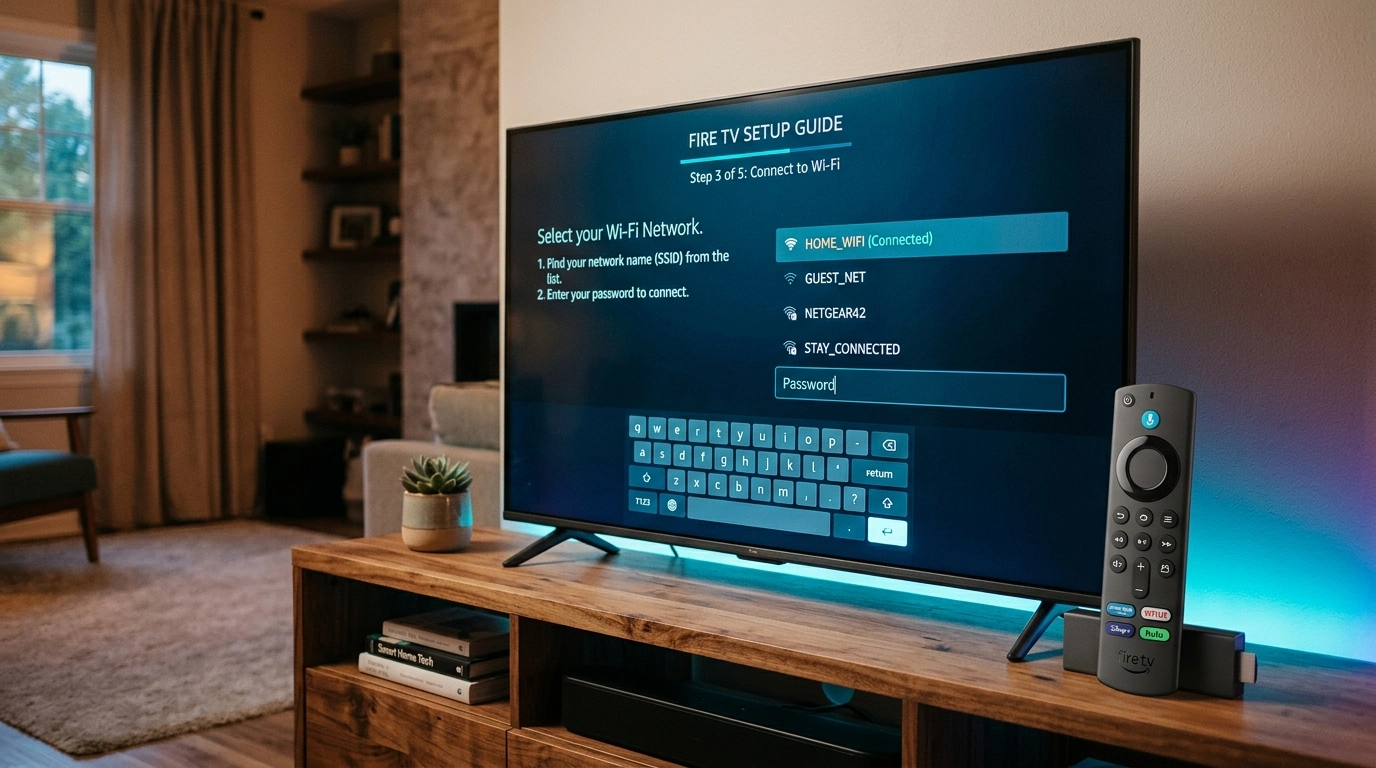
The Amazon Fire TV Stick has established an absolute hegemony in the consumer streaming marketplace. From the affordable Fire TV Stick Lite and standard HD models to the flagship Fire TV Stick 4K Max and Fire TV Cube, Amazon's hardware represents the undisputed vehicle of choice for cord-cutters worldwide. Combining high-performance hardware video decoders, ergonomic remote controls, and a cost-effective price point, the Firestick is capable of transforming any television into a high-definition entertainment powerhouse.
However, unboxing a Firestick does not automatically provide access to live television. Amazon's ecosystem is tailored primarily to promote proprietary subscription portals and ad-supported platforms. To unlock uncompressed 4K sports, international news broadcasts, live events, and expansive on-demand video libraries, you must pair your Firestick with a premier streaming service provider—such as SofaIPTV—and install a dedicated internet protocol television (IPTV) client application.
Because Amazon's proprietary Fire OS is an Android fork that omits the standard Google Play Store, the installation procedure requires a few unique, yet remarkably simple steps known as "sideloading." Once configured properly, your Firestick will deliver an intuitive, ultra-fluid broadcast experience that matches and frequently surpasses high-end commercial satellite and cable decoders.
In this exhaustive master tutorial, we walk you through the complete end-to-end setup process on Amazon Firestick in 2026. We cover unlocking developer permissions, installing premier IPTV players (TiviMate, IPTV Smarters Pro, and XCIPTV), connecting your credentials via the high-speed Xtream Codes API, and applying professional performance optimizations to guarantee zero buffering, crystal-clear 4K clarity, and instant channel zapping.
Technical Prerequisites: Understanding Fire OS & Sideloading
Before beginning the physical installation, it is important to understand the technical architecture of your Amazon streaming stick.
+-----------------------------------------------------------------------------------+
|                        Amazon Firestick System Architecture                       |
+-----------------------------------------------------------------------------------+
|  [User Interface / Application Layer]                                             |
|  - Sideloaded IPTV Players: TiviMate, IPTV Smarters Pro, XCIPTV, Sparkle TV      |
|  - Downloader Utility (AFTVnews) acts as the secure installation vehicle          |
+-----------------------------------------+-----------------------------------------+
                                          |
+-----------------------------------------v-----------------------------------------+
|  [Fire OS Core Operating System (Fire OS 7 / Fire OS 8)]                          |
|  - Fork of Android AOSP (Android 9 / Android 11 base)                             |
|  - Developer Options Sandbox (Guards against unauthorized package installation)   |
|  - System MediaCodec API (Direct pipeline to hardware video decoders)             |
+-----------------------------------------+-----------------------------------------+
                                          |
+-----------------------------------------v-----------------------------------------+
|  [Hardware Processing Silicon (MediaTek / Amlogic)]                               |
|  - Dedicated HEVC (H.265), AVC (H.264), and AV1 Silicon Decoding Engines          |
|  - Hardware Audio Bitstreaming (Dolby Digital Plus / Atmos passthrough)           |
+-----------------------------------------------------------------------------------+
What Is Sideloading?
On standard Android mobile devices, applications are typically downloaded from the Google Play Store. Because Amazon replaces Google's application framework with its own curated Amazon Appstore, many leading independent IPTV media engines—most notably TiviMate—are not hosted in Amazon's catalog due to software licensing constraints.
Sideloading is simply the standard, completely safe process of downloading an application's compiled Android Package Kit (APK) file directly from the developer's official server and installing it onto your Firestick. Sideloading does not "jailbreak" or void your Amazon warranty; it merely utilizes standard Android operating system functionality.
M3U Playlists vs. Xtream Codes API
When configuring your IPTV player on Firestick, you will encounter two primary connection methods:
- M3U Playlist URLs: A long, cumbersome web link containing a static index of stream addresses. Typing a 100-character M3U URL using an on-screen Fire TV remote is tedious and highly prone to spelling errors.
- Xtream Codes API: The modern gold standard. You simply enter a Server URL, Username, and Password. The player dynamically communicates with SofaIPTV's server infrastructure, automatically populates channel bouquets, synchronizes the Electronic Programme Guide (EPG), and downloads movie and television series metadata. We strongly recommend using the Xtream Codes API for all Firestick installations.
Phase 1: Preparing Firestick & Unlocking Developer Options
On all modern Firestick devices running recent updates of Fire OS 7 or Fire OS 8, Amazon conceals the Developer Options menu by default to prevent casual users from accidentally altering system settings. Unlocking this menu is required to authorize the installation of third-party applications.
+---------------------------------------------------------------------------------+
|                       Developer Options Unlock Roadmap                          |
+---------------------------------------------------------------------------------+
| Step 1: Settings (Gear Icon) -> My Fire TV -> About                             |
| Step 2: Highlight Device Name (e.g., Fire TV Stick 4K Max)                      |
| Step 3: Press the SELECT / OK Button RAPIDLY SEVEN (7) TIMES                    |
| Step 4: System Prompt Appears: "No need, you are already a developer."          |
| Step 5: Press Back -> Developer Options is now visible under About!             |
+---------------------------------------------------------------------------------+
Step-by-Step Instructions to Unlock Developer Options:
- Turn on your television and navigate to the Amazon Fire TV main dashboard.
- Using your directional remote control, navigate to the Settings icon (gear symbol) located on the far right of the menu bar.
- Scroll down and select My Fire TV (or Device & Software on certain smart TV models).
- Select About.
- Highlight your exact device model name (for example, Fire TV Stick 4K Max or Fire TV Stick Lite).
- Press the Select / Center button on your Fire TV remote control rapidly seven (7) times.
- Look at the bottom of your screen: a temporary toast message will appear stating: "No need, you are already a developer."
- Press the Back button once on your remote. You will now observe that Developer Options has appeared directly beneath the About tab.
Upgrade to SofaIPTV Premium 4K
Experience buffer-free entertainment with 50,000+ live channels and 200,000+ on-demand movies & series in pristine 4K.
- 4K & Full HD Quality
- Anti-Freeze v8.2 Tech
- All Devices Supported
- Instant 5-Min Activation
Phase 2: Installing the Downloader Utility & Authorizing Permissions
To sideload your IPTV application onto your Firestick, you need a specialized browser utility designed to download APK files and trigger the Android package installer. The industry-standard tool for this purpose is Downloader, developed by AFTVnews.
+---------------------------------------------------------------------------------+
|                       Installing and Authorizing Downloader                     |
+---------------------------------------------------------------------------------+
| 1. Search Amazon Appstore for "Downloader" -> Install Application               |
| 2. Navigate to Settings -> My Fire TV -> Developer Options                      |
| 3. Select "Install Unknown Apps" (or "Apps from Unknown Sources")               |
| 4. Highlight "Downloader" -> Toggle to "ON"                                     |
+---------------------------------------------------------------------------------+
Step-by-Step Instructions:
- From the Fire TV home dashboard, select the Find / Search icon.
- In the search bar, type
Downloader. - Select the official Downloader application from the search results (recognizable by its prominent bright orange tile and white download arrow).
- Select Get or Download to install the application from the Amazon Appstore.
- Once installation finishes, do not launch the app immediately. You must first grant it package installation privileges.
- Navigate to Settings > My Fire TV > Developer Options.
- Depending on your Fire OS firmware version:
- On Fire OS 7 / 8: Select Install Unknown Apps, locate Downloader in the list, and press the Select button to toggle it to ON.
- On older Fire OS 6: Select Apps from Unknown Sources and toggle it to ON, then confirm the security warning.
- If ADB Debugging is visible in Developer Options, toggle it to ON as well (this assists with external network communication and audio passthrough).
Phase 3A: Installing & Configuring TiviMate IPTV Player (Recommended)
For television purists seeking the absolute finest live streaming experience, TiviMate IPTV Player is the undisputed gold standard. Its lightning-fast channel zapping, elegant electronic program guide (EPG) grid, multi-screen sports monitoring, and native Auto Frame Rate (AFR) matching deliver an experience that surpasses commercial cable decoders.
+---------------------------------------------------------------------------------+
|                       TiviMate Installation & Setup Flow                       |
+---------------------------------------------------------------------------------+
| 1. Launch Downloader -> Enter URL: tivimate.com (or numeric code) -> Click Go   |
| 2. APK Downloads -> System prompts "Install" -> Select Install -> Click Done    |
| 3. Delete installer APK in Downloader to preserve Firestick flash storage       |
| 4. Open TiviMate -> Add Playlist -> Xtream Codes API -> Input SofaIPTV Details  |
| 5. Synchronize EPG -> Enjoy silky-smooth 4K 60FPS broadcast streaming           |
+---------------------------------------------------------------------------------+
Detailed TiviMate Installation Walkthrough:
- Launch the Downloader application from your "Your Apps & Channels" grid.
- When prompted on first launch, select Allow to give Downloader permission to access device storage, then click OK on the welcome message.
- Click into the URL input field to bring up the on-screen keyboard.
- Enter the official direct URL:
https://tivimate.com(or enter the verified quick-code numeric shortcode for the official TiviMate release). - Select Go. Downloader will connect to the server and download the latest compiled TiviMate APK package.
- When the download completes, the Fire OS package installer will launch automatically. Select Install in the lower-right corner.
- Once the installation displays "Ready to launch," select Done.
- A pop-up menu in Downloader will ask if you wish to delete the APK file. Select Delete, then confirm Delete again. (Crucial Tip: The Firestick only has approximately 4.5 GB of usable storage; deleting installer files keeps your internal flash drive clean).
Connecting SofaIPTV Credentials in TiviMate:
- Return to your Fire TV home screen, hold the Home button on your remote for 3 seconds, select Apps, locate TiviMate, and launch it.
- Select Add Playlist.
- Choose the Xtream Codes API connection method.
- Enter your connection parameters:
- Server Address: Enter the exact Server URL provided in your SofaIPTV subscription email (e.g.,
http://stream.domain.com:8080, ensuring no trailing slash). - Username: Enter your assigned username (strictly respecting case sensitivity).
- Password: Enter your assigned password.
- Include VOD: Check the box to include on-demand Movies and TV Series.
- Server Address: Enter the exact Server URL provided in your SofaIPTV subscription email (e.g.,
- Select Next. TiviMate will connect to the servers, process your channel bouquets, and synchronize the EPG schedule.
- Enter a descriptive playlist name (e.g.,
SofaIPTV Firestick) and select Done.
Activating TiviMate Premium on Firestick:
To unlock TiviMate's premier features—including multi-screen grid viewing, scheduled network recording, custom channel grouping, and full EPG search—you must activate a Premium license:
- Because Amazon does not support Google Play in-app purchases, install the TiviMate Companion application on an Android mobile phone or tablet (or via an Android emulator like BlueStacks on a Windows PC/Mac).
- Purchase an annual or lifetime subscription within the Companion app using your Google account.
- Open TiviMate on your Firestick, navigate to Settings > Unlock Premium, and log in with the credentials created in the Companion app. Your Firestick activates instantly.
Phase 3B: Installing & Configuring IPTV Smarters Pro (Alternative)
If your household prioritizes on-demand cinema and TV series alongside live television, IPTV Smarters Pro provides an exceptional all-in-one media hub.
+---------------------------------------------------------------------------------+
|                            IPTV Smarters Pro Dashboard                          |
|  [ LIVE TV ]         [ MOVIES ]         [ SERIES ]         [ MULTI-SCREEN ]     |
+---------------------------------------------------------------------------------+
| Master Account: SofaIPTV Subscription                                           |
| Features:                                                                       |
| - High-Resolution Movie Wall with Cast Overviews, Trailers, & IMDb Ratings      |
| - Automatic Next-Episode Autoplay & Watchlist Tracking                          |
| - Built-in Speed Test Utility & Multi-User Profile Switcher                     |
+---------------------------------------------------------------------------------+
Detailed IPTV Smarters Pro Walkthrough:
- Open the Downloader application on your Firestick.
- Click into the URL bar and enter the verified direct download shortcode for the official IPTV Smarters Pro APK.
- Select Go and allow the package to download.
- When prompted, select Install, followed by Done, and delete the installer APK.
- Launch IPTV Smarters Pro from your Apps menu.
- Select your layout type: choose TV (Television) for directional remote control navigation.
- Accept the Terms of Service.
- On the login screen, select Login with Xtream Codes API.
- Input your credentials:
- Any Name: Type
SofaIPTV. - Username: Your assigned subscription username.
- Password: Your assigned subscription password.
- Server URL: Your exact portal URL including the port number.
- Any Name: Type
- Click Add User. Smarters Pro will download your live bouquets, organize on-demand movie posters, and synchronize your television guide.
Phase 3C: Installing & Configuring XCIPTV Player (Lightweight)
For owners of entry-level streaming hardware—such as the Fire TV Stick Lite or 2nd Generation Fire TV Stick—XCIPTV Player offers an ultra-lightweight, resource-friendly architecture that runs smoothly even on devices with limited RAM.
+---------------------------------------------------------------------------------+
|                                 XCIPTV Player                                   |
|  [ Live Channels ]   [ VOD Movies ]   [ TV Series ]   [ Built-in Web Browser ]  |
+---------------------------------------------------------------------------------+
| Architecture: Dual ExoPlayer / libVLC Integration                               |
| Memory Usage: Under 50 MB RAM (Exceptional stability on budget sticks)          |
+---------------------------------------------------------------------------------+
Detailed XCIPTV Walkthrough:
- In the Downloader URL field, input the official download URL or verified numeric shortcode for XCIPTV Player.
- Download the APK file and select Install.
- Once installation concludes, select Done and delete the APK file.
- Open XCIPTV Player.
- Enter your SofaIPTV Xtream Codes credentials (Server URL, Username, and Password).
- Click Sign In. The sleek, card-based interface will load your media library in seconds.
Phase 4: Firestick System Tuning for Zero Buffering & Maximum 4K Clarity
Even the most advanced IPTV application will experience micro-stutter, audio lag, or buffering if the underlying Fire OS operating system is suffering from resource contention or network throttling. Execute these five essential performance optimizations:
+---------------------------------------------------------------------------------+
|                      Firestick Performance Tuning Blueprint                     |
+---------------------------------------------------------------------------------+
| 1. Network Backbone     : Hardwire via Cat6 Ethernet OTG Adapter                |
| 2. Motion Calibration   : Enable Auto Frame Rate (AFR) Matching (50Hz / 60Hz)   |
| 3. Video Decompression  : Force Hardware Acceleration (MediaCodec Engine)       |
| 4. System Hygiene       : Disable Amazon Background Ad Autoplay & Telemetry     |
| 5. Buffer Curve Tuning  : Expand Playback Buffer to Medium (3 to 5 Seconds)     |
+---------------------------------------------------------------------------------+
1. Hardwire with a USB Ethernet OTG Adapter
While 5 GHz Wi-Fi offers high theoretical speeds, local radio frequency interference from household appliances, Bluetooth remotes, and neighboring routers introduces intermittent micro-burst packet loss. Live broadcast television demands continuous, zero-loss data delivery.
- Acquire an inexpensive micro-USB or USB-C Ethernet OTG power adapter.
- Connect the adapter between your Firestick and its power cable, then run a Cat6 Ethernet cable directly from your home router.
- Verify in Settings > Network that your Firestick displays "Connected via Ethernet."
2. Enable Auto Frame Rate (AFR) Matching
Judder during fast sports action is virtually always caused by refresh rate mismatches. Broadcast television in the UK and Europe streams at 50 FPS (50 Hz), whereas North American televisions and streaming sticks default to a 60 Hz display refresh cycle. Displaying a 50 Hz stream on a 60 Hz screen causes 3:2 pull-down frame duplication, which looks like stuttering during camera pans.
- In TiviMate: Navigate to Settings > Playback > Auto Frame Rate (AFR) and toggle the switch to ON. Select Switch on start.
- When you tune to a 50 FPS European football broadcast, your TV will briefly blank for a second as the HDMI handshake renegotiates to 50 Hz, after which panning shots will render with buttery-smooth cadence.
3. Force Dedicated Hardware Video Decoding (MediaCodec)
Ensure your player is delegating video processing directly to dedicated silicon:
- In TiviMate: Navigate to Settings > Playback > Video Decoder and confirm it is set to Hardware. If you encounter compatibility quirks with interlaced broadcast streams, test Hardware+.
- In IPTV Smarters Pro: Navigate to Settings > Player Selection and assign the built-in hardware player for Live TV.
- In XCIPTV: Open Settings > Player Selection and verify that Hardware Acceleration is active.
4. Turn Off Amazon Background Video Autoplay & Telemetry
By default, the Fire TV home screen continuously buffers and plays video trailers in the background, consuming valuable network bandwidth and system RAM:
- Navigate to Settings > Preferences > Featured Content.
- Set Allow Video Autoplay to OFF and Allow Audio Autoplay to OFF.
- Navigate to Settings > Preferences > Privacy Settings.
- Turn Device Usage Data to OFF and Collect App Usage Data to OFF.
- Navigate to Data Monitoring and toggle it to OFF.
5. Tune Player Playback Buffer to Medium
Avoid leaving your player buffer set to "None" or "Small":
- In TiviMate: Navigate to Settings > Playback > Buffer size and change it to Medium (or Large for high-bitrate 4K sports).
- A 3-to-5 second buffer gives your device sufficient memory leeway to absorb momentary network fluctuations without interrupting playback.
Upgrade to SofaIPTV Premium 4K
Experience buffer-free entertainment with 50,000+ live channels and 200,000+ on-demand movies & series in pristine 4K.
- 4K & Full HD Quality
- Anti-Freeze v8.2 Tech
- All Devices Supported
- Instant 5-Min Activation
Phase 5: Setting Up a VPN to Prevent ISP Throttling
During high-profile live sporting events (such as the Premier League, UEFA Champions League, or NFL Sunday games), major residential Internet Service Providers deploy Deep Packet Inspection (DPI) to detect and artificially throttle unencrypted IPTV streams down to unwatchable bitrates.
+---------------------------------------------------------------------------------+
|                    How an Encrypted VPN Protects Your Stream                    |
+---------------------------------------------------------------------------------+
| Unencrypted Stream:                                                             |
| TV -> ISP Router -> Deep Packet Inspection flags IPTV stream -> THROTTE (4 Mbps)|
| Result: Severe buffering, freezing, and resolution drops to 480p.               |
+---------------------------------------------------------------------------------+
| Encrypted WireGuard VPN Tunnel:                                                 |
| TV -> Encrypted Tunnel -> ISP Router (Sees only randomized data) -> NO THROTTLING|
| Result: Full 100+ Mbps bandwidth passed; buttery-smooth 4K 60FPS playback.     |
+---------------------------------------------------------------------------------+
How to Install a VPN on Firestick:
- From the Fire TV home screen, open the Find / Search tab.
- Search for your preferred premium VPN provider (such as Surfshark, NordVPN, or ExpressVPN).
- Download and install the official app directly from the Amazon Appstore.
- Launch the VPN app and log into your account.
- In the VPN app settings, select the WireGuard protocol (or proprietary variants like NordLynx) for maximum throughput and minimal CPU overhead.
- Connect to a server located geographically close to your home location.
- Launch your IPTV player. Your streaming traffic is now completely shielded from ISP traffic shaping and dynamic blocking filters.
Phase 6: Overcoming Firestick Storage Limits with Network DVR (SMB/NAS)
One of the most severe physical constraints of the Amazon Firestick is its internal flash storage. With only 8 GB of total capacity—of which Fire OS consumes more than 4.5 GB—scheduling local recordings of live football matches or movies will exhaust storage in under two hours, causing the device to freeze.
Fortunately, advanced players like TiviMate feature native support for Server Message Block (SMB) network storage, allowing your Firestick to record live broadcasts directly across your home Wi-Fi onto a shared hard drive or computer.
+---------------------------------------------------------------------------------+
|                   Firestick Network DVR Architecture (SMB / NAS)                |
+---------------------------------------------------------------------------------+
| [Amazon Firestick in Living Room]                                               |
| - Running TiviMate IPTV Player                                                  |
| - Schedules recording of upcoming Premier League match from EPG grid            |
|                                                                                 |
| (Transmits Video Stream across Local Wi-Fi via SMB 2.0 / 3.0 Protocol)         |
|                                                                                 |
| [Target Storage Destination on Local Network]                                   |
|   +---> Windows 11 PC (Shared Folder: D:IPTV_Recordings)                        |
|   +---> Synology / QNAP NAS (Dedicated 4TB Btrfs Storage Pool)                  |
|   +---> Wi-Fi Router with USB 3.0 External Hard Drive Share                     |
+---------------------------------------------------------------------------------+
Step-by-Step SMB Network Recording Setup in TiviMate:
- Create the Shared Folder on Your PC or NAS:
- On a Windows PC, create a folder named
IPTV_Recordings. - Right-click the folder, select Properties > Sharing > Advanced Sharing.
- Check Share this folder, click Permissions, and grant Full Control (Read/Write) to your Windows user account.
- Note down your computer's local IP address (e.g.,
192.168.1.120).
- On a Windows PC, create a folder named
- Link the Network Share in TiviMate on Firestick:
- Open TiviMate and navigate to Settings > Other > Recordings.
- Select Recording folder > Select folder.
- Choose SMB / Windows share (or Add Server).
- Enter the Server address:
192.168.1.120. - Enter the Shared folder name:
IPTV_Recordings. - Input your computer's Windows Username and Password, then select Connect.
- Schedule Live Recordings:
- Open the TV guide, highlight an upcoming sports broadcast or film, long-press the Select button on your Fire TV remote, and choose Record.
- TiviMate will automatically wake the stream, write the transport stream packets directly across your local network to your PC hard drive, and release the connection when the program concludes.
Phase 7: Advanced Audio Passthrough & Lip-Sync Calibration
Many Firestick owners connect their streaming stick directly into an HDMI port on an AV receiver or an eARC-enabled soundbar, yet find themselves listening to flat stereo audio rather than immersive 5.1 surround sound—or suffering from noticeable audio/video lip-sync lag.
+---------------------------------------------------------------------------------+
|                       Fire TV Audio Calibration Pipeline                        |
+---------------------------------------------------------------------------------+
| 1. System Passthrough Configuration:                                            |
|    Fire TV Settings -> Display & Sounds -> Audio -> Surround Sound -> Passthrough|
|    Result: Bypasses OS software mixer; bitstreams raw Dolby Digital Plus / Atmos|
+---------------------------------------------------------------------------------+
| 2. Lip-Sync Delay Correction:                                                   |
|    Fire TV Settings -> Display & Sounds -> Audio -> Audio Lip Sync Tuning       |
|    Adjust visual bouncing ball slider until audio clicks align perfectly with TV|
+---------------------------------------------------------------------------------+
How to Configure System Audio on Fire OS
- From the Fire TV home screen, open Settings > Display & Sounds > Audio.
- Select Surround Sound.
- By default, Fire OS selects "Best Available," which frequently triggers software downmixing. Change this setting to Passthrough (or Dolby Digital Plus).
- In your IPTV player (such as TiviMate):
- Navigate to Settings > Playback > Audio.
- Set Audio Decoder to Hardware.
- Toggle Audio Passthrough to ON.
- When tuning to premier sports broadcasts, cinema channels, or on-demand blockbusters encoded with 5.1 surround sound, your AV receiver or soundbar will illuminate the Dolby Digital / Dolby Atmos indicator badge, delivering rich, dynamic audio reproduction.
Phase 8: Alternative Installation Methods: Wireless ADB & PC Sideloading
While Downloader is the standard sideloading utility, entering long web URLs using an on-screen keyboard can be tedious. If you own an Android smartphone, tablet, or PC, you can sideload any IPTV application onto your Firestick in seconds using Wireless ADB (Android Debug Bridge).
+---------------------------------------------------------------------------------+
|                  Wireless ADB Sideloading Architecture (Easy Fire Tools)        |
+---------------------------------------------------------------------------------+
|  [Android Smartphone]                                                           |
|  - Downloads official IPTV APK from developer website                           |
|  - Launches Easy Fire Tools app -> Scans local Wi-Fi for Firestick IP           |
|                                                                                 |
|  (Encrypted ADB Protocol over Port 5555)                                         |
|                                                                                 |
|  [Amazon Firestick]                                                             |
|  - Settings -> My Fire TV -> Developer Options -> ADB Debugging: ON             |
|  - Receives APK payload over Wi-Fi -> Automatically installs app in background  |
+---------------------------------------------------------------------------------+
Step-by-Step Wireless Sideloading Instructions
- On your Firestick, navigate to Settings > My Fire TV > Developer Options and toggle ADB Debugging to ON.
- Note your Firestick's local IP address: navigate to Settings > My Fire TV > About > Network (e.g.,
192.168.1.150). - On your Android smartphone, install Easy Fire Tools from the Google Play Store.
- Download your chosen IPTV player's APK directly to your phone's storage.
- Open Easy Fire Tools, tap the Settings icon, and input your Firestick's IP address.
- Tap the Connect icon in the top right. A prompt will appear on your television screen: "Allow USB debugging?" Check the box for "Always allow from this computer" and select OK.
- In Easy Fire Tools, select Custom APK File, select the downloaded APK on your phone, and tap Install. The application will push across your local Wi-Fi and install onto your Firestick in less than thirty seconds.
Phase 9: Setting Up Kodi with PVR IPTV Simple Client for Lossless Surround Sound
For audiophiles and home theater purists who possess high-end AV receivers or multi-speaker surround sound setups, standard Android IPTV apps can be frustrating because they frequently downmix multi-channel 5.1 and 7.1 audio tracks into standard stereo PCM.
Kodi bypasses Fire OS's internal audio limitations using direct bitstream passthrough via the official PVR IPTV Simple Client add-on.
+---------------------------------------------------------------------------------+
|                         Kodi PVR Architecture on Firestick                      |
+---------------------------------------------------------------------------------+
| [Kodi v21 Omega Media Center]                                                   |
| - Audio Engine: AudioTrack (IEC 61937 Bitstream Passthrough Enabled)           |
| - Supported Passthrough Codecs: Dolby Digital (AC3), E-AC3, TrueHD, DTS         |
|                                                                                 |
| (PVR IPTV Simple Client Ingests SofaIPTV M3U & EPG Feeds)                       |
|                                                                                 |
| [HDMI eARC Output] -> AV Receiver / Soundbar Displays "Dolby Atmos / TrueHD"    |
+---------------------------------------------------------------------------------+
Step-by-Step Kodi Setup Walkthrough:
- Install Kodi: In the Downloader URL bar, enter
https://kodi.tv/download/androidand download the ARMV7A (32-bit) or ARMV8A (64-bit) APK matching your Firestick model, then select Install. - Install PVR IPTV Simple Client:
- Launch Kodi and navigate to Add-ons > Install from repository > PVR clients.
- Locate and select PVR IPTV Simple Client, then click Install.
- Configure M3U & EPG Parameters:
- Open the add-on configuration menu.
- Under General > Location, select Remote path (Internet address).
- Input your SofaIPTV M3U playlist link.
- Under EPG Settings, input your SofaIPTV XMLTV EPG URL.
- Configure Audio Bitstream Passthrough:
- In Kodi, navigate to Settings (gear icon) > System > Audio.
- Change settings level from Standard to Expert in the bottom left.
- Scroll down to Audio passthrough, toggle Allow passthrough to ON, and enable checkboxes for Dolby Digital (AC3), Dolby Digital Plus (E-AC3), and DTS capable receiver.
- Restart Kodi. Your live channels will now stream with uncompromised, theater-grade surround sound bitstreaming directly to your audio hardware.
Troubleshooting Matrix: Common Firestick IPTV Issues
+-----------------------------------+-----------------------------------+-----------------------------------+
| Observable Symptom                | Root Technical Cause              | Definitive Technical Solution     |
+-----------------------------------+-----------------------------------+-----------------------------------+
| Downloader reports "Error 403"    | Website blocking generic Downloader| Check shortcode syntax; verify URL|
| or "Unable to resolve host"       | user-agent; check internet link   | in Downloader browser tab         |
+-----------------------------------+-----------------------------------+-----------------------------------+
| App crashes to Fire TV home       | Corrupted SQLite cache or internal| Settings > Apps > Manage Installed|
| screen immediately upon launch    | storage capacity exhausted (<500MB| Apps > Force Stop > Clear Cache   |
+-----------------------------------+-----------------------------------+-----------------------------------+
| Audio plays smoothly, but screen  | Video decoder negotiation failure | Settings > Playback > Switch Video|
| is completely black               | with Fire TV MediaCodec hardware  | Decoder from Hardware to HW+ / SW |
+-----------------------------------+-----------------------------------+-----------------------------------+
| Stream freezes every 2 minutes    | 2.4GHz Wi-Fi congestion or ISP    | Switch Wi-Fi to 5GHz; hardwire via|
| on live sports channels           | bandwidth throttling during games | Ethernet adapter; enable VPN      |
+-----------------------------------+-----------------------------------+-----------------------------------+
| Live sports camera pans look      | Frame rate mismatch between 50Hz  | Enable Auto Frame Rate (AFR) in   |
| juddery and unnatural             | broadcast and 60Hz display output | player; turn off TV TruMotion     |
+-----------------------------------+-----------------------------------+-----------------------------------+
| Firestick reboots unexpectedly    | Insufficient electrical power from| Power stick using original wall   |
| during 4K stream playback         | television's built-in USB port    | adapter, NOT the TV USB port      |
+-----------------------------------+-----------------------------------+-----------------------------------+
| Scheduled recording fails after   | Firestick internal storage ran out| Configure TiviMate to save        |
| 30 minutes of playback            | of flash memory (< 800 MB free)   | recordings to SMB / NAS folder    |
+-----------------------------------+-----------------------------------+-----------------------------------+
| Remote control volume buttons     | HDMI-CEC audio handshaking out of | Settings > Equipment Control >    |
| stop controlling TV or soundbar   | synchronization with display      | Manage Equipment > TV > Setup TV  |
+-----------------------------------+-----------------------------------+-----------------------------------+
Master 8-Point Firestick Setup Checklist
Execute this sequential checklist to verify your Firestick is fully primed for high-definition streaming:
- Hardware Power: Connect the streaming stick to a dedicated wall power outlet using the factory adapter.
- HDMI Clearance: Always attach the flexible HDMI extender cable to keep the stick away from television heat.
- Developer Permissions: Click your device name 7 times in About, then enable Unknown Apps for Downloader.
- App Installation: Sideload TiviMate or IPTV Smarters Pro using verified developer URLs in Downloader.
- Connection Protocol: Log in using the Xtream Codes API with exact letter capitalization and no trailing spaces.
- Decoder Acceleration: Confirm that Video Decoder is set to Hardware (MediaCodec) in your player settings.
- Motion Calibration: Enable Auto Frame Rate (AFR) matching to eliminate 50Hz/60Hz sports panning judder.
- Storage Cleanliness: Maintain at least 1.5 GB of free flash storage space by uninstalling unused applications.
Frequently Asked Questions
Conclusion: Transform Your Firestick into an Entertainment Powerhouse
The Amazon Firestick is one of the most capable, cost-effective streaming devices ever engineered. When freed from the limitations of default streaming apps and paired with an elite IPTV player, it transforms your living room television into a world-class broadcast entertainment hub.
Whether you choose TiviMate for its peerless live TV interface, IPTV Smarters Pro for its rich movie and series libraries, or XCIPTV for its lightweight speed, your choice of application represents the bridge between your hardware and your entertainment.
Unlock the full potential of your Firestick today. Explore our expansive global channel directory, review our detailed installation tutorials, or select your preferred SofaIPTV subscription package to experience live sports, premium cinema, and international television in stunning, uncompromised 4K clarity.