How to Set Up IPTV on Smart TV in 2026: Complete Guide for Samsung, LG, Sony & Philips
Smart televisions have evolved into the undisputed centerpiece of modern home entertainment. Boasting stunning optical technologies—from self-emissive 4K and 8K OLED panels to ultra-bright Mini-LED arrays—contemporary televisions manufactured by global leaders like Samsung, LG, Sony, TCL, Philips, and Hisense are capable of delivering breathtaking cinematic visuals. With built-in Wi-Fi, integrated App Stores, and high-speed processors, modern televisions allow you to stream premium entertainment directly without necessarily requiring an external streaming dongle or set-top box.
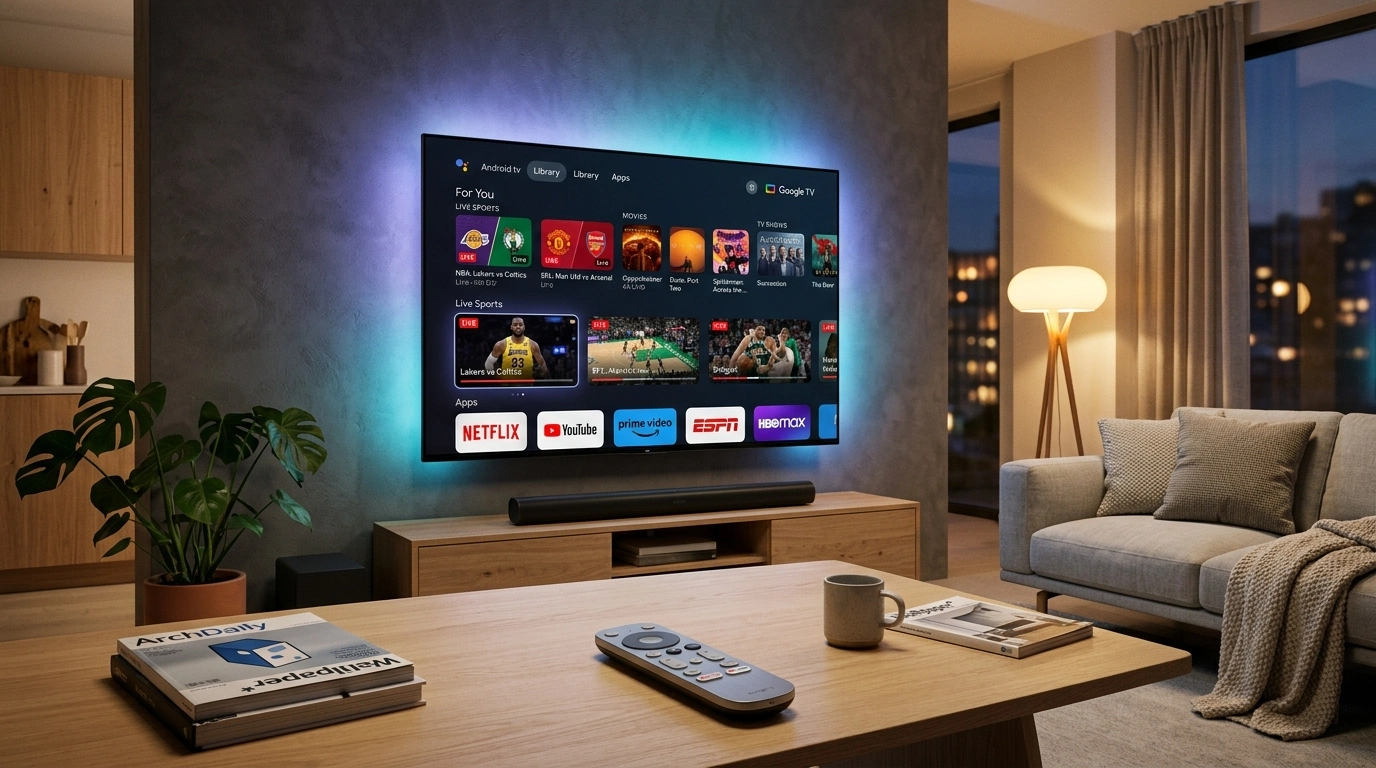
However, streaming live television over Internet Protocol (IPTV) directly through a Smart TV introduces a unique set of technical considerations. Unlike smartphones or generic streaming sticks that run uniform mobile operating systems, the Smart TV landscape is deeply fragmented. A Samsung television operates on Samsung's proprietary Linux-based Tizen OS; an LG television runs LG's proprietary webOS; while Sony, TCL, and select Philips models utilize Google's Android TV or Google TV.
Because Tizen and webOS do not support standard Android APK packages, you cannot simply download popular Android apps like TiviMate directly onto a Samsung or LG television. Instead, setting up IPTV on a Smart TV requires selecting an application specifically engineered for that TV's operating system, activating the software using your device's unique MAC address or Device Key, and synchronizing your playlist via secure web portals or the Xtream Codes API.
In this comprehensive 2026 master guide, we deliver an end-to-end installation roadmap for every major Smart TV platform. We break down the architectural differences between Tizen, webOS, and Android TV, provide step-by-step setup walkthroughs for premier Smart TV players (including IBO Player, Nanomid, Smart IPTV, and TiviMate), and share expert television calibration techniques to maximize your picture quality, audio fidelity, and streaming stability.
The Smart TV Operating System Landscape: Know Your Television
Before installing any software, you must identify the underlying operating system running on your television chassis. The software platform governs which IPTV applications are available and how authentication credentials are ingested.
+-----------------------------------------------------------------------------------+
|                        The Smart TV Operating System Spectrum                     |
+-----------------------------------------------------------------------------------+
| Platform                | TV Manufacturers         | Application Framework        |
+-------------------------+--------------------------+------------------------------+
| Samsung Tizen OS        | Samsung Smart TVs        | HTML5 / WebAssembly / Tizen  |
| LG webOS                | LG OLED, QNED, NanoCell  | Web App Framework / Enact JS |
| Android TV / Google TV  | Sony, TCL, Philips, Hisense | Native Android NDK / Java  |
| VIDAA OS                | Hisense (Select Models)  | Lightweight Linux / Web-based|
| Saphi OS                | Philips (Entry-Level)    | Embedded Linux / Web Portal  |
+-------------------------+--------------------------+------------------------------+
1. Samsung Smart TVs (Tizen OS)
Samsung televisions do not run Android. Tizen is a closed, secure operating system built upon Linux and Web standards. Applications in the Samsung Smart Hub are developed using HTML5, CSS, and JavaScript. You cannot sideload APK files onto a Samsung television. To stream IPTV, you must install dedicated Tizen-compatible applications—such as IBO Player, Smart IPTV (SIPTV), or Nanomid—directly from the official Samsung Smart Hub app store.
2. LG Smart TVs (webOS)
Similar to Samsung, LG televisions utilize their own proprietary operating system known as webOS. Renowned for its intuitive "Magic Remote" motion cursor navigation, webOS restricts software installation strictly to applications hosted in the official LG Content Store / LG Apps. Sideloading Android binaries is impossible without complex rooting. Premier webOS IPTV applications include IBO Player, Nanomid Player, and Smart IPTV.
3. Sony, TCL, Philips & Hisense (Android TV / Google TV)
If you own a modern Sony Bravia, a TCL television, or select Philips and Hisense models, your television runs full Android TV or Google TV. This grants you direct access to the Google Play Store, enabling you to install the world's most advanced Android IPTV media engines—including TiviMate, IPTV Smarters Pro, and Sparkle TV—directly without any web portal workarounds.
4. Hisense (VIDAA OS) & Philips (Saphi OS)
Many entry-level and mid-range televisions from Hisense and Philips operate on lightweight, proprietary Linux environments (VIDAA OS and Saphi). These platforms feature specialized web-based application stores where players like Net IPTV and SS IPTV represent the primary streaming vehicles.
Premier IPTV Players for Samsung Tizen & LG webOS
Because Samsung and LG televisions cannot run Android APKs, independent developers have created sophisticated web-based IPTV media engines that leverage the televisions' internal hardware decoders. Here are the top-rated applications for Tizen and webOS in 2026:
+---------------------------------------------------------------------------------+
|                       Top Tizen & webOS IPTV Players                            |
+---------------------------------------------------------------------------------+
| 1. IBO Player (Recommended)                                                     |
|    - Ultra-modern, responsive user interface with multi-language support        |
|    - Direct Xtream Codes API integration with automated EPG synchronization     |
|    - Playlist management handled via web portal: https://iboplayer.com          |
+---------------------------------------------------------------------------------+
| 2. Nanomid Player                                                               |
|    - Military-grade encryption with built-in VPN/proxy routing capabilities     |
|    - Exceptional multi-audio and subtitle synchronization controls              |
|    - Device linking via QR code at: https://nanomid.com                         |
+---------------------------------------------------------------------------------+
| 3. Smart IPTV (SIPTV)                                                           |
|    - The original pioneer of Smart TV streaming (lightweight, minimal memory)   |
|    - Simple text-based channel list managed via: https://siptv.app              |
+---------------------------------------------------------------------------------+
| 4. Net IPTV                                                                     |
|    - Clean card-based interface with high compatibility on older TVs            |
|    - Simple MAC-based upload at: https://netiptv.eu                             |
+---------------------------------------------------------------------------------+
Upgrade to SofaIPTV Premium 4K
Experience buffer-free entertainment with 50,000+ live channels and 200,000+ on-demand movies & series in pristine 4K.
- 4K & Full HD Quality
- Anti-Freeze v8.2 Tech
- All Devices Supported
- Instant 5-Min Activation
Phase 1A: Setting Up IBO Player on Samsung & LG Smart TVs (Recommended)
IBO Player has emerged as the definitive gold standard for Samsung Tizen and LG webOS televisions. Featuring a sleek, Netflix-style dashboard, rapid channel zapping speed, and robust electronic program guide (EPG) rendering, IBO Player provides a fluid broadcast television experience.
+---------------------------------------------------------------------------------+
|                       IBO Player Setup Architecture                             |
+---------------------------------------------------------------------------------+
| Step 1: Install "IBO Player" from Samsung Smart Hub or LG Content Store         |
| Step 2: Launch App -> Note "Device MAC Address" and "Device Key" on screen      |
| Step 3: Open Web Browser on Phone/PC -> Navigate to: https://iboplayer.com/manage|
| Step 4: Login with MAC + Key -> Select "Add XC Playlist" -> Enter SofaIPTV Data |
| Step 5: Click Save -> Restart TV App -> Instant, Beautiful 4K TV Streaming!     |
+---------------------------------------------------------------------------------+
Step-by-Step Installation Walkthrough:
- Turn on your Samsung or LG Smart TV and ensure it is connected to your home Wi-Fi or Ethernet network.
- Open your TV's application store:
- On Samsung: Press the Home button on your remote and select Apps (Smart Hub).
- On LG: Press the Home button and launch the LG Content Store (or Apps).
- Select the search icon (magnifying glass) and type
IBO Player. - Locate the official application, select Install, and wait for the download to complete.
- Once installed, launch IBO Player.
- On the initial startup screen, the application will display two critical pieces of hardware identification:
- Device MAC Address: A 12-character hexadecimal code (e.g.,
00:1a:79:xx:xx:xx). - Device Key: A 6-character security PIN (e.g.,
123456). - Take a photo or write down both values with absolute precision.
- Device MAC Address: A 12-character hexadecimal code (e.g.,
Ingesting Your SofaIPTV Credentials via the IBO Web Portal:
- On your smartphone, tablet, or computer, open a web browser and navigate to the official management portal: https://iboplayer.com/device/login
- In the login fields, enter the Device MAC Address and Device Key displayed on your television screen, then click Login.
- Once logged into your device dashboard, click the button labeled Add XC Playlist (Xtream Codes Playlist). (Do not choose Add Playlist for standard M3U unless you lack Xtream Codes credentials, as Xtream Codes delivers vastly superior EPG and VOD organization).
- Fill in your SofaIPTV subscription parameters:
- Playlist Name: Type
SofaIPTV. - Username: Enter your assigned subscription username.
- Password: Enter your assigned subscription password.
- Server URL: Enter your exact portal server URL and port (e.g.,
http://stream.domain.com:8080, ensuring no trailing slash).
- Playlist Name: Type
- Click Save.
- Return to your television, select Reload / Refresh inside the IBO Player interface (or close and relaunch the app).
- The application will immediately populate your live television bouquets, organize on-demand movie posters, and synchronize your television guide.
Phase 1B: Setting Up Nanomid Player on Samsung & LG Smart TVs
For users who value advanced network security, multi-audio track switching, and subtitle synchronization, Nanomid Player is an outstanding alternative available on both Samsung and LG stores.
+---------------------------------------------------------------------------------+
|                            Nanomid Setup Roadmap                                |
+---------------------------------------------------------------------------------+
| 1. Search & Install "Nanomid Player" from TV App Store                          |
| 2. Open App -> Press Green Button on remote or select "Info" for Device ID/OTP  |
| 3. On Mobile/PC Browser, visit: https://nanomid.com/playlist                    |
| 4. Input Device ID -> Select "Add Xtream Codes" -> Input SofaIPTV Credentials   |
| 5. Apply Changes -> Reload Nanomid on TV -> Watch Broadcast Channels            |
+---------------------------------------------------------------------------------+
Step-by-Step Nanomid Walkthrough:
- Open the Samsung Smart Hub or LG Content Store.
- Search for
Nanomid Playerand install the application. - Launch Nanomid on your television.
- Press the Green button on your physical remote control (or navigate to Settings / Info in the app) to reveal your unique Nanomid Device ID or QR code.
- On your computer or mobile phone, navigate to: https://nanomid.com/playlist
- Enter your television's Device ID.
- Select Add Xtream Codes API, input your SofaIPTV server details (Server URL, Username, and Password), and click Submit.
- Restart Nanomid on your Smart TV. The application will pull your playlists directly into the television's hardware player.
Phase 1C: Setting Up Smart IPTV (SIPTV) on Samsung & LG
For users who prefer an ultra-lightweight, text-based channel list without heavy poster artwork or animations, Smart IPTV (SIPTV) remains a classic favorite.
+---------------------------------------------------------------------------------+
|                               Smart IPTV (SIPTV)                                |
|  [Channel Number]  [Channel Name]                     [Current Program EPG]     |
|  001               Sky Sports Main Event 4K           Premier League Football   |
|  002               TNT Sports 1 FHD                   UEFA Champions League     |
|  003               BBC One HD                         Evening News Bulletin     |
+---------------------------------------------------------------------------------+
| Activation URL: https://siptv.app/mylist                                        |
| Management Method: Upload M3U URL linked to TV's Virtual MAC Address             |
+---------------------------------------------------------------------------------+
Step-by-Step SIPTV Walkthrough:
- Search for
Smart IPTVin the Samsung Smart Hub or LG Content Store and install it. - Launch the application. On the right side of the screen, you will see your TV's TV MAC Address (e.g.,
a1:b2:c3:d4:e5:f6). - Open a web browser on your phone or computer and visit: https://siptv.app/mylist
- Under the section titled Upload M3U Playlist to Smart IPTV:
- In the MAC field, input your television's exact MAC address.
- In the URL field, paste your complete SofaIPTV M3U with EPG link.
- Check the box for Save online and select Logos: Default.
- Click the Send button. A green confirmation badge will appear stating "1 URL added! Restart the App."
- On your Smart TV, press the 0 (Zero) or Select button to reload the playlist. Your channels and electronic program guide will load instantly.
Phase 2: Setting Up TiviMate on Sony Bravia, TCL & Google TVs
If you own a Sony Bravia, TCL, Philips, or Hisense television powered by Android TV or Google TV, you do not need to use external web management portals. You have native access to the Google Play Store, allowing you to install the premier television client in existence: TiviMate IPTV Player.
+---------------------------------------------------------------------------------+
|                      TiviMate Setup Flow on Android / Google TV                 |
+---------------------------------------------------------------------------------+
| Step 1: Open Google Play Store directly on your Sony / TCL / Philips TV         |
| Step 2: Search for "TiviMate IPTV Player" -> Select Install                     |
| Step 3: Open TiviMate -> Select "Add Playlist" -> Choose "Xtream Codes API"     |
| Step 4: Input SofaIPTV Server URL, Username, and Password -> Click Next         |
| Step 5: TiviMate parses thousands of channels with instant EPG synchronization  |
+---------------------------------------------------------------------------------+
Detailed Android TV / Google TV Setup Walkthrough:
- Power on your Android TV and open the Google Play Store from your home apps row.
- Select the search bar and type
TiviMate IPTV Player. - Install the application directly to your television's internal flash storage.
- Launch TiviMate.
- Click Add Playlist, then choose Xtream Codes API.
- Input your SofaIPTV credentials:
- Server Address: Your assigned Server URL (e.g.,
http://stream.domain.com:8080). - Username: Your assigned username.
- Password: Your assigned password.
- Include VOD: Checked (to import Movies and Series).
- Server Address: Your assigned Server URL (e.g.,
- Select Done. TiviMate will index your bouquets, download high-resolution channel logos, and build a pristine electronic program guide grid.
Phase 3: Setting Up IPTV on Hisense VIDAA OS & Philips Saphi OS
While Android TV dominates Sony and TCL, many budget and mid-range televisions—specifically Hisense TVs running VIDAA OS and Philips TVs running Saphi OS—utilize custom Linux web environments distinct from both Android and Tizen/webOS.
+---------------------------------------------------------------------------------+
|                         VIDAA OS & Saphi IPTV Architecture                      |
+---------------------------------------------------------------------------------+
| Platform Architecture : Ultra-lightweight Linux + Web Application Wrapper      |
| App Store Ecosystem   : VIDAA App Store / Philips App Gallery                   |
| Top Streaming Clients : Net IPTV, SS IPTV, Smart IPTV, OttPlayer                |
| Playlist Management   : Web portal upload via TV MAC Address or Device ID       |
+---------------------------------------------------------------------------------+
Step-by-Step Setup on Hisense VIDAA OS using Net IPTV:
- Open the VIDAA App Store on your Hisense television.
- Search for
Net IPTVand install the application. - Launch Net IPTV. On the home screen, note down your television's MAC Address (e.g.,
00:11:22:33:44:55). - On your smartphone or computer browser, navigate to: https://netiptv.eu/upload
- Enter your TV's MAC address in the upload form.
- Paste your SofaIPTV M3U playlist URL or Xtream Codes server link into the URL field.
- Click Add 1 or Update.
- Return to your Hisense TV, press the Red button or select Reload to pull your complete channel lineup into the television.
Phase 4: Television Picture & Audio Calibration for IPTV
Most television owners watch IPTV using factory-default display presets. Factory presets—typically labeled "Standard," "Vivid," or "Eco"—are engineered to look bright under fluorescent showroom lighting, but they severely degrade video fidelity at home, introducing artificial edge sharpening, crushed shadow details, and severe motion judder.
Execute these expert calibration adjustments directly within your television's native settings:
+---------------------------------------------------------------------------------+
|                       Television Picture Tuning Blueprint                       |
+---------------------------------------------------------------------------------+
| Setting               | Factory Default State | Recommended Broadcast Target    |
+-----------------------+-----------------------+---------------------------------+
| Picture Mode          | Vivid / Dynamic       | Cinema / Movie / Filmmaker Mode |
| Sharpness             | High (50 / 100)       | Low (0 to 10 max)               |
| Motion Smoothing      | High (Smooth / Auto)  | Completely OFF (Eliminates Judder|
| Aspect Ratio          | 16:9 / Auto Wide      | Just Scan / Fit to Screen (1:1) |
| Color Temperature     | Cool (Blue Tint)      | Warm 2 / Warm (Natural Skin)    |
| Dynamic Contrast      | High                  | OFF (Preserves Shadow Detail)   |
+---------------------------------------------------------------------------------+
1. Disable Motion Smoothing (Samsung Auto Motion Plus / LG TruMotion)
Television manufacturers equip displays with artificial frame interpolation intended to reduce blur. However, when watching broadcast television—especially 50 FPS European football or 60 FPS North American sports—your television's video processor becomes overwhelmed trying to calculate fake intermediate frames for an already rapid 60 FPS broadcast. The TV drops real frames, creating visual micro-stutter that viewers mistake for network buffering.
- On Samsung TVs: Navigate to Settings > Picture > Expert Settings > Picture Clarity Settings (or Auto Motion Plus) and set it to OFF.
- On LG TVs: Navigate to All Settings > Picture > Picture Mode Settings > Picture Options > TruMotion and toggle it to OFF.
- On Sony TVs: Open Picture Settings > Clarity > Motionflow and toggle it to OFF.
2. Enable 1:1 Pixel Mapping (Fit to Screen / Just Scan)
By default, televisions apply a legacy scaling technique known as "Overscan," zooming the incoming video feed in by approximately 3% to 5%. This crops broadcast scores, cuts off channel logos, and blurs sharp text.
- On Samsung: Navigate to Picture > Picture Size Settings and set Fit to Screen to ON.
- On LG: Open Picture > Aspect Ratio and set Just Scan to ON.
- On Sony: Open Display & Screen and set Display Area to Full Pixel. Your TV will now map the incoming IPTV stream pixel-for-pixel onto the 4K panel, delivering razor-sharp text and crystal-clear channel bugs.
3. Configure Audio Passthrough for AV Receivers and Soundbars
If your Smart TV is connected to an external audio soundbar or AV receiver via HDMI eARC/ARC:
- Open your TV's Sound Settings.
- Set Digital Sound Output from Auto or PCM to Pass-Through (or Bitstream).
- This instructs the television to bypass its internal downmixing processor, sending raw multi-channel Dolby Digital Plus or Dolby Atmos tracks directly to your audio hardware for immersive surround sound.
Upgrade to SofaIPTV Premium 4K
Experience buffer-free entertainment with 50,000+ live channels and 200,000+ on-demand movies & series in pristine 4K.
- 4K & Full HD Quality
- Anti-Freeze v8.2 Tech
- All Devices Supported
- Instant 5-Min Activation
Phase 5: Network Optimization: Ethernet vs. Wi-Fi on Smart TVs
One of the best-kept secrets in consumer electronics is that virtually all Smart TVs manufactured by Samsung, LG, and Sony feature 100 Mbps Fast Ethernet ports, rather than modern 1 Gigabit (1000 Mbps) ports.
+---------------------------------------------------------------------------------+
|                       Smart TV Network Interface Comparison                     |
+---------------------------------------------------------------------------------+
| Metric                      | Built-in TV Ethernet Port | 5 GHz Wi-Fi Connection|
+-----------------------------+---------------------------+-----------------------+
| Maximum Theoretical Bandwidth| 100 Mbps (Capped)        | 300 - 600 Mbps        |
| Packet Loss Rate            | STRICTLY 0.0% (Zero)      | 0.5% - 2.0% (Jitter)  |
| Latency Jitter              | 1 ms (Rock Solid)         | 15 ms - 45 ms (Spikes)|
| Suitability for 4K Live IPTV| EXCELLENT (Requires 25M)  | RISKY (Causes Freezes)|
| Recommended Choice          | PRIMARY CHOICE            | BACKUP ONLY           |
+-----------------------------+---------------------------+-----------------------+
Why 100 Mbps Ethernet Is Still Superior to Wi-Fi
While a speed test on a 100 Mbps Ethernet port will cap out around 90–95 Mbps, 95 Mbps is more than triple the bandwidth required for an uncompressed 4K 60FPS HEVC stream (which peaks at 25 Mbps).
- More importantly, Ethernet provides zero packet loss and zero radio frequency jitter.
- Smart TVs positioned against living room walls are often shielded from home Wi-Fi routers by internal metal TV brackets, plasterboard, and electrical conduits. This introduces wireless packet drops that cause periodic buffering.
- Rule of Thumb: Always plug an Ethernet cable into your Smart TV whenever practical. If forced to use Wi-Fi, connect strictly to the router's 5 GHz band and disable band steering.
Phase 6: Overcoming Smart TV SSL/TLS Certificate Expiration Failures
A frequent technical roadblock on Smart TVs manufactured between 2018 and 2022 is the sudden appearance of "SSL Handshake Failed," "Certificate Expired," or "Cannot Connect to Stream" errors when attempting to play secure https:// channels.
+---------------------------------------------------------------------------------+
|                    Smart TV SSL Trust Store Expiration Mechanism                |
+---------------------------------------------------------------------------------+
| 1. Modern IPTV Server uses Let's Encrypt or Sectigo SSL Certificate (TLS 1.3)   |
| 2. Older Samsung Tizen / LG webOS TV has not received firmware updates since 2021|
| 3. Television's internal Root CA Certificate Trust Store is OUTDATED.           |
| 4. TV rejects valid server SSL certificate -> ABORTS CONNECTION -> BLACK SCREEN |
+---------------------------------------------------------------------------------+
How to Bypass Smart TV SSL Handshake Failures
- Switch Protocol from HTTPS to HTTP: In your IPTV app settings or when entering your Server URL in management portals (like IBO Player or Nanomid), change the prefix from
https://tohttp://. Most streaming providers support unencrypted HTTP on standard ports (such as:8080or:8000), which completely bypasses the television's outdated cryptographic root store. - Synchronize Network Date and Time: Open your television's system settings and navigate to General > Time & Date. If your TV's clock drifted by even 15 minutes due to a power outage, SSL validation certificates will fail. Set Time to Automatic (Network Time Protocol / NTP).
- Check for Firmware Updates: Navigate to Settings > Support > Software Update to verify if Samsung or LG has published an updated root CA trust store for your television chassis.
Phase 7: Advanced HDMI eARC / ARC Audio Configuration Across Brands
Many Smart TV owners connect their televisions to external audio soundbars or multi-speaker AV receivers via HDMI eARC/ARC, yet experience annoying lip-sync delay or find their audio downgraded to flat 2.0 stereo.
+---------------------------------------------------------------------------------+
|                      Smart TV HDMI-CEC & eARC Audio Pipeline                    |
+---------------------------------------------------------------------------------+
| Brand Protocol Name    | TV Settings Path              | Target Configuration   |
+------------------------+-------------------------------+------------------------+
| Samsung (Anynet+)      | Sound > Expert Settings       | Digital Output: Pass-  |
|                        |                               | Through / Dolby Digital|
+------------------------+-------------------------------+------------------------+
| LG (SIMPLINK)          | Sound > Advanced Settings     | Digital Sound Output:  |
|                        |                               | Pass Through; eARC: ON |
+------------------------+-------------------------------+------------------------+
| Sony (BRAVIA Sync)     | Display & Sound > Audio Output| eARC mode: Auto;       |
|                        |                               | Digital Audio Out: Auto|
+------------------------+-------------------------------+------------------------+
Eliminating Audio Lip-Sync Delay
If audio commentary lags behind the football ball being kicked or actors' lips:
- In your Smart TV's Sound Settings, locate Audio Delay or Lip-Sync Match.
- Toggle eARC Support to ON (enhanced Audio Return Channel eliminates the processing latency common in older optical TOSLink cables).
- If your soundbar supports it, set digital output to Pass-Through rather than Auto. "Auto" forces the television to inspect and transcode the incoming AAC/AC3 audio stream into PCM, adding 150 milliseconds of latency. Pass-Through routes the raw bitstream directly to your soundbar in real time.
Phase 8: Playlist Pruning: Tailoring Massive Playlists for Low-RAM Smart TVs
The single greatest mistake Smart TV owners make when configuring IPTV is attempting to load an unedited playlist containing 70,000 live channels and 100,000 on-demand movies directly into a television with only 1 GB of usable RAM.
+---------------------------------------------------------------------------------+
|                     Playlist Memory Footprint Comparison                        |
+---------------------------------------------------------------------------------+
| Playlist Size          | RAM Consumption on TV | TV UI Responsiveness           |
+------------------------+-----------------------+--------------------------------+
| Full Unpruned Playlist | Over 850 MB RAM       | Sluggish D-Pad, Periodic TV    |
| (60,000+ Channels)     | (Near OOM Crash Limit)| App Crashes, Guide Freezes     |
+------------------------+-----------------------+--------------------------------+
| Pruned Custom Bouquet  | Under 90 MB RAM       | Lightning-Fast Zapping, Silky  |
| (2,500 Curated Channels| (Safe Storage Zone)   | Smooth EPG Scrolling, Stable   |
+------------------------+-----------------------+--------------------------------+
How to Prune Your Playlist via SofaIPTV Management Portal
- Log into your SofaIPTV client portal.
- Navigate to your active subscription service and select Manage Bouquets (or Channel Category Filter).
- Deselect foreign languages, international regional categories, and genres you never watch (e.g., deselect foreign sports bouquets, international news, or 24/7 channels).
- Save your updated bouquet selection.
- In your Smart TV application (IBO Player, Nanomid, or Smart IPTV), select Reload Playlist.
- By pruning your channel list to 2,000–5,000 high-priority channels, your Smart TV's processor will render the electronic program guide instantaneously with zero interface lag or memory crashes.
Phase 9: External Streaming Hardware vs. Native Smart TV Apps
While watching IPTV directly through a Smart TV app eliminates the clutter of extra HDMI cables and remote controls, discerning home theater enthusiasts frequently debate whether using an external streaming box provides a superior viewing experience.
+-----------------------------------+-------------------+-------------------+-------------------+
| Feature / Metric                  | Native Smart TV   | Firestick 4K Max  | Apple TV 4K (3rd) |
+-----------------------------------+-------------------+-------------------+-------------------+
| Operating Platform                | Tizen / webOS     | Fire OS (Android) | tvOS (Apple)      |
| Processor Architecture            | Dual/Quad Core SoC| MediaTek Quad 2.0 | Apple A15 Bionic  |
| System RAM Allocation             | 1.0 - 1.5 GB      | 2.0 GB            | 4.0 GB            |
| Channel Zapping Latency           | 1.5 - 2.5 Seconds | Under 1.0 Second  | Instant (< 0.5s)  |
| Multi-Screen Support              | Rare (1 screen)   | Up to 4 screens   | Up to 4 screens   |
| System-Wide VPN Support           | Limited / Router  | Native WireGuard  | Native tvOS VPN   |
| Recommended Usage                 | Everyday Casual   | Dedicated Sports  | Ultimate Premium  |
+-----------------------------------+-------------------+-------------------+-------------------+
When to Upgrade from Smart TV Apps to an External Box:
- You Watch Multi-Screen Sports: Native Smart TV processors lack the memory bandwidth required to decode four 1080p 60FPS video feeds simultaneously in split-screen mode. Dedicated boxes like the Fire TV Stick 4K Max or Apple TV 4K handle quad-screen multiview effortlessly.
- Your ISP Throttles Live Channels: If your internet provider restricts live sports and your television does not support native VPN clients, adding an external streaming device allows you to run an encrypted WireGuard VPN directly on the streaming client.
- You Want TiviMate's Unmatched UI: If you crave the fluid television guide and ergonomics of TiviMate, connecting a budget-friendly streaming stick to your television's HDMI port delivers immediate access.
Troubleshooting Matrix: Common Smart TV IPTV Issues
+-----------------------------------+-----------------------------------+-----------------------------------+
| Observable Symptom                | Root Technical Cause              | Definitive Technical Solution     |
+-----------------------------------+-----------------------------------+-----------------------------------+
| App crashes to TV home screen     | Television flash memory or system | Force stop app; unplug TV power   |
| when loading large channel list   | RAM capacity exhausted            | cable for 60s cold reboot; prune  |
|                                   |                                   | unused categories via web portal  |
+-----------------------------------+-----------------------------------+-----------------------------------+
| Audio plays smoothly, but screen  | Hardware video decoder failure    | Settings > Player > Switch Video  |
| is completely black               | with non-standard stream profile  | Decoder from Hardware to Software |
+-----------------------------------+-----------------------------------+-----------------------------------+
| Stream freezes every 2 minutes    | 2.4GHz Wi-Fi packet jitter or ISP | Connect TV via Ethernet cable;    |
| on live football broadcasts       | bandwidth throttling during games | change TV DNS to 1.1.1.1 (Cloudfl)|
+-----------------------------------+-----------------------------------+-----------------------------------+
| TV Guide shows "No Information"   | Timezone offset mismatch or stale | Open app settings; click "Update  |
| across all live channels          | local EPG cache tables            | EPG"; calibrate Time Offset (+/-) |
+-----------------------------------+-----------------------------------+-----------------------------------+
| Web portal reports "Invalid MAC   | Typo entered when typing 12-char  | Double-check MAC syntax on TV info|
| Address or Device Key"            | hexadecimal hardware ID           | screen; confirm colons (: or -)   |
+-----------------------------------+-----------------------------------+-----------------------------------+
| "SSL Handshake Failed" on older   | TV root CA certificate expired;   | Switch stream URL from https://   |
| Samsung / LG television models    | out-of-sync television system time| to http://; sync clock via NTP    |
+-----------------------------------+-----------------------------------+-----------------------------------+
| Audio/video out of sync by 200ms  | TV audio post-processing latency  | Sound Settings > Digital Output:  |
| through HDMI eARC soundbar        | on internal PCM transcoder        | Pass-Through; enable eARC support |
+-----------------------------------+-----------------------------------+-----------------------------------+
Master 8-Point Smart TV Setup Checklist
Execute this sequential checklist to verify your Smart TV is primed for optimal broadcast streaming:
- Physical Power: Connect television to a stable wall outlet; perform a 60-second cold reboot if upgrading.
- Network Connection: Connect TV via direct Cat6 Ethernet cable or lock Wi-Fi strictly to the clean 5 GHz band.
- App Selection: Install IBO Player or Nanomid on Samsung/LG; install TiviMate on Sony/TCL.
- Credential Entry: Ingest credentials via Xtream Codes API using exact capitalization and no trailing spaces.
- DNS Calibration: Change TV network DNS from Automatic to Manual and enter Cloudflare (
1.1.1.1). - Motion Smoothing: Turn off Samsung Auto Motion Plus or LG TruMotion to eliminate sports panning judder.
- Pixel Mapping: Set Aspect Ratio to "Fit to Screen" or "Just Scan" to enable 1:1 pixel sharpness.
- Playlist Hygiene: Hide unneeded foreign bouquets in your provider portal to conserve TV memory.
Frequently Asked Questions
Conclusion: Transform Your Living Room Television
Your modern Smart TV is a magnificent piece of optical engineering, capable of producing mesmerizing contrast, vibrant colors, and pinpoint 4K detail. By pairing your television with an elite IPTV player tailored specifically to your operating system—whether IBO Player on Samsung Tizen and LG webOS, or TiviMate on Sony and Google TV—you unlock the full broadcast potential of your living room.
Take command of your home viewing experience today. Browse our expansive global channel directory, review our detailed installation tutorials, or select your preferred SofaIPTV subscription plan to enjoy live sports, premium cinema, and international television in uncompromised, broadcast-grade clarity.