How to Improve IPTV Streaming Quality: 10 Ways to Get Smoother HD and 4K Playback (2026)
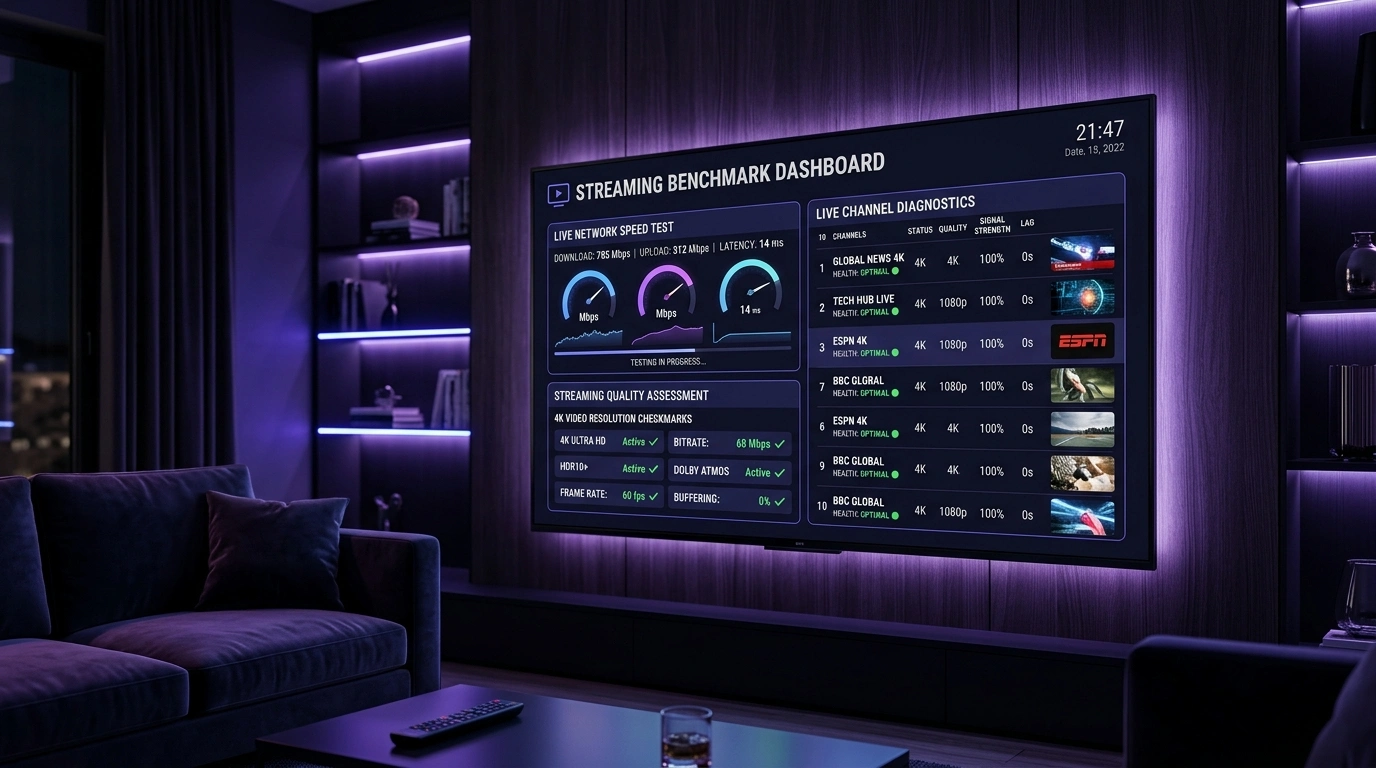
When setting up internet television, most viewers believe that getting a channel to open and display a picture is the end of the journey. However, merely loading a video feed is only the baseline. There is an enormous technological gulf between a stream that stutters, drops frames, suffers from pixelated macro-blocking during fast-action camera pans, or drops into blurry lower resolutions, and one that delivers a flawless, broadcast-grade High Definition (1080p 60fps) or pristine 4K Ultra High Definition experience.
Nothing ruins a championship football derby, a high-stakes pay-per-view fight, or a cinematic masterpiece faster than unexpected video stutter, audio-video desynchronization, or continuous buffering spinners.
If you are seeking to improve IPTV streaming quality, understanding how digital video data travels from international broadcast encoders through content delivery networks (CDNs) and across your local home network to your television's display panel is essential. Achieving buttery-smooth IPTV HD streaming—and especially demanding IPTV 4K streaming—requires far more than simply paying for a high-tier broadband plan from your internet service provider. It demands network stability, low jitter, minimal packet loss, correct hardware acceleration, display refresh rate matching, and optimized player buffer allocation.
In this comprehensive, master-level engineering guide for 2026, we break down the entire end-to-end IPTV delivery chain. We explain the critical difference between raw bandwidth and connection stability, analyze video compression codecs, and provide ten practical, field-tested technical strategies to achieve rock-solid, smooth playback on Firestick, Android TV, Apple TV, Smart TVs, and PCs.
The Complete End-to-End IPTV Streaming Chain
To diagnose and resolve picture degradation or motion jitter, you must first understand the complete technical pipeline that brings live video into your living room:
+-----------------------------------------------------------------------------------+
|                        The Complete IPTV Streaming Pipeline                       |
+-----------------------------------------------------------------------------------+
|  [Stage 1: Broadcaster Capture & Ingestion]                                       |
|  Live stadium cameras -> SDI feeds -> Hardware Encoders (H.264 / HEVC / AV1)      |
|        |                                                                          |
|        v                                                                          |
|  [Stage 2: Provider Edge Cluster & Transcoding]                                   |
|  SofaIPTV Origin Servers pack streams into MPEG-TS / HLS HTTP transport chunks   |
|        |                                                                          |
|        v                                                                          |
|  [Stage 3: Global CDN Transit & Tier-1 Peering]                                   |
|  High-speed backbones route packets across Cloudflare / Fastly CDN edge nodes     |
|        |                                                                          |
|        v                                                                          |
|  [Stage 4: ISP Last-Mile Delivery & Peering]                                      |
|  Broadband provider routes data to household modem; prone to traffic throttling   |
|        |                                                                          |
|        v                                                                          |
|  [Stage 5: Local Home Network (Wi-Fi vs Ethernet)]                                |
|  Router delivers packets via Cat6 cable or 5 GHz Wi-Fi radio waves to TV device   |
|        |                                                                          |
|        v                                                                          |
|  [Stage 6: Client Hardware SoC & Video Decoders]                                  |
|  Device GPU decodes HEVC/AVC packets; Player buffers chunks in volatile RAM       |
|        |                                                                          |
|        v                                                                          |
|  [Stage 7: Display Panel & Refresh Rate Output]                                   |
|  Television renders pixels at 50Hz, 60Hz, or 120Hz; applies HDR10 / Dolby Vision  |
+-----------------------------------------------------------------------------------+
A breakdown or bottleneck at any single link in this seven-stage chain will degrade your visual quality. Even if SofaIPTV transmits an uncompressed 25 Mbps 4K feed from origin servers, an underpowered streaming stick, an overloaded Wi-Fi channel, or a poorly configured video player decoder will result in stuttering playback.
Bandwidth vs Stability: Why Fast Internet Still Buffers
The single most widespread misconception in digital streaming is the belief that: "I have a 500 Mbps fiber connection, so my IPTV quality should be flawless."
While bandwidth (throughput) defines the maximum volume of data your connection can transfer per second, connection stability, packet loss, and latency jitter determine whether a live stream remains smooth.
+-----------------------------------+-----------------------------------+-----------------------------------+
| Metric                            | What It Measures                  | Impact on IPTV Playback Quality   |
+-----------------------------------+-----------------------------------+-----------------------------------+
| Download Bandwidth                | Maximum pipe capacity (Mbps)      | Determines maximum resolution (HD/4K)|
| Latency (Ping)                    | Round-trip packet time (ms)       | Dictates channel switching speed  |
| Jitter                            | Variation in packet arrival times | Causes sudden frame drops & stutter|
| Packet Loss                       | Percentage of lost data packets   | Triggers macro-blocking & buffering|
| Bufferbloat                       | Latency spikes under router load  | Causes streams to stall during downloads|
+-----------------------------------+-----------------------------------+-----------------------------------+
The Mechanics of Real-Time Video Packets
Unlike on-demand video platforms like Netflix or YouTube—which can aggressively buffer five to ten minutes of upcoming video into device storage—live IPTV operates on rolling real-time buffers. A live football match only exists a few seconds ahead of real life.
If your internet connection suffers from 2% packet loss or high jitter (where packets arrive out of sequential order), your streaming player's decoder runs out of data to assemble the next video frame. The video freezes, the audio drops out, or the player downscales the visual resolution into a pixelated blur while waiting for missing packets to re-transmit.
A rock-solid, jitter-free 35 Mbps connection will always deliver a vastly superior IPTV experience compared to an erratic, congested 1 Gbps fiber connection suffering from micro-packet drops.
Upgrade to SofaIPTV Premium 4K
Experience buffer-free entertainment with 50,000+ live channels and 200,000+ on-demand movies & series in pristine 4K.
- 4K & Full HD Quality
- Anti-Freeze v8.2 Tech
- All Devices Supported
- Instant 5-Min Activation
Bandwidth Requirements Matrix by Resolution
To ensure pristine playback without compression artifacts, your connection must comfortably exceed the sustained bitrates of modern broadcast profiles:
+-----------------------------------+-------------------+-------------------+-------------------+
| Broadcast Profile                 | Resolution & FPS  | Stream Bitrate    | Recommended Speed |
+-----------------------------------+-------------------+-------------------+-------------------+
| Standard Definition (SD)          | 576p / 480p 25fps | 2 - 4 Mbps        | 10 Mbps           |
| High Definition (HD)              | 720p 50/60fps     | 5 - 8 Mbps        | 20 Mbps           |
| Full High Definition (FHD)        | 1080p 50/60fps    | 10 - 18 Mbps      | 35 Mbps           |
| Premium High-Bitrate FHD (Raw)    | 1080p 60fps 4:2:0 | 18 - 25 Mbps      | 50 Mbps           |
| Ultra High Definition (4K UHD)    | 2160p 50/60fps HDR| 25 - 45 Mbps      | 80 - 100 Mbps+    |
+-----------------------------------+-------------------+-------------------+-------------------+
Note: The "Recommended Speed" column accounts for household network overhead (smartphones, cloud backups, secondary streaming devices) sharing your home router simultaneously.
10 Master Technical Ways to Improve IPTV Streaming Quality
Implement these ten sequential optimizations to eliminate stutter, maximize resolution, and ensure your home setup delivers broadcast-grade fidelity:
+---------------------------------------------------------------------------------+
|                       10-Point IPTV Quality Optimization Plan                   |
+----+-----------------------------+----------------------------------------------+
| Step| Technical Remediation        | Underlying Bottleneck Resolved               |
+----+-----------------------------+----------------------------------------------+
| 1  | Deploy Cat6 Wired Ethernet  | Eliminates Wi-Fi interference & packet drops |
| 2  | Optimize 5 GHz & Wi-Fi 6 DFS| Maximizes wireless throughput on 80MHz bands |
| 3  | Configure Router QoS Queues | Prevents household downloads from stalling TV|
| 4  | Calibrate MTU Packet Size   | Eliminates packet fragmentation over routers |
| 5  | Tune Player Buffer Memory   | Absorbs packet jitter without adding lag     |
| 6  | Enable Hardware Acceleration| Offloads HEVC decoding to dedicated SoC GPU  |
| 7  | Match Auto Frame Rate (AFR) | Eliminates 3:2 pulldown motion judder        |
| 8  | Manage Device Thermals & RAM| Stops CPU throttling on budget sticks        |
| 9  | Bypass ISP Peering Throttling| Evades peak-hour ISP routing bottlenecks     |
| 10 | Partner with a Tier-1 CDN   | Ensures uncompressed, low-latency feeds      |
+----+-----------------------------+----------------------------------------------+
1. Deploy a Wired Cat6 Ethernet Connection
Connecting your streaming box or smart TV directly to your router using a Cat6 or Cat7 Ethernet cable is the single most effective hardware upgrade you can make to improve IPTV quality.
+-----------------------------------+-----------------------------------+
| Cat6 Wired Ethernet               | 2.4 GHz / 5 GHz Wi-Fi             |
+-----------------------------------+-----------------------------------+
| 0% Radio Frequency Interference   | Highly vulnerable to microwaves & walls|
| Constant, unvarying throughput    | Speed fluctuates as devices move  |
| Sub-millisecond local latency     | Subject to airtime contention     |
| 0.00% Packet Loss                 | Routine micro-burst packet drops  |
| Perfect for 45 Mbps 4K HEVC       | Often drops frames on high bitrates|
+-----------------------------------+-----------------------------------+
If your streaming stick (such as an Amazon Fire TV Stick 4K Max or Chromecast with Google TV) lacks an integrated Ethernet jack, purchase a dedicated USB-to-Ethernet OTG adapter. Bypassing the wireless spectrum completely eliminates buffer stalls caused by neighboring radio interference.
2. Optimize 5 GHz and Wi-Fi 6 DFS Channels
If running an Ethernet cable through your living room is physically impossible, you must optimize your wireless local area network to behave as close to a physical wire as possible:
- Never Stream on 2.4 GHz: The 2.4 GHz wireless frequency band is heavily congested, narrow (20 MHz channels), and vulnerable to interference from Bluetooth, microwaves, and baby monitors. It cannot sustain high-bitrate 1080p 60fps or 4K streams reliably.
- Force 5 GHz Connection: Connect your television exclusively to your router's 5 GHz or 6 GHz (Wi-Fi 6E) SSID.
- Select 80 MHz Channel Width: Access your router's administrative dashboard (Wireless > Advanced Settings) and set the 5 GHz channel width to 80 MHz to provide maximum bandwidth headroom.
- Utilize DFS Channels: Dynamic Frequency Selection (DFS) channels (such as channels 52 through 144) are legally reserved for radar systems. Because most consumer routers avoid them, DFS channels are virtually devoid of neighboring Wi-Fi interference.
- Elevate Router Placement: Ensure your Wi-Fi router is elevated, out of closed cabinets, and not positioned directly behind a thick metal TV mounting bracket.
3. Configure Router Quality of Service (QoS) & Bufferbloat Mitigation
In a busy household, someone downloading a 50 GB game update on a PlayStation, streaming a 4K YouTube video on a laptop, or backing up smartphone photos to iCloud can exhaust your router's transmission queues. When the router's queue fills up, incoming live IPTV packets are delayed—a phenomenon known as Bufferbloat.
+---------------------------------------------------------------------------------+
|                     Bufferbloat Contention on Unmanaged Routers                 |
+---------------------------------------------------------------------------------+
| [PC Torrent Download] ======+                                                   |
| [iPhone Cloud Backup] ======+===> [Router FIFO Queue: FULL] ===> [TV Stalls / Buffers]
| [Live 4K Sports Match] =====+      (Packets delayed 400ms!)                     |
+---------------------------------------------------------------------------------+
|                     With Quality of Service (QoS) Priority Active               |
+---------------------------------------------------------------------------------+
| [Live 4K Sports Match] =====> [HIGH PRIORITY QUEUE: 0ms Delay] ===> [Smooth 60fps]
| [PC Downloads / Backups] ===> [LOW PRIORITY QUEUE: Throttled]  ===> [Completes Later]
+---------------------------------------------------------------------------------+
How to Configure QoS for IPTV:
- Log in to your home router's admin panel (typically
192.168.1.1). - Navigate to Quality of Service (QoS) or Traffic Prioritization.
- Locate your streaming device (identified by its IP or MAC address).
- Assign your TV device the Highest / Real-Time Priority.
- If your router supports advanced algorithms like FQ-CoDel or Cake, enable them. These algorithms automatically prevent large downloads from increasing latency on live video streams.
4. Calibrate Maximum Transmission Unit (MTU) Packet Sizes
The Maximum Transmission Unit (MTU) specifies the largest data packet size (in bytes) that can be transmitted across your network without being broken into smaller fragments. The standard ethernet MTU is 1500 bytes.
However, if you connect through PPPoE broadband (common with DSL and fiber) or route your IPTV traffic through a VPN tunnel, protocol headers add 8 to 40 bytes of overhead. If your router attempts to transmit a 1500-byte video packet through an interface with a 1492-byte limit, the packet must be split in two (packet fragmentation). Fragmentation doubles CPU packet processing overhead and introduces micro-stutters during live sports.
Finding Your Optimal MTU:
- On a Windows PC connected to your home network, open Command Prompt.
- Run the command:
ping -f -l 1472 1.1.1.1(1472 bytes + 28 bytes ICMP/IP header = 1500 bytes total). - If you receive "Packet needs to be fragmented but DF set," reduce the packet size in decrements of 10 (e.g., 1462, 1452) until you achieve a clean reply with zero packet loss.
- Add 28 to that number to determine your optimal MTU.
- Set this value in your router's WAN Settings > MTU Size (typically
1492for PPPoE or1420for WireGuard VPNs).
5. Tune IPTV Player Buffer Sizing
Most premium IPTV players—such as TiviMate, IPTV Smarters Pro, Sparkle TV, and OTT Navigator—allow users to calibrate the Stream Buffer Length.
The buffer represents a temporary safety cushion of video data stored in your streaming device's volatile RAM.
+-----------------------------------+-----------------------------------+-----------------------------------+
| Buffer Setting                    | Buffer Duration (Seconds)         | Best Operational Use Case         |
+-----------------------------------+-----------------------------------+-----------------------------------+
| None / Off                        | 0 - 0.5 Seconds                   | Lightning-fast zapping; requires  |
|                                   |                                   | enterprise fiber with 0% jitter   |
+-----------------------------------+-----------------------------------+-----------------------------------+
| Small (Recommended Default)       | 1.5 - 3 Seconds                   | Ideal balance of channel zapping  |
|                                   |                                   | speed and jitter protection       |
+-----------------------------------+-----------------------------------+-----------------------------------+
| Medium                            | 4 - 7 Seconds                     | Highly recommended for live 4K    |
|                                   |                                   | sports over Wi-Fi connections     |
+-----------------------------------+-----------------------------------+-----------------------------------+
| Large / Very Large                | 10 - 15 Seconds                   | Essential for unstable ADSL or    |
|                                   |                                   | high-latency mobile hotspot links |
+-----------------------------------+-----------------------------------+-----------------------------------+
How to Adjust Buffer in TiviMate:
- Open TiviMate and navigate to Settings > Playback.
- Select Buffer size.
- If you experience micro-stuttering on 4K or 60fps sports channels, change the setting from "Normal" to "Medium" or "Large".
- While a larger buffer adds 2 to 3 seconds of delay when initially tuning into a channel, it completely isolates your playback from temporary Wi-Fi dips.
6. Enable Hardware Acceleration (HW vs SW Decoding)
When a compressed video stream arrives at your television, the encoded data must be reconstructed into visual pixels. This task can be handled by either Hardware Decoding (HW) or Software Decoding (SW).
+-----------------------------------+-----------------------------------+
| Hardware Decoding (HW / HW+)      | Software Decoding (SW)            |
+-----------------------------------+-----------------------------------+
| Processed by dedicated GPU/VPU chip| Processed by general-purpose CPU  |
| Uses < 10% CPU; zero heat build-up| Consumes 95% CPU; severe heat     |
| Effortlessly handles 4K 60fps HEVC| Stutters and drops frames on 4K   |
| Extremely battery & power efficient| Triggers thermal throttling crashes|
| THE INDUSTRY STANDARD             | USE ONLY FOR RARE LEGACY FORMATS  |
+-----------------------------------+-----------------------------------+
How to Configure Decoders in Your Player:
- In TiviMate: Navigate to Settings > Playback. Set Video decoder to Hardware.
- In IPTV Smarters Pro: Go to Settings > Player Selection / Advanced Settings. Choose Hardware Acceleration for Live TV and VOD.
- In OTT Navigator: Navigate to Settings > Player > Codec and select Hardware+ (MediaCodec).
Never leave your video player set to Software decoding unless you are attempting to play an obsolete video format that your streaming hardware's graphics chip does not natively support.
7. Match Auto Frame Rate (AFR) to Eliminate Motion Judder
Have you ever noticed that a live football or basketball game feels slightly "staccato" or unnatural during fast camera pans, even though the picture is sharp and not buffering? You are experiencing Frame Rate Mismatch (Judder).
Most television displays run at a native refresh rate of 60 Hz (updating the screen 60 times per second). However, international television broadcasts are encoded at different native frame rates:
- European, UK, and Middle Eastern Sports: Encoded at 50 fps (PAL).
- North American Sports: Encoded at 60 fps (NTSC).
- Cinematic Movies and Series: Encoded at 24 fps (23.976p).
If your streaming stick outputs a fixed 60 Hz signal while playing a 50 fps European sports stream, the television must perform mathematical frame interpolation (3:2 pulldown), duplicating every fifth frame. This causes periodic micro-stuttering during camera sweeps.
+---------------------------------------------------------------------------------+
|                       The Mechanics of Frame Rate Judder                        |
+---------------------------------------------------------------------------------+
| Broadcast Source Frame Rate : 50.00 fps (Sky Sports Premier League)             |
| Firestick Fixed Output Rate : 60.00 Hz                                          |
| Discrepancy                 : 10 extra refresh cycles per second                |
+---------------------------------------------------------------------------------+
| Player Action: Duplicates random frames to pad 50 frames into 60 screen refreshes|
| Visual Result: Jarring micro-stutter every second during fast camera motion!    |
+---------------------------------------------------------------------------------+
How to Enable Auto Frame Rate (AFR):
- In TiviMate, navigate to Settings > Playback > Auto frame rate (AFR) and toggle it to ON.
- Set Match resolution to ON.
- When you tune into a 50 fps UK sports channel, your TV screen will blink for one second as it switches its physical panel refresh rate to 50 Hz.
- The result is buttery-smooth, broadcast-grade motion that replicates a native satellite receiver.
8. Manage Streaming Device Thermals & Background Memory
Compact streaming dongles—like the Amazon Fire TV Stick, Google Chromecast, or Roku Streaming Stick—dissipate heat passively through their plastic shells. Tucked behind a warm television panel, these devices frequently exceed 70°C (158°F) during extended 4K playback.
When internal temperatures reach critical thresholds, the device's System-on-Chip (SoC) automatically engages thermal throttling, cutting CPU and GPU clock speeds in half to prevent silicon meltdown. This sudden processing drop manifests as severe stuttering, dropped frames, and eventual player crashes.
+---------------------------------------------------------------------------------+
|                     Streaming Stick Thermal Throttling Cycle                    |
+---------------------------------------------------------------------------------+
| Device powers on (Cold) -> 4K 60fps HEVC stream renders perfectly at 60fps      |
|         |                                                                       |
|         v (30 minutes of continuous playback)                                   |
| Internal SoC temperature reaches 75°C -> Kernel engages Thermal Throttling      |
|         |                                                                       |
|         v                                                                       |
| GPU clock speed reduced from 850 MHz to 350 MHz to shed heat                    |
|         |                                                                       |
|         v                                                                       |
| Video frame rate collapses from 60fps to 18fps -> Stream stutters & drops audio |
+---------------------------------------------------------------------------------+
Thermal & RAM Hygiene Checklist:
- Use an HDMI Extender: Use the short HDMI extension cable included with your Firestick. Moving the stick 3 inches away from the TV chassis reduces operating temperatures by 5°C to 10°C.
- Maintain 1.5 GB Free Storage: Ensure your device maintains at least 1.5 GB of free flash storage to allow the operating system to create memory swap files.
- Close Background Applications: On Fire TV or Android TV, install a task management utility (like "Background Apps and Process List") and force-close dormant apps like Netflix, Prime Video, or YouTube before launching your IPTV player.
9. Bypass ISP Peering Congestion & Bandwidth Throttling
During high-profile live events (such as the UEFA Champions League final, Super Bowl, or El Clásico), millions of broadband subscribers stream video simultaneously.
To manage network capacity, many major Internet Service Providers (ISPs) employ Deep Packet Inspection (DPI). When the ISP detects high-bandwidth UDP or HTTP streams originating from known IPTV content delivery networks, they dynamically throttle that traffic down to 5 Mbps or 10 Mbps, forcing your stream to buffer and downscale into blurry standard definition.
+---------------------------------------------------------------------------------+
|                     ISP Deep Packet Inspection (DPI) Throttling                 |
+---------------------------------------------------------------------------------+
|  [Your TV] =====(Unencrypted IPTV Stream)=====> [ISP Gateway: Throttles to 5 Mbps]
|                                                              |
|                                                              v
|                                                  [Stream Buffers & Downscales]
+---------------------------------------------------------------------------------+
|                     Encrypted WireGuard VPN Tunnel Solution                     |
+---------------------------------------------------------------------------------+
|  [Your TV] =====(256-Bit Encrypted WireGuard)=====> [ISP Gateway: Sees Only VPN]
|                                                              |
|                                                              v
|  [ISP cannot identify IPTV traffic; passes full 100 Mbps pipe] -> [Pristine 4K]
+---------------------------------------------------------------------------------+
How to Evade ISP Throttling:
- If your streaming quality degrades consistently between 19:00 and 22:00 on weekends while ordinary speed tests report high speeds, your ISP is actively throttling streaming video.
- Connect through a premium, low-latency VPN utilizing the modern WireGuard protocol.
- WireGuard encrypts your data packets, preventing the ISP's traffic-shaping engines from identifying the video payload. Furthermore, premium VPNs frequently route through cleaner Tier-1 transit backbones, bypassing congested regional ISP routing nodes.
10. Partner with a Tier-1 IPTV Infrastructure Provider
Ultimately, no amount of local router tuning, Cat6 wiring, or player optimization can compensate for an overloaded, low-tier IPTV service operating on budget servers.
Many budget IPTV providers capture satellite streams using domestic set-top boxes, compress the video heavily to save bandwidth (crushing 1080p feeds down to a muddy 2.5 Mbps), and distribute them through cheap, shared European virtual private servers (VPS). Under peak viewing loads, these budget servers collapse, resulting in universal buffering across all subscribers.
To experience genuine broadcast quality, you must partner with an enterprise-grade provider like SofaIPTV:
- Direct Origin Feeds: Raw, uncompressed 1080p 60fps and 4K broadcasts sourced directly from satellite uplinks.
- High-Bitrate Encoders: High visual bitrates (12 to 25 Mbps on Full HD; up to 45 Mbps on 4K) utilizing modern HEVC/H.265 compression for crisp, artifact-free sports motion.
- Distributed CDN Architecture: Multi-continent content delivery networks with redundant failover clusters that absorb peak traffic surges effortlessly.
Upgrade to SofaIPTV Premium 4K
Experience buffer-free entertainment with 50,000+ live channels and 200,000+ on-demand movies & series in pristine 4K.
- 4K & Full HD Quality
- Anti-Freeze v8.2 Tech
- All Devices Supported
- Instant 5-Min Activation
4K UHD Deep Dive: Codecs, Bitrates & HDMI Handshakes
Streaming true Ultra High Definition (4K) content places immense demands on your equipment. Understanding the underlying technology ensures your hardware is configured correctly:
+-----------------------------------+-----------------------------------+-----------------------------------+
| Parameter                         | Specification                     | Why It Matters for 4K Playback    |
+-----------------------------------+-----------------------------------+-----------------------------------+
| Video Compression Codec           | HEVC / H.265 or AV1               | HEVC is 50% more efficient than   |
|                                   | (High Efficiency Video Coding)    | legacy H.264 at equivalent quality|
+-----------------------------------+-----------------------------------+-----------------------------------+
| HDMI Port Specification           | HDMI 2.0b or HDMI 2.1             | HDMI 1.4 is capped at 4K 30Hz;    |
|                                   |                                   | HDMI 2.0+ is required for 4K 60Hz |
+-----------------------------------+-----------------------------------+-----------------------------------+
| HDCP Copy Protection              | HDCP 2.2                          | Handshake failure forces players  |
|                                   |                                   | to drop resolution down to 1080p  |
+-----------------------------------+-----------------------------------+-----------------------------------+
| Color Space Output                | YCbCr 4:2:2 or 4:2:0 10-Bit       | Essential for HDR10 and Dolby     |
|                                   |                                   | Vision dynamic range rendering    |
+-----------------------------------+-----------------------------------+-----------------------------------+
If your TV's HDMI port is configured to "Standard" mode rather than "Enhanced / Deep Color" mode, the television will reject 4K 60Hz signals, causing black screens or forcing the streaming stick to downscale to 1080p. Open your TV settings (Settings > General > External Device Manager > HDMI UHD Color) and enable enhanced color on the port connected to your streaming stick.
Full HD (1080p) vs 4K Ultra HD: The Technical Reality
Understanding the differences between 1080p and 4K helps set realistic expectations for your home network:
+-----------------------------------+-----------------------------------+-----------------------------------+
| Technical Characteristic          | Full High Definition (1080p)      | Ultra High Definition (4K UHD)    |
+-----------------------------------+-----------------------------------+-----------------------------------+
| Pixel Dimensions                  | 1920 x 1080 Pixels (2.07 Million) | 3840 x 2160 Pixels (8.29 Million) |
| Native Frame Rates                | 50 fps (PAL) or 60 fps (NTSC)     | 50 fps or 60 fps                  |
| Video Compression Standard        | AVC (H.264) or HEVC (H.265)       | HEVC (H.265) or AV1               |
| Sustained Bandwidth Requirement   | 10 - 20 Mbps                      | 35 - 50 Mbps                      |
| Sensitivity to Wireless Jitter    | Low to Moderate                   | High (Micro-drops stall video)    |
| Hardware Memory Footprint         | ~150 MB Video Buffer RAM          | ~450 MB Video Buffer RAM          |
| Visual Sweet Spot                 | Ideal for screens up to 55 inches | Dramatic difference on 65"+ OLED  |
+-----------------------------------+-----------------------------------+-----------------------------------+
For fast-moving live sports, a high-bitrate 1080p stream running at 60 frames per second with a high-bandwidth profile will consistently appear sharper and smoother than a heavily compressed, low-bitrate "4K" stream running at 30 frames per second. Always prioritize frame rate and uncompressed bitrates over raw pixel count alone.
Troubleshooting Playback Degradation: Decision Tree
STREAM STUTTERS, PIXELATES, OR DROPS FRAMES
│
├── Does the issue occur on ALL channels or just one?
│   ├── ONE CHANNEL ONLY → Broadcaster source encoding issue (Switch to backup feed)
│   └── ALL CHANNELS     → Local setup or network bottleneck (Proceed below)
│       │
│       ├── Does video pause with a spinning circle? (Buffering)
│       │   ├── YES → Network throughput issue (Test Ethernet, switch to 5 GHz, or check QoS)
│       │   └── NO  → Motion stutter without pausing (Frame rate or decoder issue)
│       │       │
│       │       ├── Picture drops frames during camera pans?
│       │       │   └── Enable Auto Frame Rate (AFR) matching in player settings
│       │       │
│       │       └── Picture pixelates or breaks into macro-blocks?
│       │           └── Toggle player decoder to Hardware (HW); check device thermals
Frequently Asked Questions
Conclusion: Elevate Your Home Entertainment Experience
Achieving pristine, broadcast-grade television over the internet is an engineering science rather than a game of chance. By recognizing that streaming quality depends on end-to-end stability, low jitter, hardware acceleration, and proper display calibration—rather than raw advertised bandwidth alone—you have the knowledge to optimize every link in your playback chain.
By wiring your hardware via Cat6 Ethernet, enabling Auto Frame Rate matching, tuning player buffer sizes, and keeping device thermals under control, you eliminate stutter and unlock the true visual potential of your 4K display.
If you are ready for a streaming service engineered from the ground up for maximum visual fidelity, explore SofaIPTV. With uncompressed high-bitrate streams, full 60fps sports broadcasts, true 4K HDR coverage, and enterprise CDN edge architecture across more than 50,000 live channels and 200,000+ on-demand titles, we deliver the ultimate television experience. Explore our complete global channel directory, review our step-by-step device installation guides, or select your preferred subscription package today to transform your living room into a private cinema.